Summary
The Staff Activity Report provides a comprehensive, activity-level view of the actions performed by each office staff member over a selected date range. It enables managers and administrators to track and measure recruiter productivity by consolidating all key activities; from placement and job management to comments and task execution, into a single report.
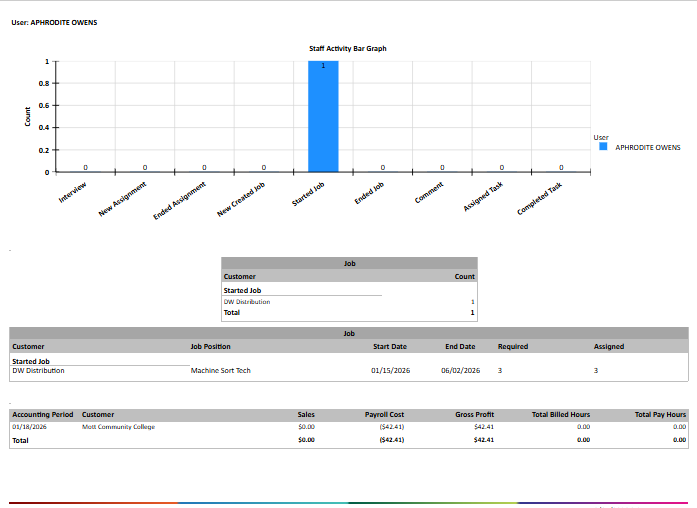
The report features an interactive Staff Activity Bar Graph that visually summarizes activity counts per category, offering an at-a-glance performance snapshot. It also provides drill-down detail tables for every activity type, allowing users to trace exactly which records were touched and when.
This report is essential for:
Branch Managers & Directors: Monitor recruiter productivity, identify top performers, and spot activity gaps.
Operations & HR: Validate that staff are actively working placements, jobs, and tasks within defined periods.
Compliance & Audit Teams: Review comments, assignments, and job lifecycle actions for accountability.
By using this report, staffing companies gain transparency into recruiter-level activity, enabling smarter staffing decisions, performance reviews, and operational accountability.
Report Overview
Attribute | Details |
Purpose | Tracks and displays activity performed by office staff members within a specified date range, including interviews, assignments, job actions, comments, and tasks. |
Classification | Operational / Productivity Report |
Who Should Use This Report | Branch Managers, Operations Managers, HR, Compliance & Audit Teams |
Business Problem Solved | Provides visibility into what each staff member has done during a period, supporting performance management and operational oversight. |
Run Frequency | Daily, Weekly, or as needed for performance reviews and audits |
Related Reports | User Activity, Leaderboard |
Business Value
Category | Description |
Recruiter Productivity | Tracks all activities per staff member including placements, ended jobs, tasks, and comments. Enables objective performance measurement. |
Assignment Lifecycle | Monitors new assignments, rate changes, over-placements, and ended assignments. Identifies bottlenecks in placement workflows. |
Job Management | Tracks newly created, started, and ended jobs per recruiter. Supports accountability over job requisition lifecycle. |
Comment & Task Tracking | Captures comments entered and tasks assigned/completed by each user. |
Known Issues or Limitations
Issues | Description |
Rate Change vs. New Assignment overlap | Rate Change assignments use Assignment Type = Replacement. Multiple changes on the same date may appear as separate rows. |
Over placed assignments shown as New Assignment | Over placed assignment type entries contribute to the New Assignment count in the bar graph. |
Troubleshooting Guide
Issues | Problem Reason | Solution |
No data displayed | User has no activity in the range. | Verify the User selection and confirm the date range matches activity dates. Try selecting 'All' for User to rule out filter issues. |
Comments not appearing | Comments may be linked to entities the user lacks data access to. | Verify data access permissions for the reporting user. |
Assignment counts do not match expectations | Over placed and Rate Change assignments included in New Assignment count. | Review detail section to distinguish assignment types. |
FAQ
Questions | Answers |
Can I run this report for multiple users at once? | Yes, the User parameter accepts a comma-separated list of Person Ids, or you can select 'All' to include all staff you have access to. |
What activities are tracked in this report? | The report tracks 9 activity categories: Interview, New Assignment, Ended Assignment, New Created Job, Started Job, Ended Job, Comment, Assigned Task, and Completed Task. |
Why does a recruiter's activity count differ from what they reported? | The report counts actions recorded in the system within the selected date range. Activities entered outside the range, or made by excluded internal accounts, will not appear. |
Does the report capture comments on all entity types? | Yes. Comments linked to Persons, Assignments, Bills, Invoices, and Tasks are all captured in the Comment activity section. |
How is the Ended Job count determined? | Jobs are counted as Ended when their end date falls within the selected date range and the user (Placed By) matches the selected User parameter. |
Reference Video/Screenshot
Video/Screenshot
Report Details
Category | Value |
Parent Category | Other |
Category | Admin |
Report Type | Paginated Report |
Report runs from Application | RMS |
Report Category: | Shareable |
Report Level | Recruiter |
Report Parameters
Report Parameter | Description | Parameter Options | Default | Required |
Start Date | Filters activity records from this date onward. | Any valid date | Yes | |
End Date | Filters activity records up to and including this date. | Any valid date | Yes | |
User | Filters records to show activity for the selected staff member(s). Accepts multiple comma-separated values. | List of office staff the logged-in user has data access to; or 'All' | All | No |
Show Summary | Controls whether the report returns bar graph summary counts only, or includes full activity detail sections. | True / False | True | Yes |
Report Grouping
The report is grouped by User (office staff member). Within each user section, activities are further segmented by Activity Type:
Interview
New Assignment
Ended Assignment
New Created Job
Started Job
Ended Job
Comment
Assigned Task
Completed Task
Each activity type has its own bar in the Staff Activity Bar Graph (summary) and a corresponding detail table listing the individual records contributing to that count.
Report Columns
Report Column | Description | Definition/Logic |
Recruiter | Name of the office staff member who performed or is associated with the recorded activity. | Identified based on who performed the activity: Assignments → the staff member responsible for placing the worker Jobs → the staff member associated with the job at the time Comments → the user who wrote the comment Tasks → the staff member who created the task |
Activity Type | The category of activity recorded for the staff members. Used as both the X-axis label in the bar graph and as a detail grouping label in the drill-down tables. | Shows the number of unique activity records per category within the selected date range. |
Count | The total number of activities recorded for the staff member within the selected date range for a given activity type. | Displayed only in the bar graph summary. Represents the distinct count of records per activity category filtered by User and date range. Over placed and Rate Change assignment records are included in the New Assignment count. |
User | The name of the office staff member represented by a bar in the Staff Activity Bar Graph. | The selected staff member’s name shown as a legend label for comparison. |
Customer | The name of the customer organization associated with the activity record. | Assignments → the customer the worker was placed with Jobs → the customer requesting the job |
Job Position | The title or position name of the job linked to the activity record. | Assignments → the position the worker was placed into Jobs → the title of the job requisition |
Employee | The name of the employee (field worker) who is placed on the assignment. | Applicable only in the Assignment detail section. Recruiter, who is the office staff member managing the placement. |
Start Date | The date on which the assignment or job became active. | Assignments → when the placement began. (Start date of an Assignment) Jobs → when the job requisition opened. (Start date of a Job) Displayed in MM/DD/YYYY format. |
End Date | The date on which the assignment or job was closed or ended. | Assignments → when the placement ended (blank if still active) (End Date of an Assignment) Jobs → when the job requisition ended (for ended‑job activities) (End Date of a Job) Displayed in MM/DD/YYYY format. |
Activity Date | The date on which the assignment activity event was captured in the system. | Assignment‑specific. Shows when the action was recorded in the system (new placement, rate change, over placement, or end). May differ from the assignment’s start or end date. |
Job Type | The category of job action recorded for the staff member in the Job detail section. | Shown only in job details. |
Required | The total number of positions requested by the customer for the job. | Job-specific. The number of workers the customer needs for that job. |
Assigned | The number of positions on the job that have been filled with active assignments. | Job-specific. Shows how many workers are currently assigned to that job when the report runs. |
Comment Date | The date and time the comment was entered into the system. | Date and time the comment was created. |
Entity Type | The type of record the activity is linked to, identifying the context in which the comment or task was created. | Shows the type of record the activity is connected to, such as: For Comments → Person, Assignment, Bill, Invoice, or Task For Tasks → Person, Organization, Assignment, or Task Comment |
Comment Type | The category or classification of the comment as configured in the system. | For comments only. The category selected when the comment was created |
Comment Text | The full body text of the comment entered by the staff member. | The full-readable text of the comment. |
Task Date | The date the task was created or entered into the system. | The date the task was originally created (not when it was completed or last updated). |
Task Name | The title or description of the task as entered by the staff member. | The name of the task. |
Task Status | The current status of the task, indicating whether it is pending or finished. | Shown as Assigned (open) or Completed (finished). Both appear in the report and match the bar‑graph categories. |