Summary
The Audit Log Report is designed to track and display changes made to key entities (such as Assignments, Applicants, Jobs, Employees, Customers, etc.) within the system. It provides visibility into who made changes, when they were made, and what values were updated, ensuring accountability and transparency.
This report is especially useful for recruiters, managers, and compliance teams who need to monitor data integrity and investigate unexpected changes. It supports filtering by entity, category, and date range (up to 90 days), making it flexible yet controlled for performance.
Key highlights:
Tracks field-level changes with previous and updated values.
Identifies user or system-driven updates.
Provides audit history for compliance and troubleshooting.
Exportable to Excel for further analysis.
Report Overview
Attribute | Details |
Purpose | To provide a detailed audit trail of changes across assignments, applicants, jobs, and other entities. |
Classification | Compliance / Monitoring |
Who Should Use This Report | Recruiters, HR managers, compliance officers, system administrators |
Business Problem Solved | Helps identify unauthorized or unexpected changes, supports compliance audits, and reduces disputes by showing clear change history. |
Run Frequency | On demand (typically used during investigations or weekly compliance checks) |
Related Reports | Time Keeping Audit Log, Email Log, I9 Log, E Verify Log, User Log, Pay Check Sign Off Log, Whippy AI Job Candidate Log |
Business Value
Category | Description |
Compliance | Ensure transparency and accountability by tracking all changes. |
Troubleshooting | Helps quickly identify root causes of data discrepancies. |
Operational Efficiency | Reduces support tickets by empowering staff to self-check changes. |
Risk Management | Detect unauthorized or suspicious updates to sensitive data. |
Known Issues or Limitations
Issues | Description |
This report can’t accept longer than a 90‑day date range. Attempting to run beyond this throws an exception. | Large volumes of data changes slow down performance and cause timeouts. |
Category Dependency | Categories displayed depend on the selected “Relates To” entity, which may confuse new users. |
Export Failures | Very large datasets may fail to export to Excel or take excessive time. |
Troubleshooting Guide
Issues | Problem Reason | Solution |
Report fails with date range error | User selected more than 90 days | Adjust Start and End Date to fit within 90 days. |
No data returned | Incorrect entity or category selected | Narrow down filters (e.g., specify Assignment ID or Category). |
Slow performance | Too many filters left blank, pulling excessive data | Narrow down filters (e.g., specify Assignment ID or Category). |
Export not working | Excel export fails due to large dataset | Reduce date range or filter by specific entity before exporting. |
FAQ
Questions | Answers | ||
What should I do if I suspect unexpected applicant stage changes? | Check the Audit Log Report first. It will show whether the change was system-driven or performed by a recruiter. | ||
Why does the report only allow 90 days? |
| ||
Can I filter by a specific assignment or applicant? | Yes, use the “Relates To Value” parameter to filter by ID. | ||
Why does “Updated By” sometimes show Automation User? | This indicates that the change was made by an automated system task (e.g., auto status change), not a human user. |
Reference Video/Screenshot

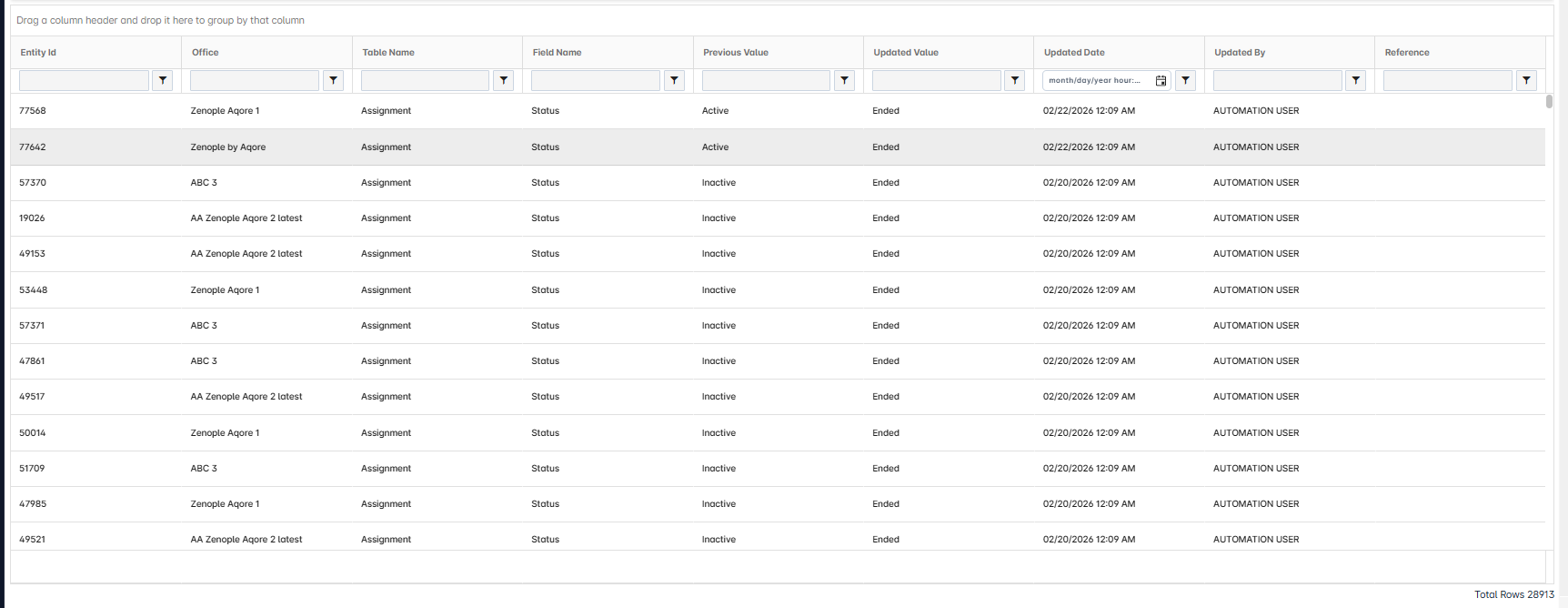
Report Details
Category | Value |
Parent Category | Other |
Category | Log |
Report Type | Spreadsheet |
Report runs from Application | EIS, AMS, RMS |
Report Category: | Application and Shareable |
Report Level | History Data |
Report Parameters
Report Parameter | Description | Parameter Options | Default | Required |
Relates To | Filters records for the selected entity if records have been changed | Applicant, Assignment, Assignment Schedule, Customer, Employee, Job, Job Candidate, New Hire, Scheduled Job, Target, Tax Rate | EIS >employee AMS>assignment (Based on the application, default value is passed for a corresponding entity) | Yes |
Relates To Value | Filters by ID of the selected Relates To entity | EIS >employee>person Id AMS>assignment> assignment Id | No | |
Start Date | Filters records changed within the date range | None | Yes | |
End Date | Filters records changed within the date range | None | Yes | |
Category | Filters records for the selected category of the chosen entity | Dropdown list varies by selected Relates To entity | All | No |
Report Grouping
Report Columns
Report Column | Description | Definition/Logic |
Entity Id | Entity Id | Displays the ID of the selected entity (e.g., Assignment ID if “Relates To = Assignment”). |
Office | Office Name | Office name tagged in the related entity. |
Table Name | Table Name | Shows the table or category where the change occurred. |
Field Name | Field Name | Displays the exact field name that was updated. |
Previous Value | Previous Value | Shows the value before the change. |
Updated Value | Updated Value | Shows the value after the change. |
Updated Date | Updated Date | Date and time when the change occurred. |
Updated By | Updated By | Name of the person who made the update. |
Reference | Reference | Displays reference only when changes occur in a Task (e.g., “Task : Task Name”). |
Additional Notes:
Any changes triggered by auto-update tasks (for example, automatic status changes) will be recorded as actions performed by the Automation User. |