AI Insights 360: User Documentation
1. Introduction
The AI Insights 360 Profile is an intelligent, quick-access side panel designed to provide recruiters with instant, comprehensive visibility into an employee’s or candidate’s professional lifecycle. Designed to seamlessly integrate into the recruiter's workflow without requiring full-screen navigation, this tool leverages Artificial Intelligence to instantly synthesize complex historical data into actionable insights.
The profile serves as a centralized source of truth, empowering recruiters to evaluate candidate efficiency, reliability, and readiness. Key capabilities include:
- Insight 360 AI Chat Assistant: A built-in conversational AI interface that lets recruiters ask natural-language questions about the candidate. Conversations are automatically saved, searchable by history, and can be resumed at any time, making it a persistent knowledge tool rather than a one-time lookup.
- Key Performance Metrics & Utilization: Quantitative snapshots of the candidate's track record, including visual trendlines and deep-dive engagement statistics.
- Recent Employment History & Outcomes: Leveraging AI to analyze direct employer feedback, surfacing critical details like End Reason, Overall Rating, and Assignment Outcome
- AI-Generated Insights: Automated, deep-dive analyses covering strengths, performance trends, and placement recommendations.
- Actionable Compliance Tracking: Real-time auditing of mandatory documents, assessments, tasks, and background check statuses, surfacing missing requirements as immediate action items.
- Aqore AI Job Recommendations: Intelligent job matching that surfaces open positions aligned with the candidate's skills, experience, and location, complete with match scores and AI-generated explanations for each recommendation.
2. Profile Overview (Section-by-Section Breakdown)
2.1 Profile Header (Top Banner)

Located at the very top of the 360 Profile side panel, the Header Banner provides recruiters with immediate identification and essential contact details for the candidate. This section is designed for quick reference and contains the following elements:
- The candidate's name prominently displayed
- A "Live Analysis" indicator showing the data is current
- Four quick-action buttons described below
Quick-Action Buttons:
Button | What It Does |
|---|---|
Ask Questions | Opens the AI chat assistant so you can ask questions about this candidate in plain English |
Explore Highlights | Scrolls you down to the Key Insights section where the AI has summarized the candidate's strengths, concerns, and recommendations |
Review Performance Snapshot | Scrolls you down to the Performance Overview chart showing how the candidate has been rated over time |
View Resume | Opens the candidate's resume in a document viewer. If no resume is on file, you will see a message saying "No resume found for this candidate." |
2.2 Key Metrics

Immediately below the header, this section provides recruiters with top-level quantitative data regarding the candidate’s overall tenure and operational reliability.
- Total Assignments: Represents the total number of assignments the candidate has taken on.
- Completion Rate: Indicates the percentage of assignments the candidate has successfully finished. For example, if a candidate successfully completes 2 out of 4 total assignments, their completion rate will display as 50%.
- Avg Rating: The candidate's overall average performance score, calculated across all assignments they have completed to date.
- Experience: Denotes the candidate's total cumulative years of professional work experience.
- Reliability: A comprehensive, AI-driven score that reflects the candidate's overall dependability. A letter grade (A through F) reflects how dependable a candidate is, based on attendance history, work patterns, and any recorded incidents.
• A — Excellent: Consistently strong attendance, stable work history, and no major issues.
• B — Good: Minor concerns may exist, but overall reliability remains high.
• C — Average: Some attendance or performance patterns that should be reviewed before placement.
• D — Below Average: Noticeable concerns that require careful consideration prior to placement.
• F — Poor: Significant reliability issues. Proceed with caution.
2.3 Utilization Metrics & Engagement Analysis
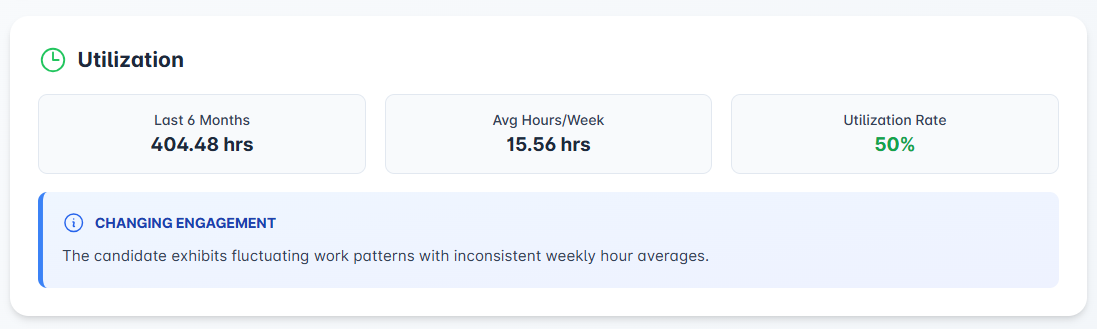
This data tile provides a quantitative assessment of the candidate's recent work intensity and consistency. It breaks down labor data from the past six months to help recruiters evaluate how active the candidate has been in the workforce.
- Last 6 Months: Displays the cumulative total of billable hours the candidate has logged over the past six-month period.
- Avg Hours/Week: Represents the average number of hours worked per week during this timeframe, offering a clear baseline for the candidate's typical weekly availability.
- Utilization Rate: A percentage-based score reflecting the consistency of the candidate's employment over the last half-year (26 weeks).
- Calculation Logic: Over the last 26 weeks, the candidate logged a total of 404.48 hours, averaging 15.56 hours per week. Out of these, 13 weeks exceeded 8 total hours, qualifying as active weeks. The Utilization Rate is therefore calculated as:
13 ÷ 26 = 50%.
- Calculation Logic: Over the last 26 weeks, the candidate logged a total of 404.48 hours, averaging 15.56 hours per week. Out of these, 13 weeks exceeded 8 total hours, qualifying as active weeks. The Utilization Rate is therefore calculated as:
- Engagement Status (AI Insight): At the bottom of the tile, the system provides a contextual summary (e.g., "LOW ENGAGEMENT"). This automated insight interprets the metrics to flag candidates with minimal recent activity, advising the recruiter that the candidate may require re-engagement or verification of their current interest and availability.
2.4 Weekly Hours Worked (Last Six Months)
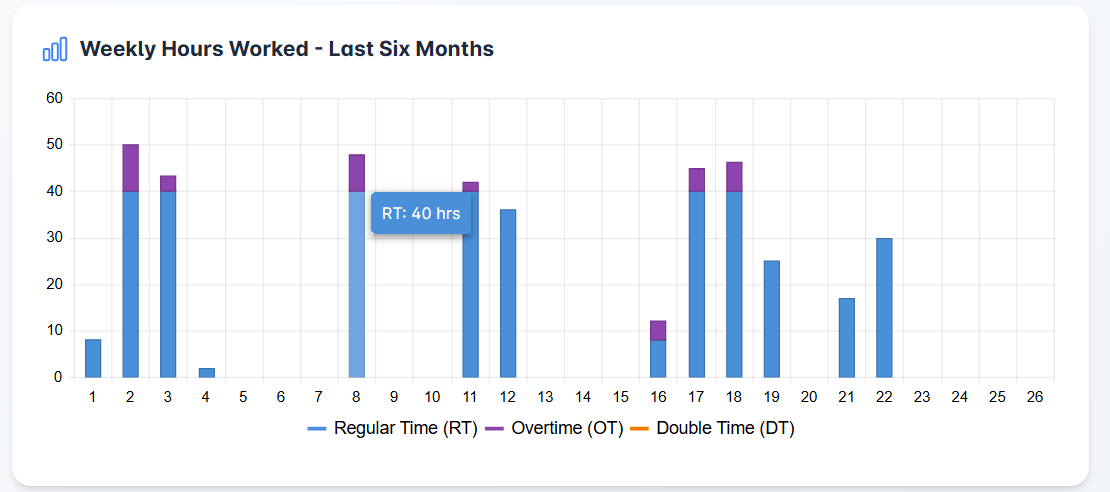
This visual analytics tile provides a precise, week-by-week breakdown of the candidate's labor engagement over the past 26 weeks. By plotting the exact number of hours logged for each week, this chart allows recruiters to instantly assess the candidate's recent work habits and availability.
Broken down by type of time:
Color | Time Type | Meaning |
|---|---|---|
Blue | Regular Time (RT) | Standard working hours |
Purple | Overtime (OT) | Hours beyond the standard work week |
Orange | Double Time (DT) | Premium hours (typically holidays or extended overtime) |
The bars are stacked, so the total height of each bar represents the total hours for that week. Hover over any bar to see the exact number of hours.
If this chart does not appear, the candidate does not have enough time entry data in the last six months.
2.5 Compliance Status & Action Required
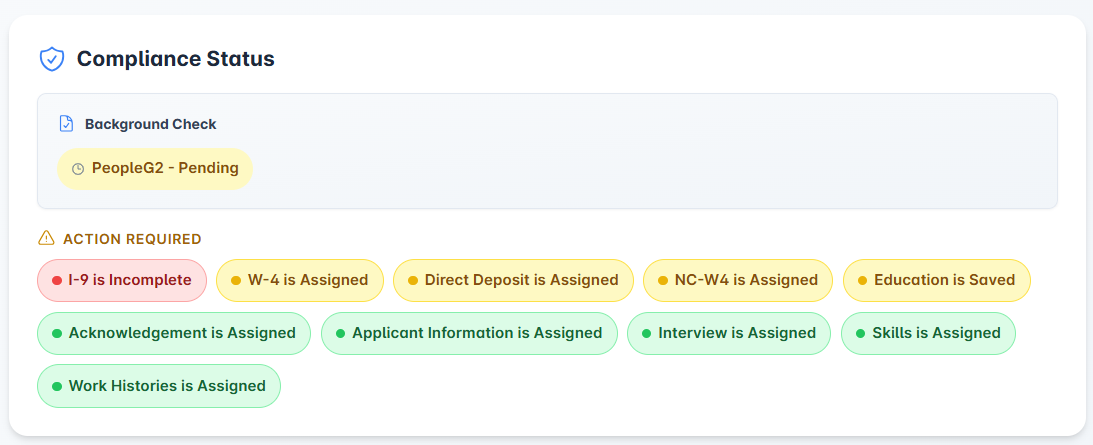
The Compliance Status section provides recruiters with real-time visibility of the candidate's onboarding and legal readiness. This section acts as an automated checklist, ensuring the recruiter knows exactly what is needed before the candidate can be safely deployed. It is broken down into two main areas:
- Background Check: Displays the status and latest records of the candidate's background screening (e.g., indicating if it is cleared, pending, or if there are "No background check records" currently on file).
- Action Required: An automated, prioritized list of compliance gaps that demand the recruiter's immediate attention. This area actively flags:
- Missing or Incomplete Tasks: Critical onboarding and legal documents that the candidate has not yet submitted (e.g., flagged as "CRITICAL: Missing I-9, W-4, E-Verify, or W2").
- Expired Items: Any previously completed documents, assessments, or screenings (such as drug screens) that have passed their expiration date and are no longer valid.
- Expiring Soon (Within 1 Week): Proactive alerts for any documents or assessments that are scheduled to expire within the next seven days, allowing recruiters to take preventative action before the candidate becomes non-compliant.
2.6 Activity Timeline

Three cards showing the candidate's most recent activity dates:
Card | What It Shows |
|---|---|
Last Assignment | The start and end dates of the most recent job assignment |
Last Pay Date | The date of the most recent paycheck issued to this candidate |
Last Contacted | The date someone from your team last reached out to or communicated with this candidate |
What "—" means on any card: That particular date has not been recorded in the system.
This section is useful for identifying candidates who may have fallen out of touch or have been idle for a long time.
2.7 Aqore AI Job Recommendations
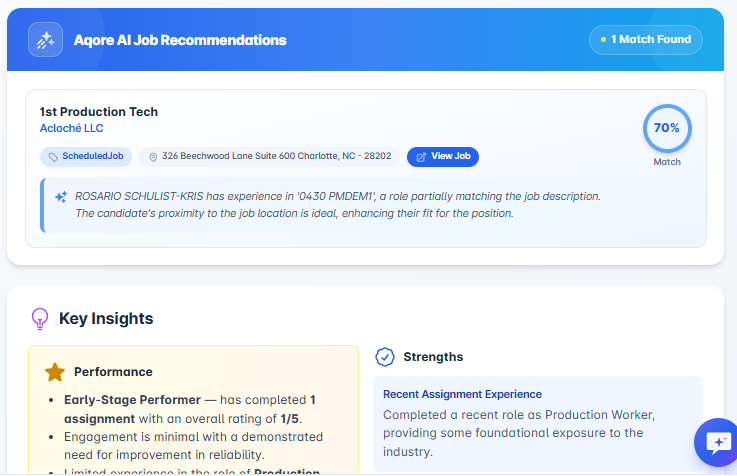
This section only appears when the AI has found open jobs that match this candidate's skills, experience, and location.
For each recommended job, you will see:
- Job title and company name
- Match score— A percentage shown in a circular badge (top-right of each card) indicating how well this candidate fits the job. Higher is better:
- 80%+ (green) — Strong match
- 60–79% (blue) — Good match
- 40–59% (yellow) — Moderate match
- Below 40% (orange) — Weak match
- Job type (e.g., Temporary, Direct Hire)
- Work location
- AI Insight — Hover over this tag to read the AI's explanation for why this job was recommended
2.8 AI-Generated Key Insights
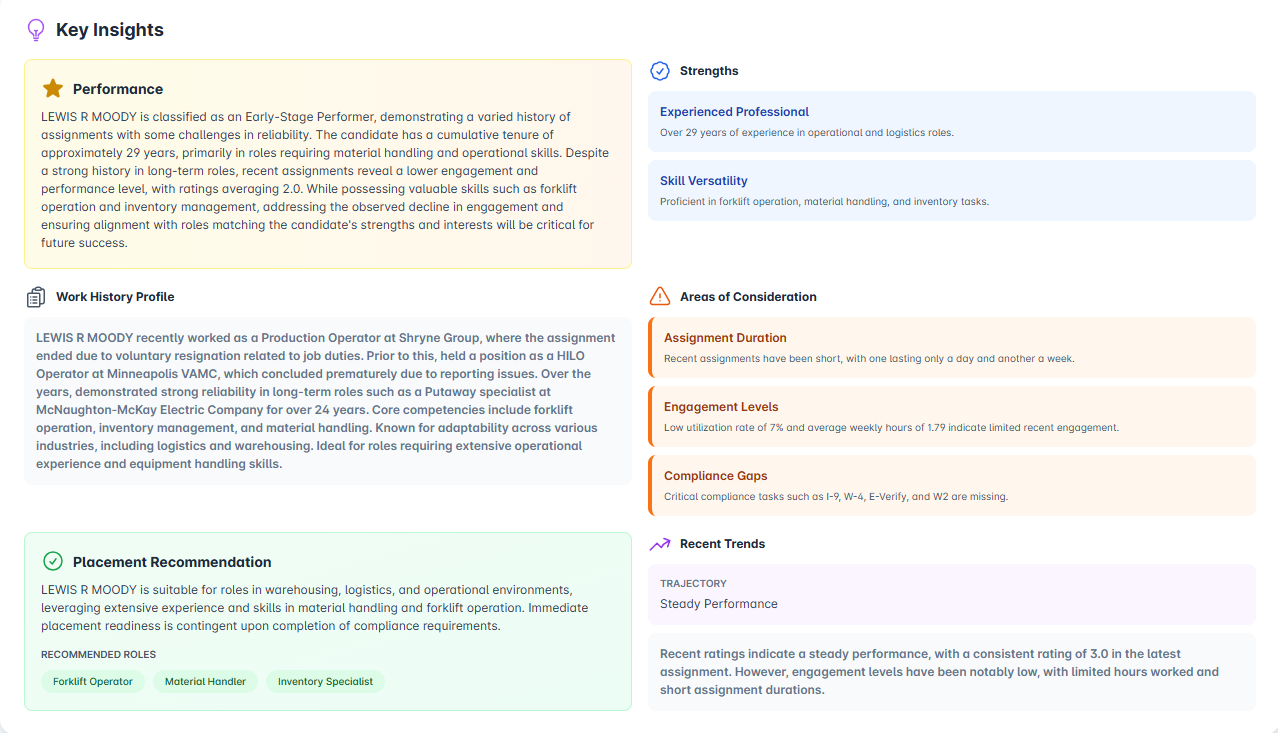
This section serves as the analytical core of the Candidate 360 Profile. Rather than displaying raw data, the system utilizes AI to synthesize the candidate's entire past and recent employment history. It processes performance patterns, employer feedback, and engagement data to generate six actionable insight tiles:
1. Performance Analysis
The AI generates a narrative summary of the candidate's professional standing. It evaluates the "Performance State" (e.g., Early-Stage Performer, Top Performer) by comparing recent assignment results against their long-term career history. This narrative explains the quality of their work tenure, highlighting whether they are consistent, improving, or facing recent reliability challenges.
2. Strengths
Going beyond a basic skills list, this tile identifies the distinct professional qualities and versatile capabilities the candidate possesses. It highlights:
- Professional Maturity: (e.g., "Experienced Professional" with 29+ years tenure).
- Skill Versatility: The breadth of their abilities (e.g., combining forklift operation with inventory management).
3. Work History Profile (Context & Outcomes)
This section provides a deep-dive analysis of recent work history. Instead of just listing dates, the AI contextualizes why and when assignments ended. It contrasts recent roles (including specific End Reasons like "Voluntary Resignation" ) against long-term historical successes to provide a balanced view of the candidate's adaptability and reliability.
4. Areas of Consideration (Risk Assessment)
This critical risk-management engine scans the profile for red flags and potential barriers to placement. It proactively identifies issues such as:
- Compliance Gaps: Missing critical documents (I-9, W-4, etc.).
- Assignment Duration: Frequent short-term stints that may indicate instability.
- Engagement Levels: Low utilization rates or low weekly hours.
- Performance Patterns: Recurring issues like early terminations or safety incidents.
- Restrictions: Specific limitations such as shift restrictions or physical constraints.
5. Placement Recommendation
Based on the synthesis of skills and history, the AI suggests the Best Fit environment for the candidate.
- Environment: Identifies the industry best suited for them (e.g., Warehousing, Logistics).
- Readiness: States if placement is contingent on specific actions (e.g., "Contingent upon completion of compliance requirements").
- Recommended Roles: Suggests specific job titles (e.g., Forklift Operator, Material Handler) where the candidate is most likely to succeed.
6. Recent Trends (Trajectory)
This tile analyzes data specifically from the last six months to visualize the candidate's current momentum.
- Trajectory Status: Classifies the trend (e.g., "Steady Performance," "Declining," or "Improving").
- Analysis: A summary explaining the trajectory based on recent rating averages versus engagement hours, helping the recruiter understand if the candidate is currently highly motivated or disengaged.
2.7 Dynamic Assignment & Employment History
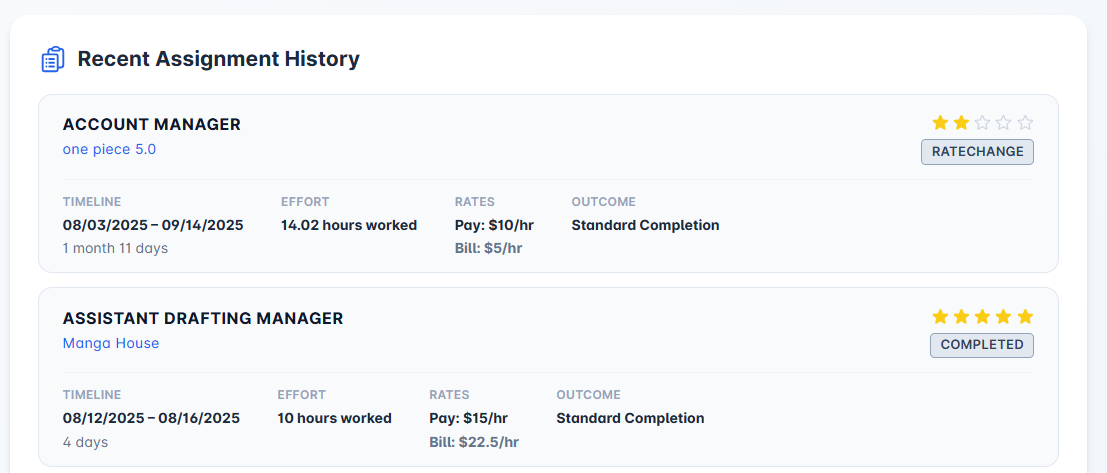
This intelligent section dynamically adapts its display based on the data available in the system.
- System Records Found: If the candidate has worked on completed assignments tracked by your agency, the profile prioritizes and displays the Recent Assignment History (showing the 5 most recent records).
- No System Records: If the candidate is new to the agency, the system automatically falls back to displaying their Past Employment History parsed from their resume or application.
If Assignment History Is Available (Staffing Assignments)
Each assignment card shows:
Field | Meaning |
|---|---|
Job Title | The role the candidate held |
Client | The company where they were placed |
Star Rating | 1–5 stars showing performance (filled stars = earned rating) |
End Reason | Why the assignment ended (e.g., "Completed," "Terminated," "Resigned") |
Timeline | Start and end dates, plus duration |
Effort | Total hours worked on this assignment |
Rates | Pay rate and bill rate per hour (if available) |
Outcome | A summary of how the assignment concluded |
Feedback | This section is automatically generated by AI by analyzing the most recent 5 comments on the assignment and summarizing them into a single consolidated feedback statement that reflects the client’s overall opinion, key concerns, and suggestions. |
If No Assignment History Is Available (Employment History Fallback)
The system falls back to showing the candidate's general employment history instead, with:
- Job title and company name
- Employment dates
- Reason for leaving (if recorded)
If neither history is available, you will see: "No history found."
This interactive chart provides a dual-layer visualization of the candidate's recent work history, combining assignment timeline data with performance quality metrics. It allows recruiters to instantly correlate where a candidate worked with how well they performed.
- Assignment Timeline (Visual Bars): Vertical colored bars are plotted along the timeline to represent specific assignments at different client organizations.
- Organization Segregation: Each distinct color represents a different employer (e.g., Coffee Concepts, Minneapolis VAMC), making it easy to see if a candidate hops between many different companies or returns to the same ones.
- Tenure Visualization: The placement of the bars indicates exactly when the candidate was active during the last six months.
- Performance Rating Trendline: A continuous line graph overlays the assignment bars, plotting ratings on a 0-5 scale to instantly visualize performance trajectories (stable, improving, or declining) over time.
- Interactive Tooltips: Hovering over specific data points reveals a detailed card containing the Organization Name, Job Title, Duration, Rating, and End Reason (e.g., Scheduled Assignment), ensuring recruiters have deep context on why an assignment ended without cluttering the view.
2.8. Insight 360 AI Chat
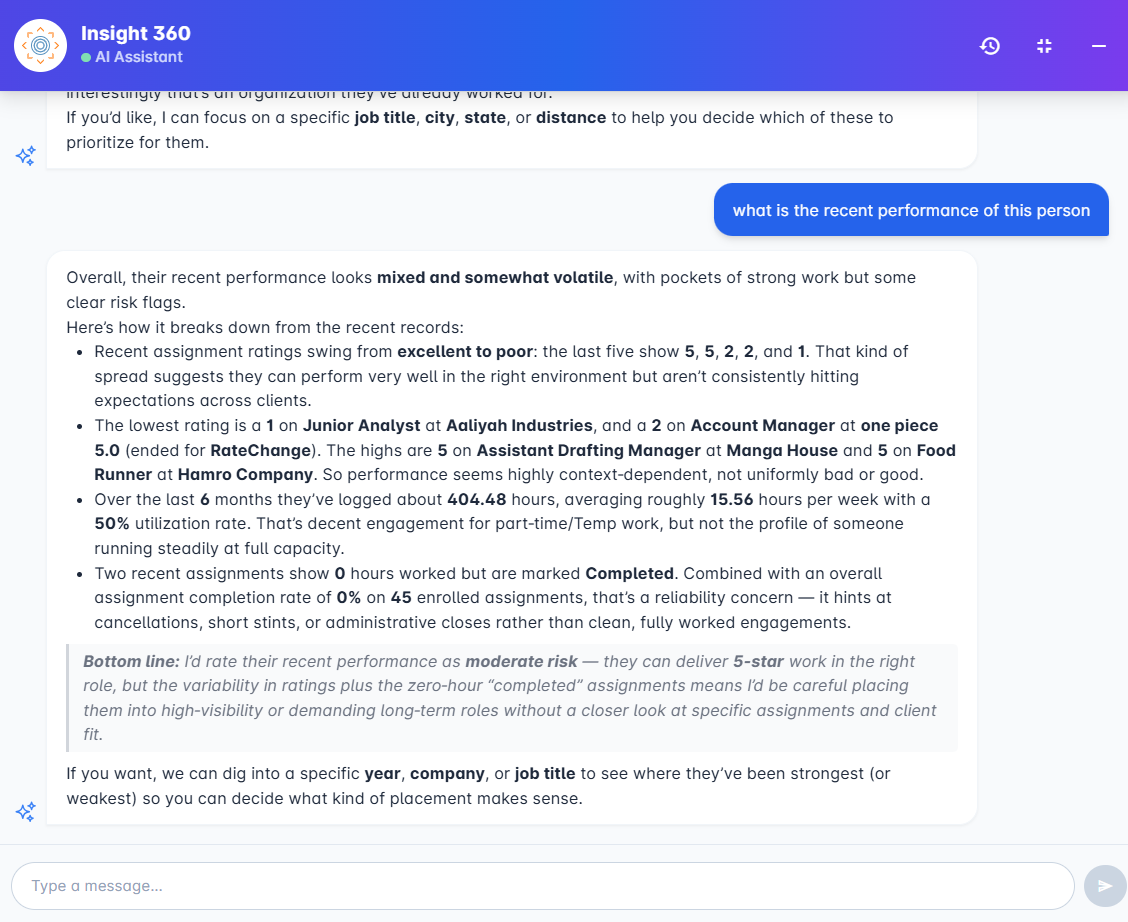
The Insight 360 AI Chat is a built-in conversational assistant embedded directly within the candidate profile panel. It allows recruiters to ask plain-English questions about a candidate and receive immediate, data-backed answers without leaving the profile screen.
Unlike the static sections of the profile that display pre-generated summaries, the chat assistant performs live data lookups in real time. When you ask a question, the AI determines which data sources are relevant, retrieves the latest information from the system, and composes a response tailored to your specific question.
Chat Capabilities - What the AI Can Look Up
The assistant can access up-to-date information when needed. It automatically determines what information is required based on your question, so you don’t need to choose or configure anything.
Capability | What It Retrieves | Example Questions |
|---|---|---|
Employment History | The candidate's full employment record including past employers, job titles, dates, and reasons for leaving. | "Where has this person worked before?" · |
Assignment History | Detailed staffing assignment records including client names, job titles, duration, ratings, hours worked, pay/bill rates, outcomes, and supervisor feedback. | "Show me their recent assignments." · "Is there any ncns flag?" · |
Compliance Tasks | Outstanding and completed compliance requirements — documents, assessments, certifications, and onboarding tasks assigned to the candidate. | "Are there any missing documents?" · "What tasks still need to be completed before placement?" |
Payment History | The candidate's payment records include check dates, amounts, and payment details. | "When was their last paycheck?". "Show me their recent payment history." |
Tax Data | Tax-related records and withholding information on file for the candidate. | "What tax forms are on file?" · "What's their tax withholding status?" |
Adjustments | Any pay adjustments, corrections, or manual entries applied to the candidate's records. | "Have there been any pay adjustments?" · "Were there any corrections on their last check?" |
Job Matching | Active open positions that match the candidate's skills, experience, location, and preferences — with AI-generated match scores and reasoning. | "What jobs match this candidate?" · "Are there any warehouse positions near them?" |
Timesheet Data | Time entry records include hours worked per day, regular time, overtime, double time, and timesheet approval status. | "How many hours did they work last week?" |
Key Features
- Real-Time Streaming Responses
The AI streams its answers word by word as they are generated, so you see results immediately rather than waiting for the full response to finish. - Quick-Start Suggestions
When you first open the chat, you are presented with one-click suggestion buttons for common questions — "Top strengths?", "Recent performance", "Any concerns?", "Matching jobs?", and "Assignment history" — so you can get started without typing. - Conversation Memory
The AI retains the context of your current conversation (up to the last 10 messages), so follow-up questions work naturally. For example, you can ask "Tell me about their assignments" and then follow up with "Which one had the highest rating?" without repeating yourself. - Conversation History & Persistence
Every conversation is automatically saved with a title derived from your first message. You can:- View all past conversations grouped by date (Today, Yesterday, This Week, This Month, and older)
- Resume any previous conversation and continue asking questions
- Start a new conversation at any time
- Delete conversations you no longer need (with confirmation)
- Expand & Minimize
- Click the full-screen icon to expand the chat across the entire profile panel for easier reading of longer responses.
- Click full-screen exit to return to the compact floating window.
- Click the minus icon to minimize the chat back to the floating button without losing your place.
3. Navigation & Access
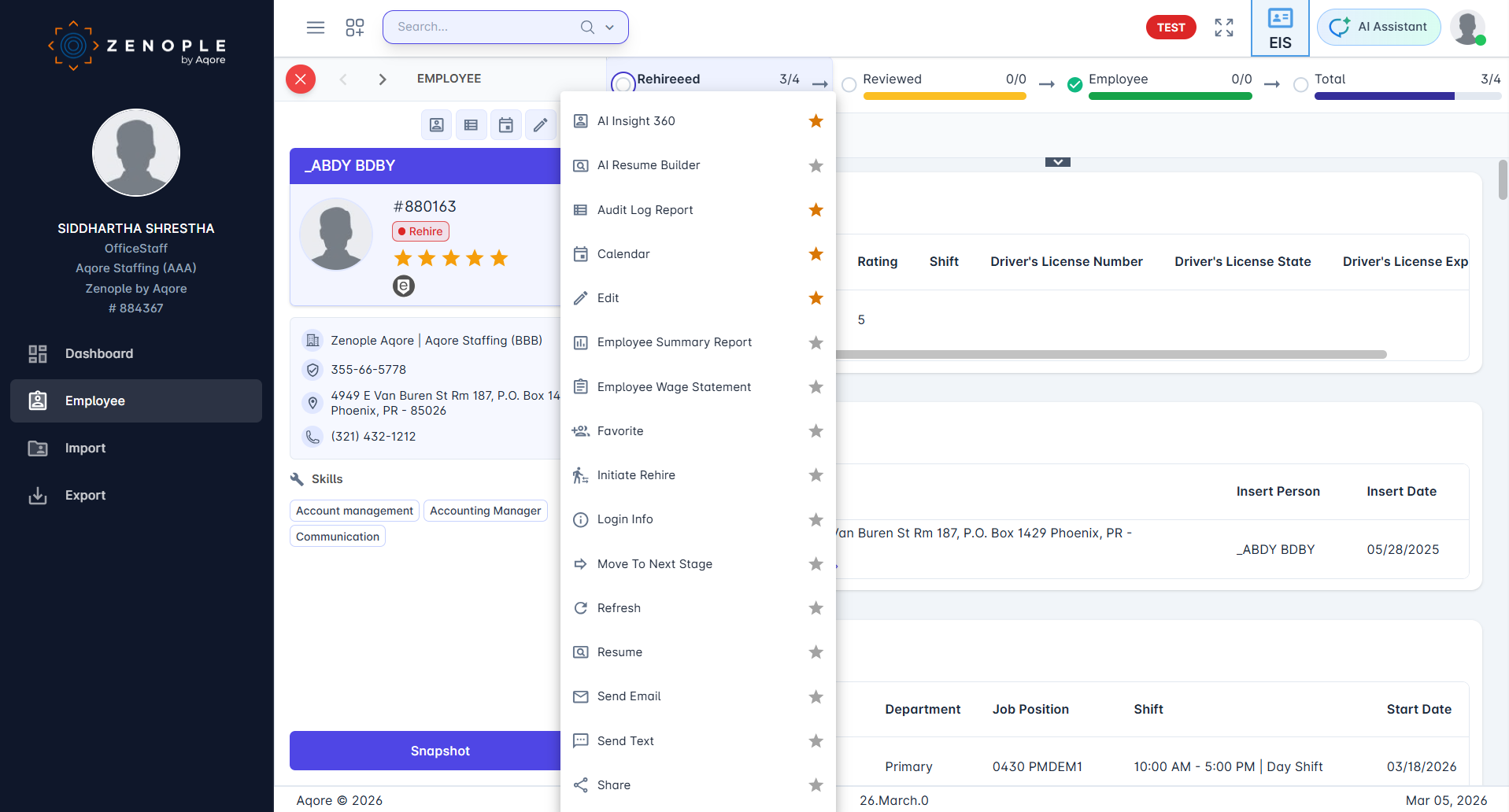
The AI Insights 360 is seamlessly integrated into the Employee Information system. To access this feature for a specific candidate or employee, follow these steps:
- Navigate to Employee Directory: From the main dashboard, select the Employee module to access the full directory.
- Select Employee Record: Locate and click on the specific employee's profile (e.g., path: /employee/directory/{id}/employee).
- Open Action Menu: Once inside the employee's file, click the Action button (located in the top menu bar) to reveal the function dropdown.
- Launch Profile: From the list of available actions, select AI Insights 360. This will immediately trigger the side-panel view containing the full analytics dashboard.