Best Practice Guidelines for Configuring Match Recommendations
How to Enable Candidate Recommendation Feature
Step 1: Enable Match Recommendation
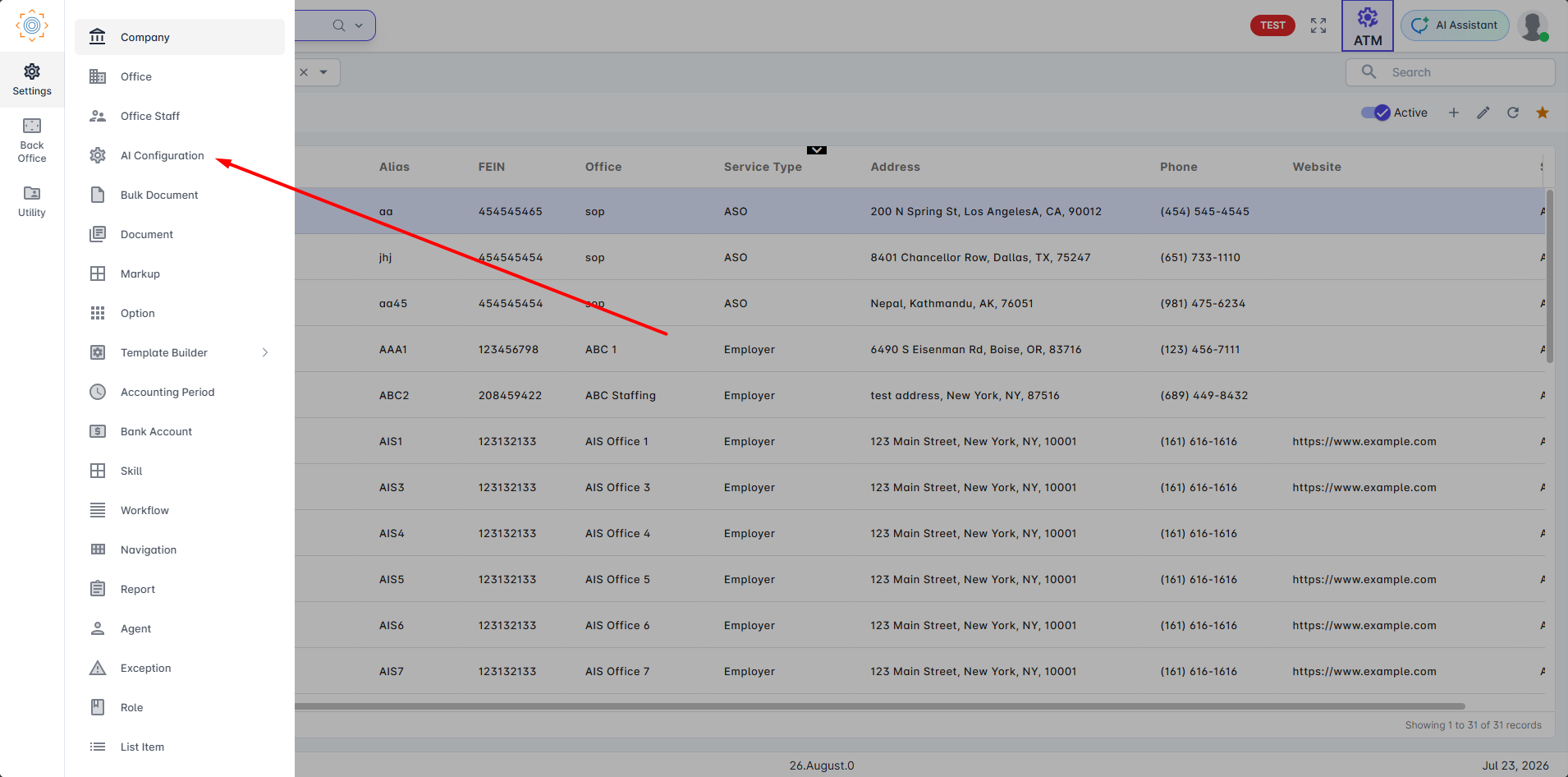
- Go to ATM then click on AI Configuration
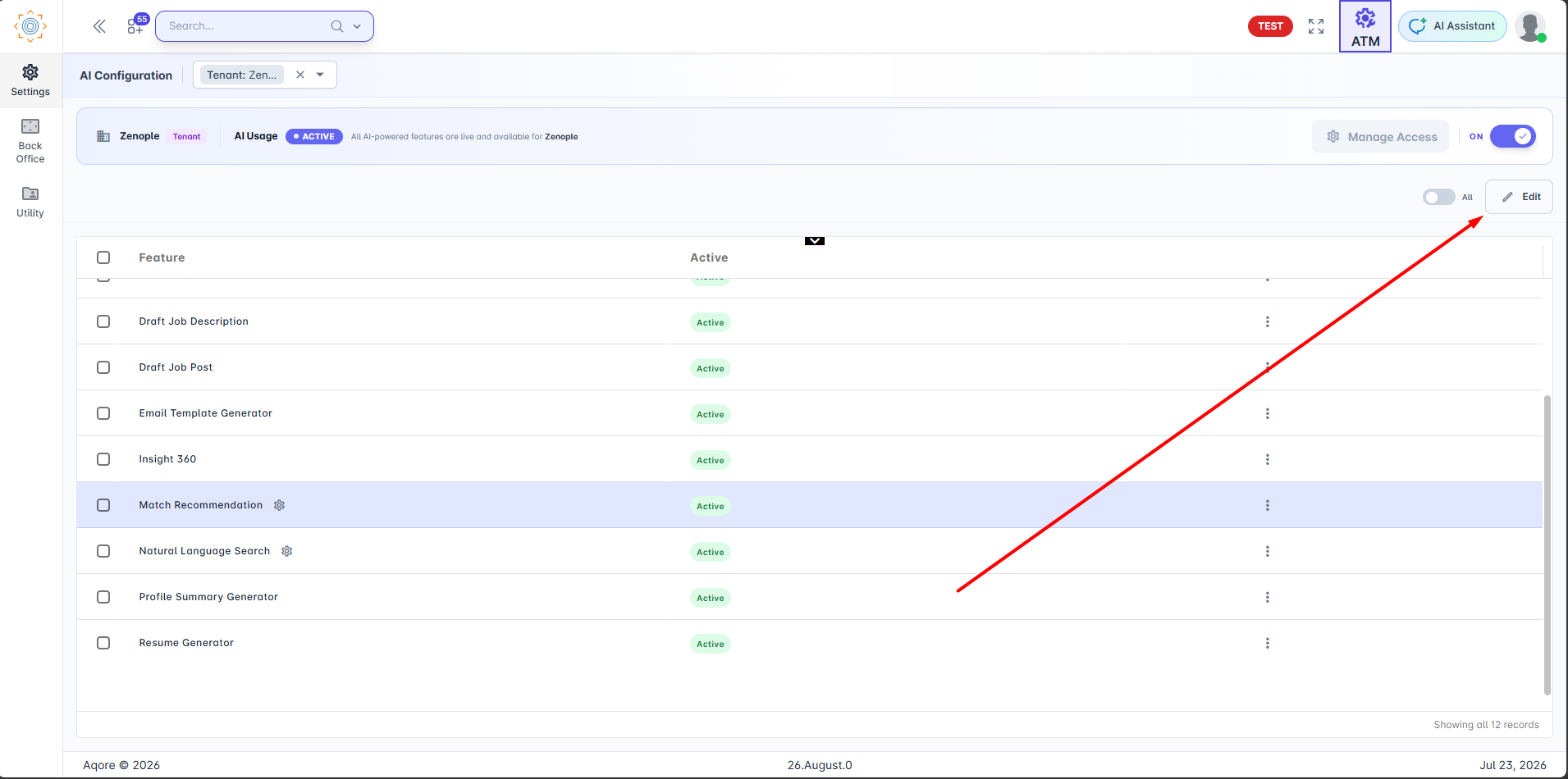
- Click on Edit
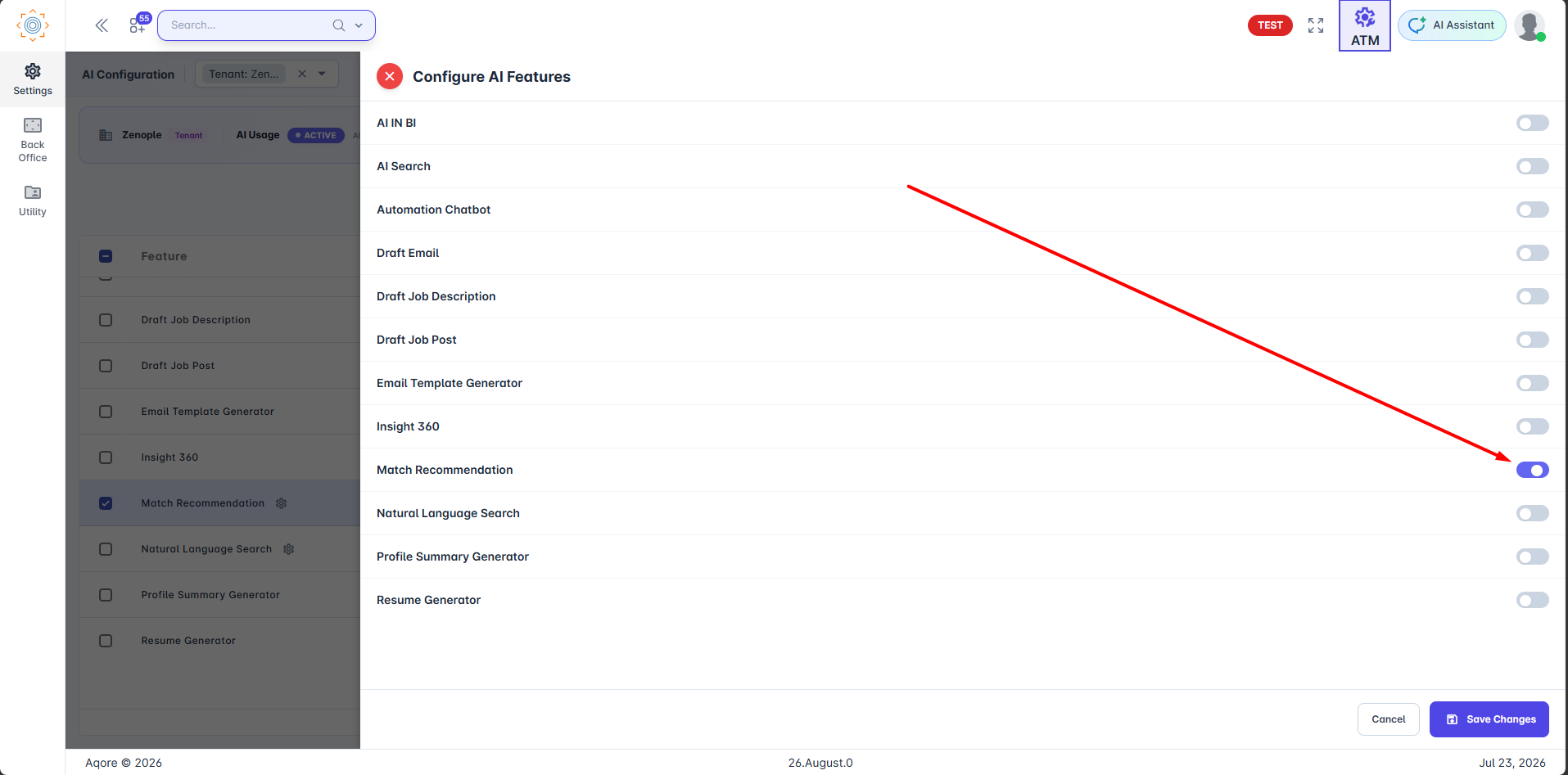
- Enable Match Recommendation then save the changes
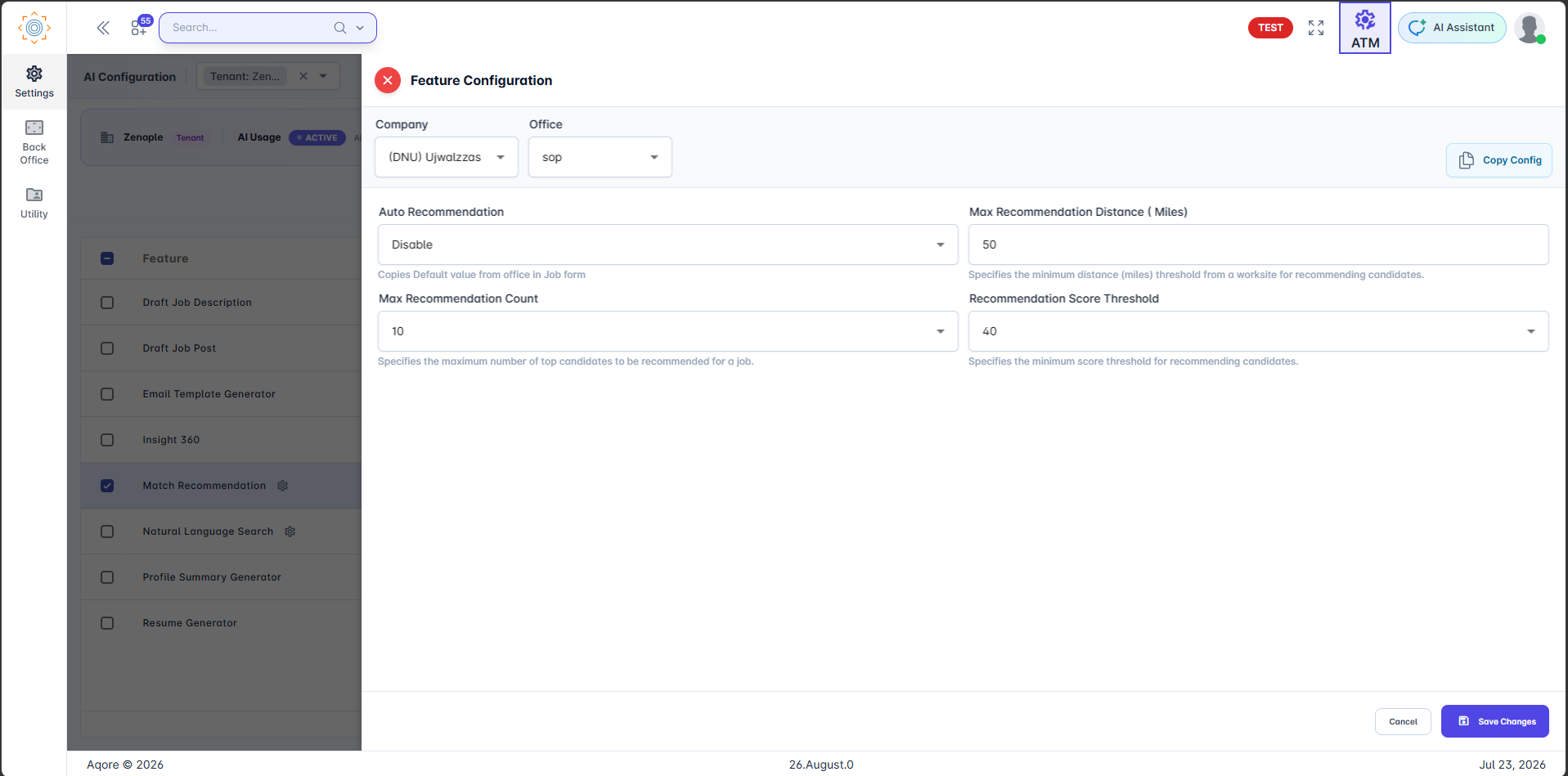
Step 2: Feature Configuration
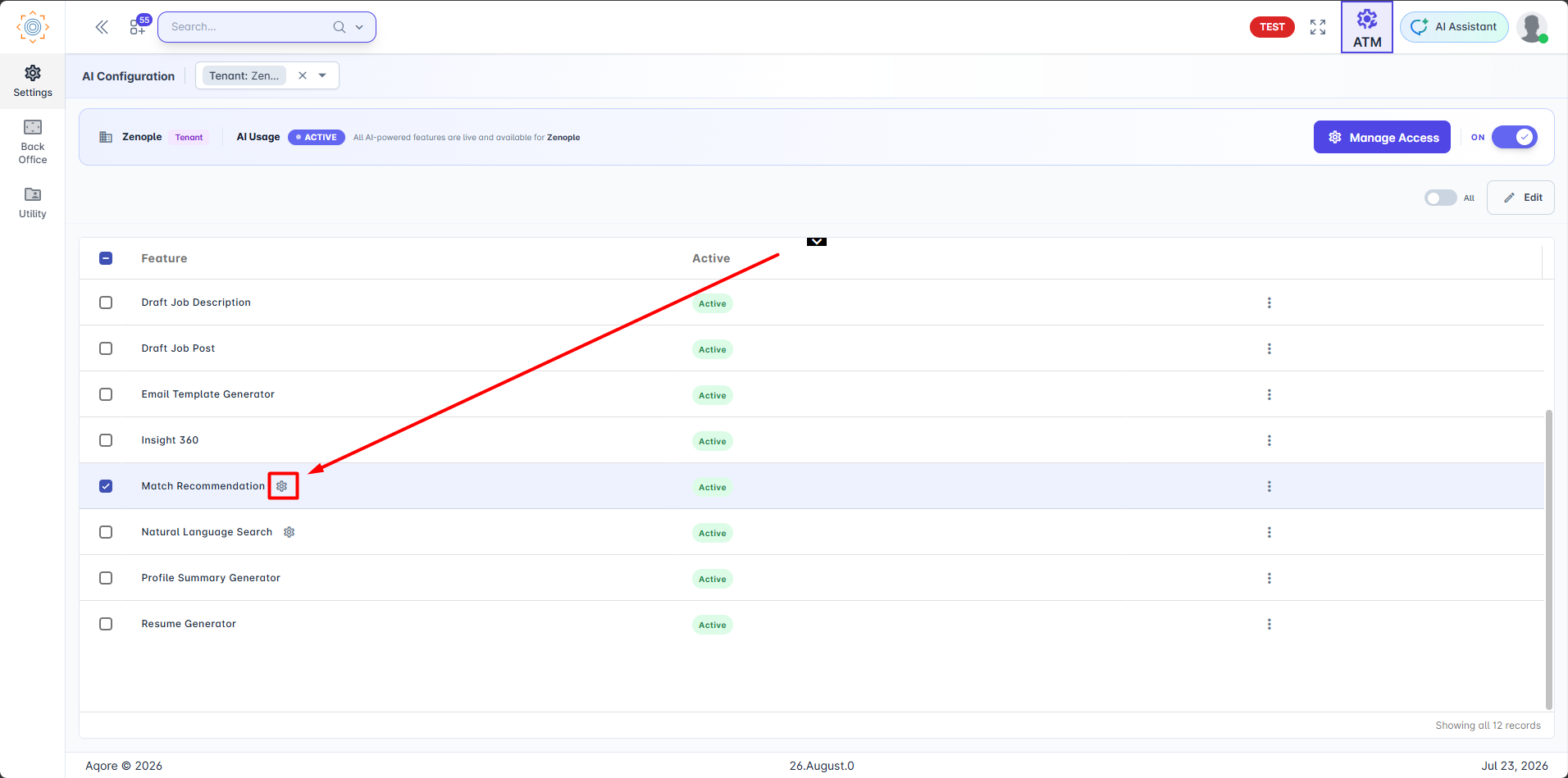
- Click on settings Icon in Match Recommendation Row.
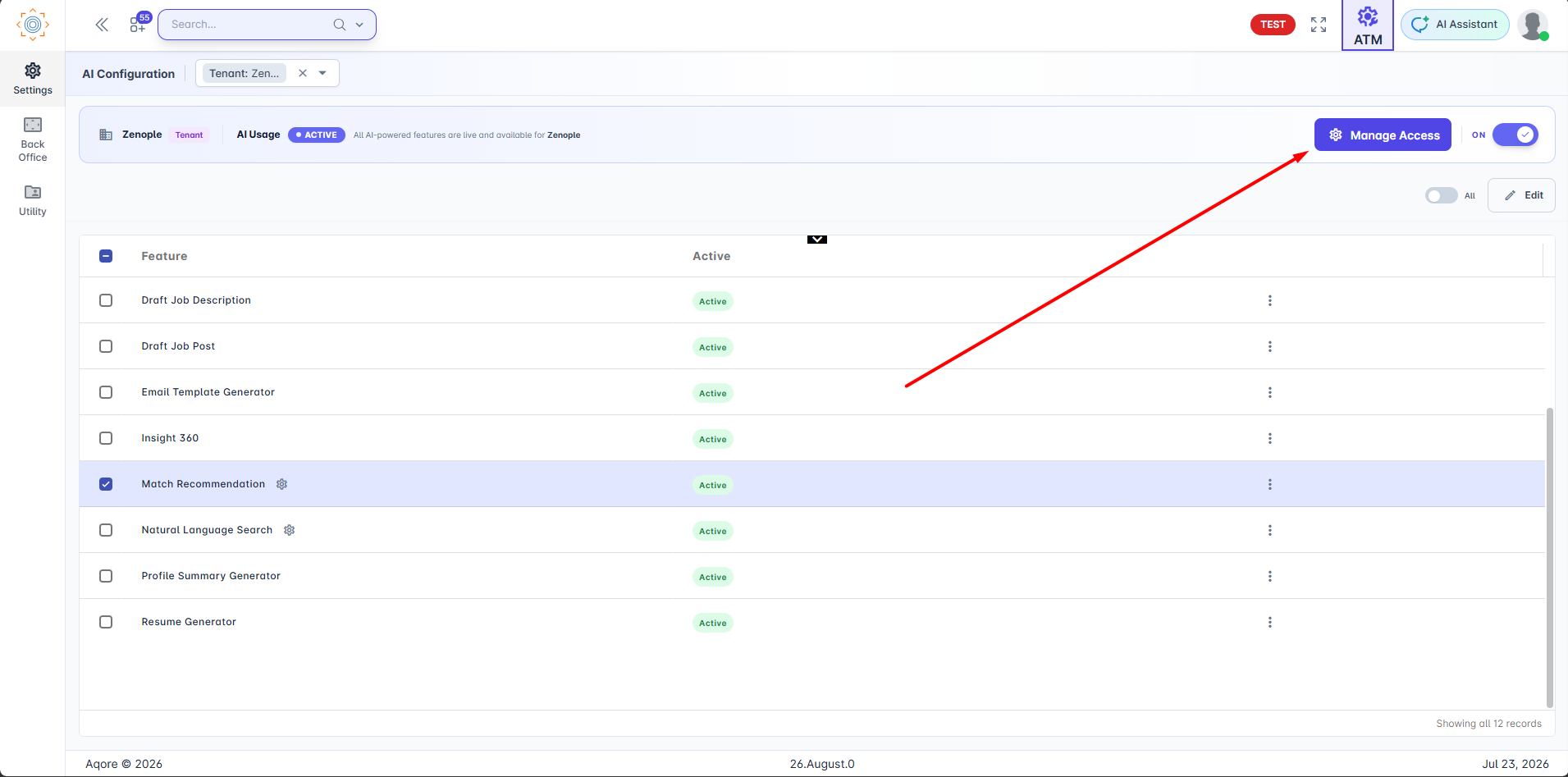
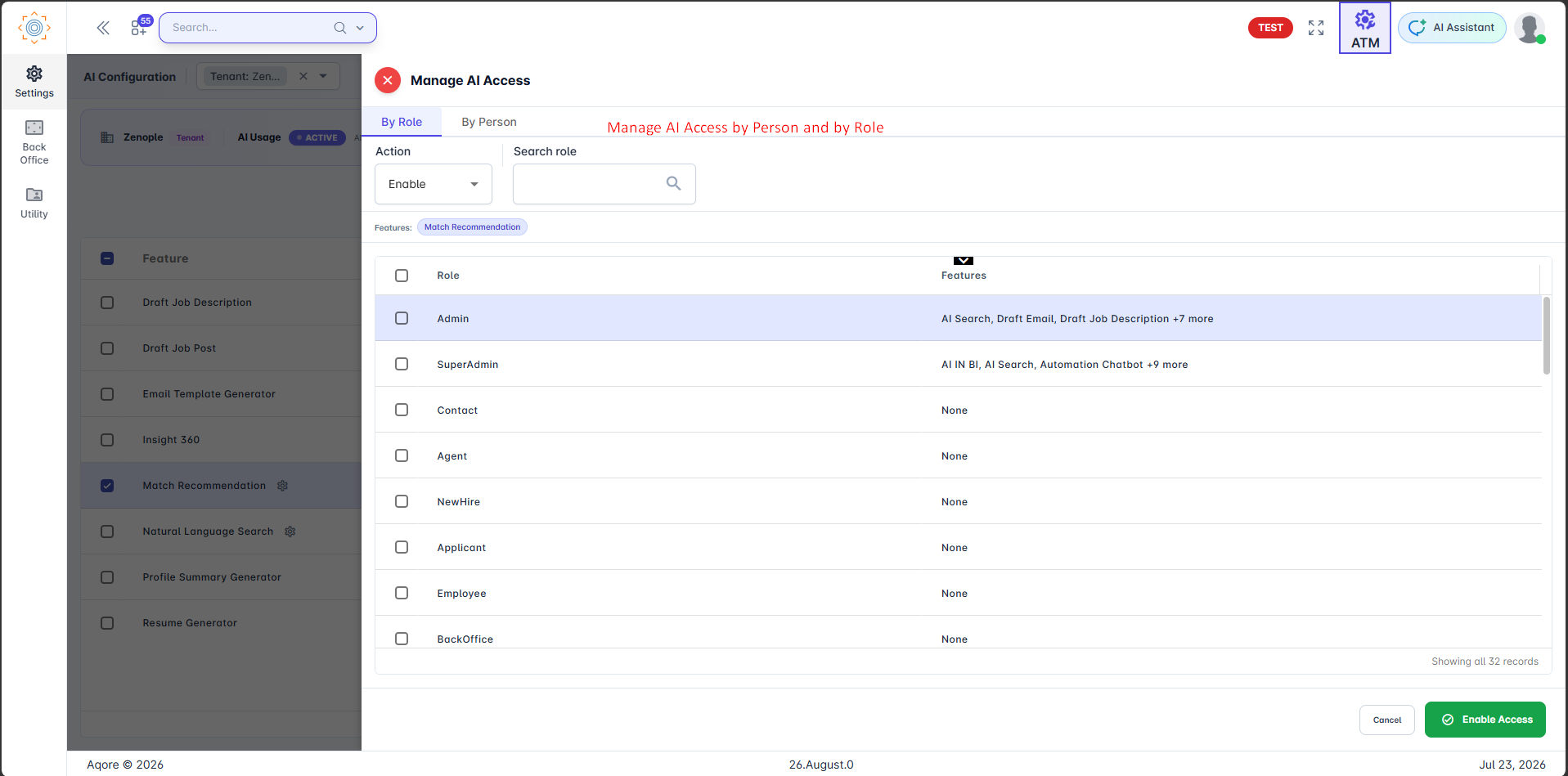
Step 3: Manage Access
- Click on Manage Access button
How to Use the Candidate Recommendation Feature
Step 1: Enable Auto Recommendation
To activate automatic candidate recommendations for a job:
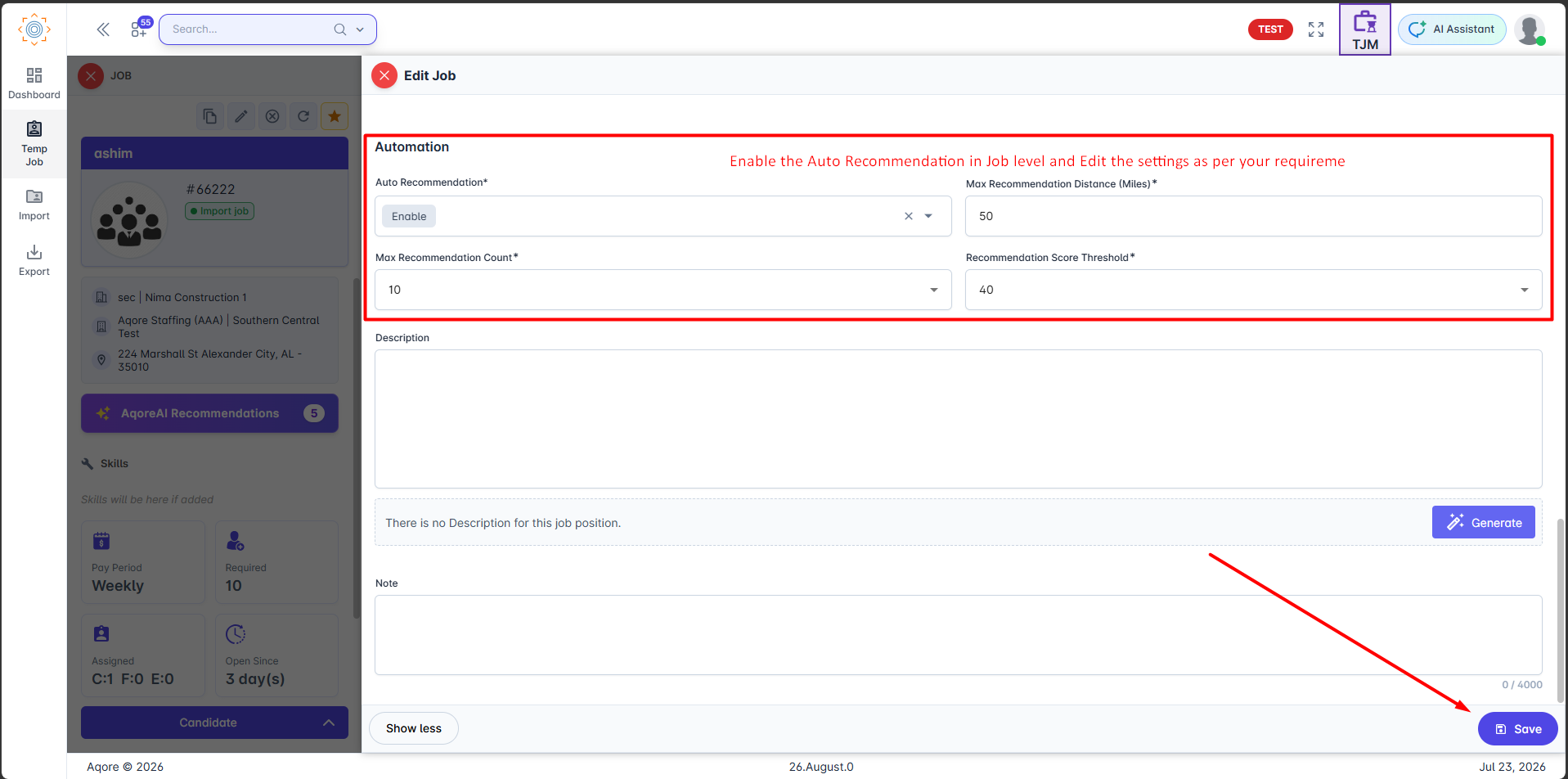
- Open the Job Add/Edit screen.
- Click Show More to expand the Automation section.
- Turn on the Auto Recommendation toggle.
Once enabled, ZenAI will automatically generate recommendations based on the job’s configuration settings.
NOTE: Recommendations are typically available within approximately 5 minutes.
If information was recently created or updated, allow up to 2 hours for the latest data to sync before expecting it to appear in recommendations.
Step 2: View Candidate Recommendations
After saving the job:
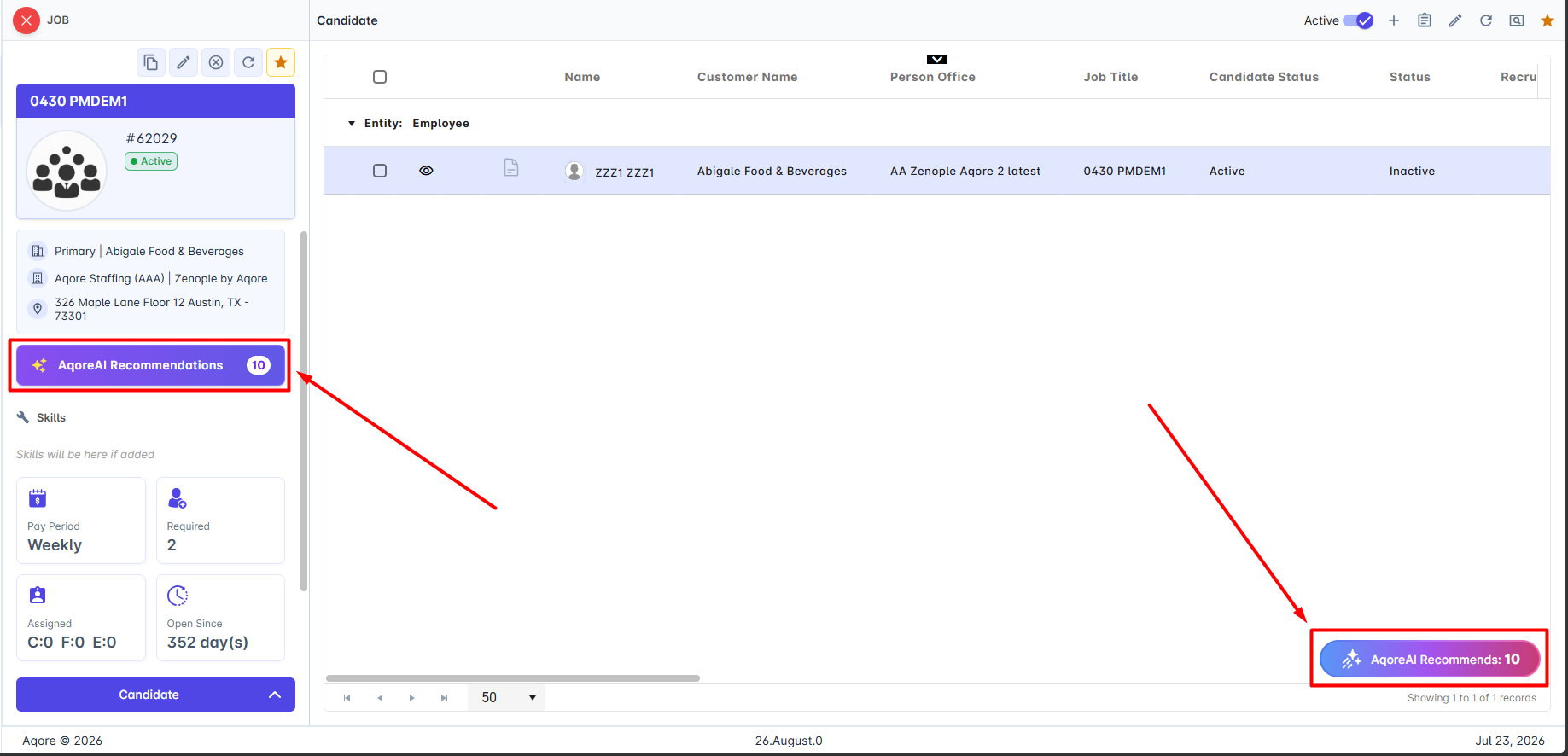
- Go to the Job (TJM, DHM, JSM) / Person (ATS, NHO, EIS) the entity section have Aqore AI Recommendations button total recommendation count
Step 3: Review and Add Candidates
Click the Button to open the recommendation sidebar.
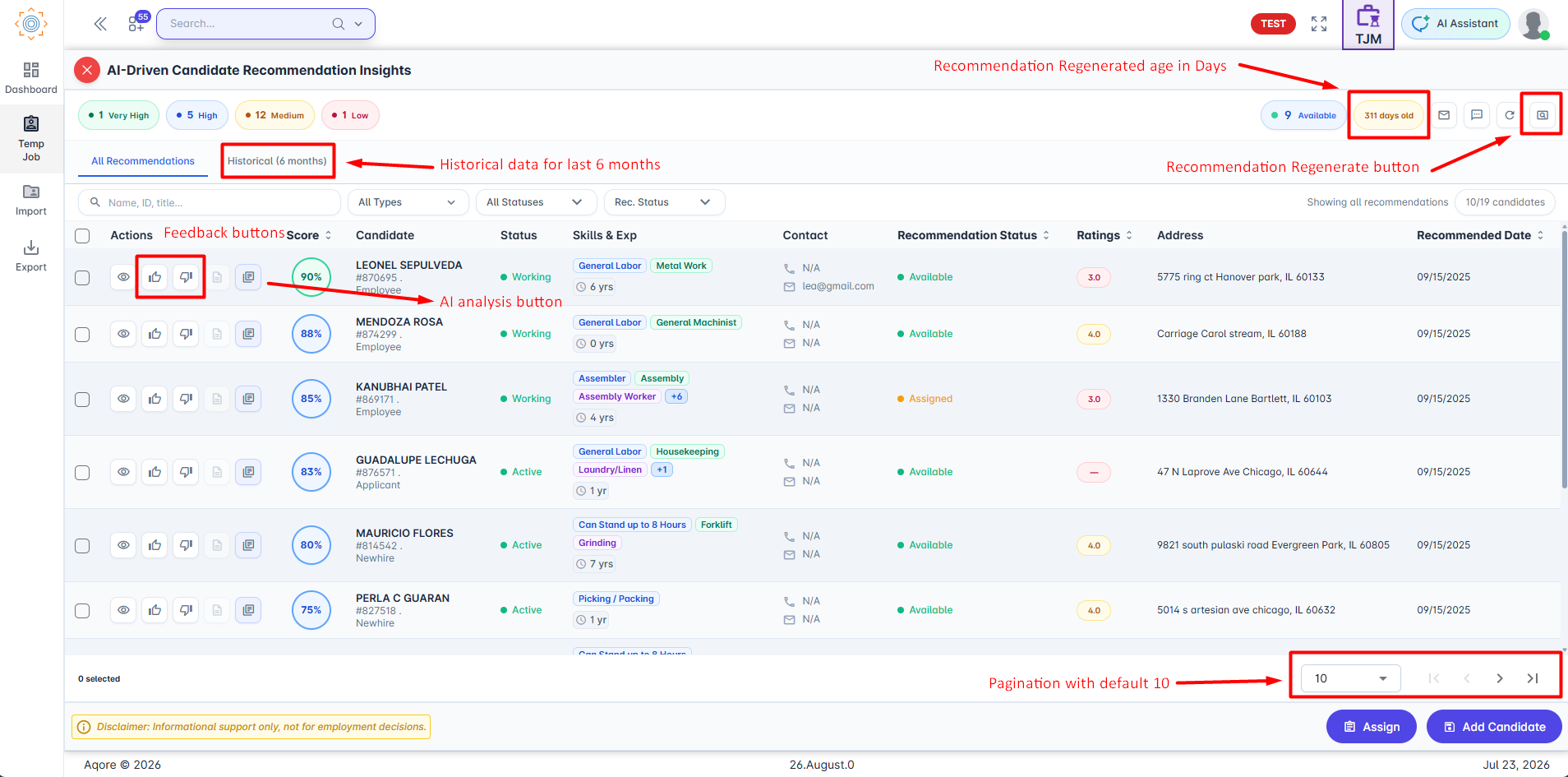
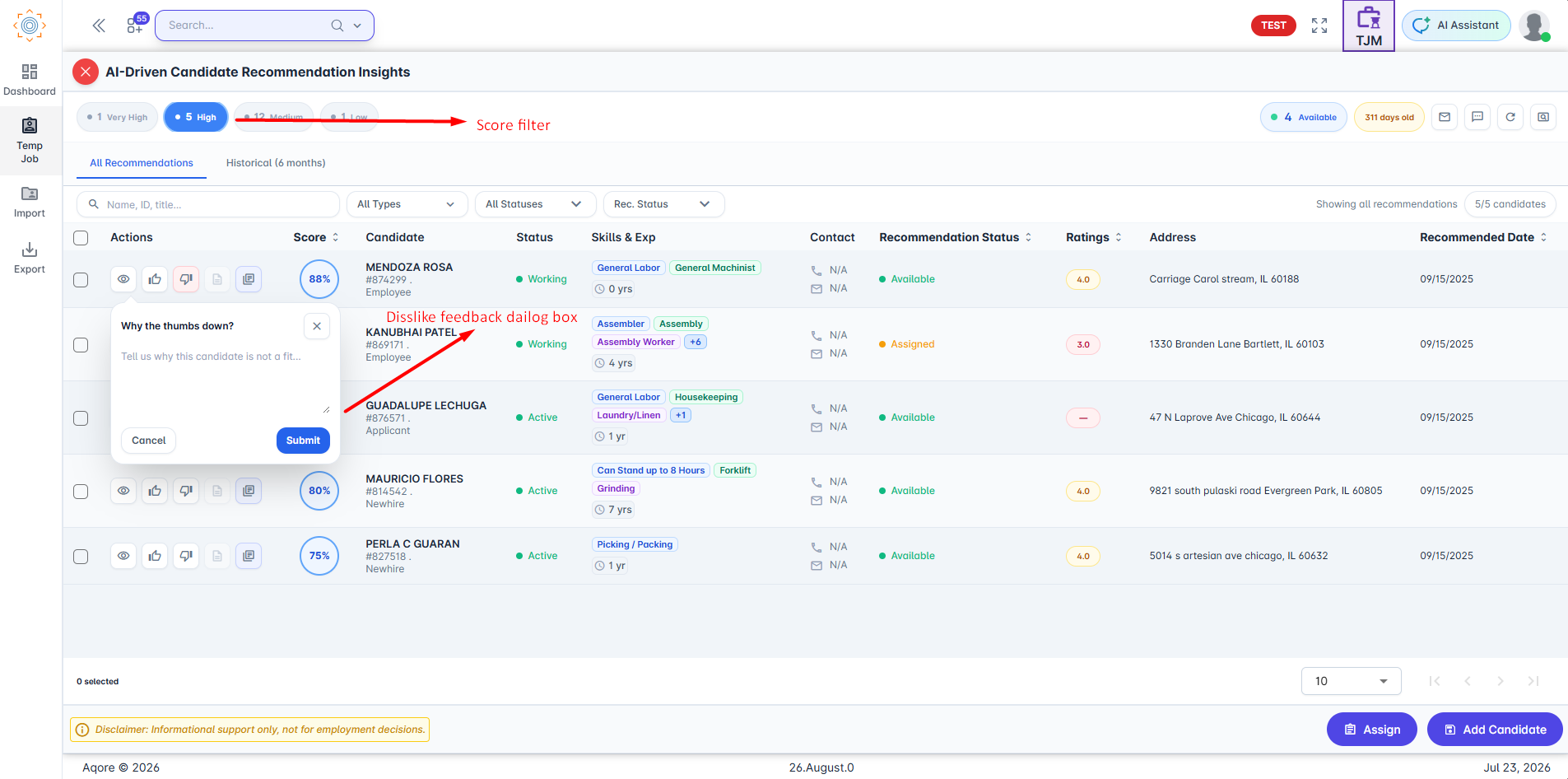
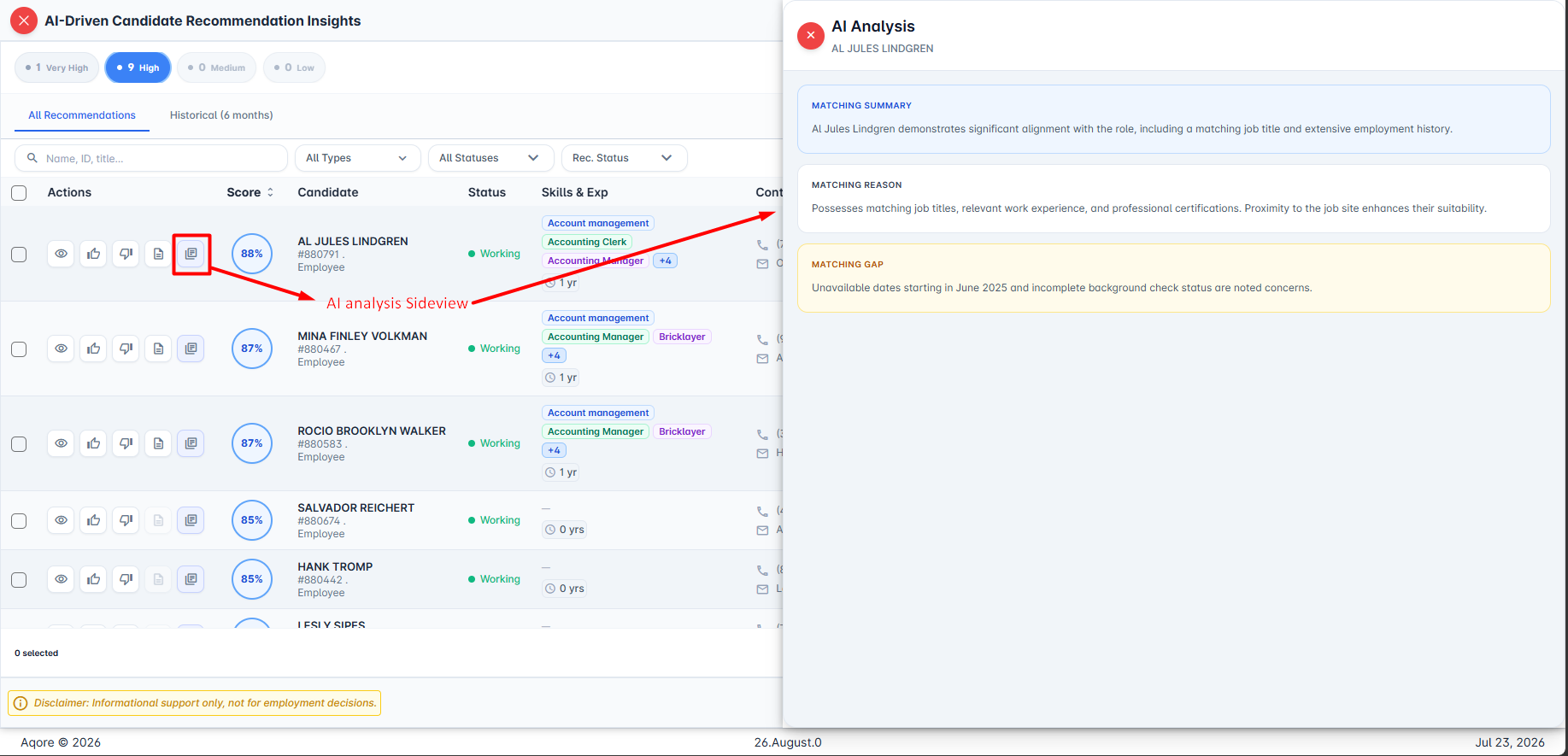
- Actions: Eyeview to navigate, Feedback Button, AI analysis sideview
- AI analysis: Matching Summary, Matching Reason and Matching Gap.
- Status: In the Job-side (TJM, DHM, JSM), represents the candidate's current status.
In the Person-side (ATS, NHO, EIS), represents the job status. - Recommendation Status: Represent the recommendation status (Available, Shortlisted, Assigned, PlacedElseWhere).
From here, you can Assign and Add candidate to the job.
If needed, you can refresh the list using Regenerate Recommendation button on upper right corner inside candidate recommendation sideview.
Regenerating Recommendations
The “Regenerate Recommendation” action allows you to refresh candidate recommendations to reflect the most up-to-date job, candidate, and availability data.
How it works:
- Deletes all existing recommendations for the job.
- Runs a new recommendation process from scratch using current data.
Important Notes:
- The new list may differ from the previous recommendations.
- Candidates who no longer meet job criteria or are unavailable may not appear.
- Use this action whenever job details, candidate data, or schedules change to ensure accurate recommendations.
- After you click Regenerate Recommendation, the updated recommendations are typically available within approximately 5 minutes.
- If any information is created or changed in the system, allow up to 2 hours for the latest data to sync.
Recommendation Categories
ZenAI groups recommended candidates into four categories based on match percentage:
Category | Match % Range |
|---|---|
Very High | 90% and above |
High | 75% – 89% |
Medium | 50% – 74% |
Low | Below 50% |
Recommended Candidate Status Definitions
Status | Description |
|---|---|
Available | Person is available and not assigned to any active assignment. |
Assigned | Person is currently working on current assignment. |
PlacedElseWhere | Person is currently working on another assignment |
Shortlisted | Person is job candidate to current assignment |
Configuration Options
ZenAI provides flexible recommendation settings at both the Office Level and Job Level. Understanding how to configure these correctly ensures that your recommendations are accurate, relevant, and aligned with the nature of each job.
1. Office-Level Defaults
The following values are configured at the Office Level:
- DefaultZenAIAutoRecommendation
- CandidateRecommendationCountLimit
- CandidateRecommendationScoreLimit
- CandidateRecommendationDistanceLimit
These values act as the baseline defaults.
When a new job is created, the job inherits these settings automatically based on the Office configuration.
2. Job-Level Overrides
Although defaults come from the Office level configuration, Job-Level configuration allows fine-tuning, depending on:
- The job types
- Required skills
- Hiring urgency
- Availability of talent
- Geographic flexibility
Users can override Office-level settings to tailor recommendations for each specific job.
Field | Description |
Auto Recommendation | Enables/Disable automatic candidate recommendations for the job. |
Maximum Recommendation Count | Sets the maximum number of candidate recommendations per job per run. |
Recommendation Score Threshold | Minimum match percentage required for a candidate to be recommended. |
Maximum Recommendation Distance (Miles) | The maximum distance between the candidate’s address and the job site. |
When to Adjust These Settings
Different jobs have different hiring expectations. While the default values work well for general cases, adjusting the configurations can significantly improve recommendation accuracy.
Below are practical guidelines to help users choose the right values:
1. Distance Requirement
The acceptable distance can vary widely depending on the nature of the job.
- Roles requiring physical presence or local availability
- Example: warehouse helper, delivery associate, front-desk roles
- Suggested distance: keep it small (e.g., 3–10 miles)
- Rationale: Local availability is essential, and long commutes reduce candidate acceptance.
- Roles that allow wider talent pools
- Example: specialized technicians, IT roles, niche domain experts
- Suggested distance: broader radius (e.g., 30–50 miles)
- Rationale: These roles often have fewer qualified candidates, so a wider search is beneficial.
2. Recommendation Count
Different jobs may require more or fewer recommendations:
- High-volume hiring (many open positions):
- Increase count (e.g., 15–20) to get broader candidate options.
- Specific, targeted positions:
- Keep count lower (e.g., 5–10) to focus on quality over quantity.
3. Score Limit
Score determines minimum match relevance.
- General roles:
- Use system default (40).
- Highly selective or specialized roles:
- Increase threshold (e.g., 50–60) for stricter matches.
- Hard-to-fill roles:
- Lower threshold slightly (e.g., 30–35) to broaden the pool.
Recommended Setup Approach
- Use Office-level settings as your baseline.
- Set defaults according to the most common type of hiring for that office.
- Adjust values at the Job level when needed.
- If a job needs a tighter talent pool or wider search area, update only what’s necessary.
- Think in terms of hiring behavior, not skill level labels.
- Consider the job's mobility expectations, urgency, location dependency, and market availability.
- Use the default system values when unsure.
- They are balanced to work for most standard job types.
Note:
For temporary jobs, candidate availability tracking for recommendations runs up to 30 days from the recommendation run date.
- If the job’s end date is earlier than the 30-day mark, the system considers availability only up to the job’s end date.
- For scheduled jobs, availability is checked for 7 days from the recommendation run date.
Candidate Matching Factors
The AI engine evaluates multiple factors to generate recommendations:
Primary Criteria
These core factors directly impact match relevance:
- Job Title – Alignment with the candidate’s current or previous roles.
- Job Position.
- Skills – Required technical or functional skills.
- Past Experience – Relevant employment history.
- Degree – Educational qualification alignment.
- Office – Person’s office.
- Status – Person’s status.
- Employer – Previous employers and industry relevance.
- Location / Distance from Job Site – Proximity to the job location.
Additional Factors
These supplementary factors provide contextual insights and enhance recommendation accuracy:
- Previous experience and performance – Based on prior assignments and employment records.
- End reason of past jobs – Based on how past employment ended etc.
- Top 5 Recent Assignment Comments – Insights from recent assignments.
- Current and Future Assignment Dates – Availability planning.
- Background Check Status – Verified compliance and trustworthiness.
- Assessment Certifications – Skills validation through certifications or assessments.
- Top 5 Recent Comments / Communication Notes – Includes comment types such as Available, Conversation, or Availability;
- Expected Pay – Candidate’s salary expectations.
- Professional Summary – Brief recruiters note on profile.
- Last Job Applied Date – Recency of candidate activity in the system.
Note:
Even if a candidate satisfies all primary criteria, additional factors can influence the recommendation score. For instance, negative past performance, unavailability, or high expected pay may lower the match score or prevent recommendation entirely.
Availability and Scheduling Behavior
- Recommendations only apply to jobs with “AppliesActive = True”.
- Only currently available candidates are recommended.
- If a candidate is already assigned during the job period, they will not appear in recommendations.
- In scheduled jobs, recommendations are generated at the job level, then filtered per schedule based on availability per schedule.
Note:
Direct Hire assignments are not considered during availability checks or recommendation status updates for Temp and Schedule jobs. As a result, candidates assigned to a Direct Hire job may still be recommended for Temp and Schedule jobs.
Example:
If 10 candidates are recommended at the job level, only 8–9 may appear under individual schedules depending on availability.
Post-Recommendation Updates
Condition | System Behavior |
Candidate becomes unavailable | Status changes to Assigned/PlacedElseWhere |
Candidate remains available | Status remains Available |
Scheduled Job Example:
For a 3-day schedule (Sun–Tue), if candidate becomes unavailable on Monday:
- Job-level status = Assigned/ PlacedElseWhere
- Monday schedule = Assigned/ PlacedElseWhere
- Sunday & Tuesday schedules = Available
No Recommendations? Possible Reasons
• No candidates match the job criteria.
• Recommendation score threshold is too high.
• Distance limit excludes all candidates.
• Job status does not support recommendations.
• Newly added or updated candidates/jobs may take up to 2 hours to sync.
Best Practices: Maximizing AI Job Candidate Recommendations
Data Criteria for Better Matching
To get the most accurate recommendations, ensure both job orders and candidate profiles contain clear, structured data:
- Job Orders: Clearly defined skills, experience levels, educational requirements, and duties.
- Candidate Profiles: Well-documented skills, experience history, industry experience, education, and certifications.
- Additional Insights: Communication history and recent applications help prioritize active candidates.
- Screening Data: Background checks and assessment outcomes improve recommendation relevance.
- Recruiter Feedback: Comments and performance evaluations provide context-aware recommendations for future jobs.
1. Always Start with Auto-Recommendation
- Enable Auto Recommendation immediately when creating a job.
- The system generates top-matching candidates within minutes.
- Treat AI recommendations as your “first shortlist.”
Example: Creating a “Forklift Operator” job → top candidates appear within 5 minutes.
2. Use Recommendation Categories Strategically
Match categories help prioritize action:
Category | Match % | Recommended Action |
|---|---|---|
Very High | 90%+ | Review immediately; likely perfect fit. Add to candidates fast. |
High | 76–90% | Check soft-fit factors (availability, pay, commute); strong backup options. |
Medium | 50–75% | Secondary pool; consider for future or similar roles. |
Low | <50% | Usually skip; only use for niche skills or urgent requirements. |
Pro Tip: Focus on High and Very High matches first to reduce time-to-fill.
3. Regenerate Recommendations
Use Regenerate Recommendation to refresh candidate matches whenever job or candidate data changes:
- Job title, site, schedule, or shift updates
- Skill requirements or qualifications change
- Several days have passed since the last recommendation
- Adding, removing, or modifying schedules in a scheduled job
- Need to quickly fill more assignments
Example: Changing distance limit or pay rate may invalidate older recommendations. Regenerating produces an updated list of eligible candidates.
4. Monitor Candidate Status
Engine dynamically updates candidate availability:
- Available = Person is free and available
- PlacedElseWhere= Person is booked elsewhere
- Assigned = Person is booked for the current job
- Sortlisted = Person is job candidate to current job
Usage Tips:
- Prioritize adding Available candidates before they become unavailable.
- Track Assigned/ PlacedElseWhere candidates for future shifts.
Example: A “Very High” match is assigned until Friday → schedule them for Saturday’s opening.
5. Learn From “Why Not Recommended” Cases
If a suitable candidate is missing:
- Check distance radius – candidate may live outside limits.
- Check score threshold – may be set too high.
- Check availability – candidate could be booked.
- Wait for data to sync – newly added or updated candidates or jobs may take up to 2 hours to become available for recommendation.
Pro Tip: Temporarily lower score threshold (e.g., 40 → 35) for rare skills to surface near-matches.
6. Keep Candidate Profiles Updated
Regularly maintain profiles:
- Update performance feedback, recruiter comments, and background status.
- Add new skills, certifications, and experience.
Fresh, accurate data = more reliable AI recommendations.