Summary
The Daily Time Report provides a daily snapshot of employee work activity. It consolidates clock-in/clock-out times, breaks, overnight shifts, pay units, billable units, and submission details into a structured format. This report helps ensure accurate payroll and billing by highlighting key time-related data and notes.
Report Overview
Attribute | Details |
Purpose | Show employee daily timecard entries with details on hours worked, breaks, and overnight shifts. |
Classification | Operational Reports |
Who Should Use This Report | Payroll teams, HR departments, managers monitoring employee work hours. |
Business Problem Solved | Provides a consolidated view of daily time entries to support payroll and billing accuracy. |
Run Frequency | Daily |
Related Reports |
Business Value
Category | Description |
Payroll Accuracy | Displays detailed time entries including breaks and overnight shifts. |
Operational Oversight | Helps managers see daily work patterns and submission status. |
Billing Integrity | Ensures billable units are correctly captured for invoicing. |
Known Issues or Limitations
Issues | Description |
Status Column Blank | Sometimes status may not display. Cross-check with TMS value. |
Missing Person | Report shows daily-level transactions only. Employees with weekly-level data may not appear. |
Troubleshooting Guide
Issues | Problem Reason | Solution |
Status Column Blank | Verify against TMS value. | |
Person Missing | Employee has weekly-level data | Check if employee has weekly or daily transactions for the accounting period. |
FAQ
Questions | Answers |
What does “Is Overnight” mean? | Indicates if the shift extended past midnight. |
What is shown in Timecard Notes? | Notes about clock-in/out changes or manual edits. |
Reference Video/Screenshot
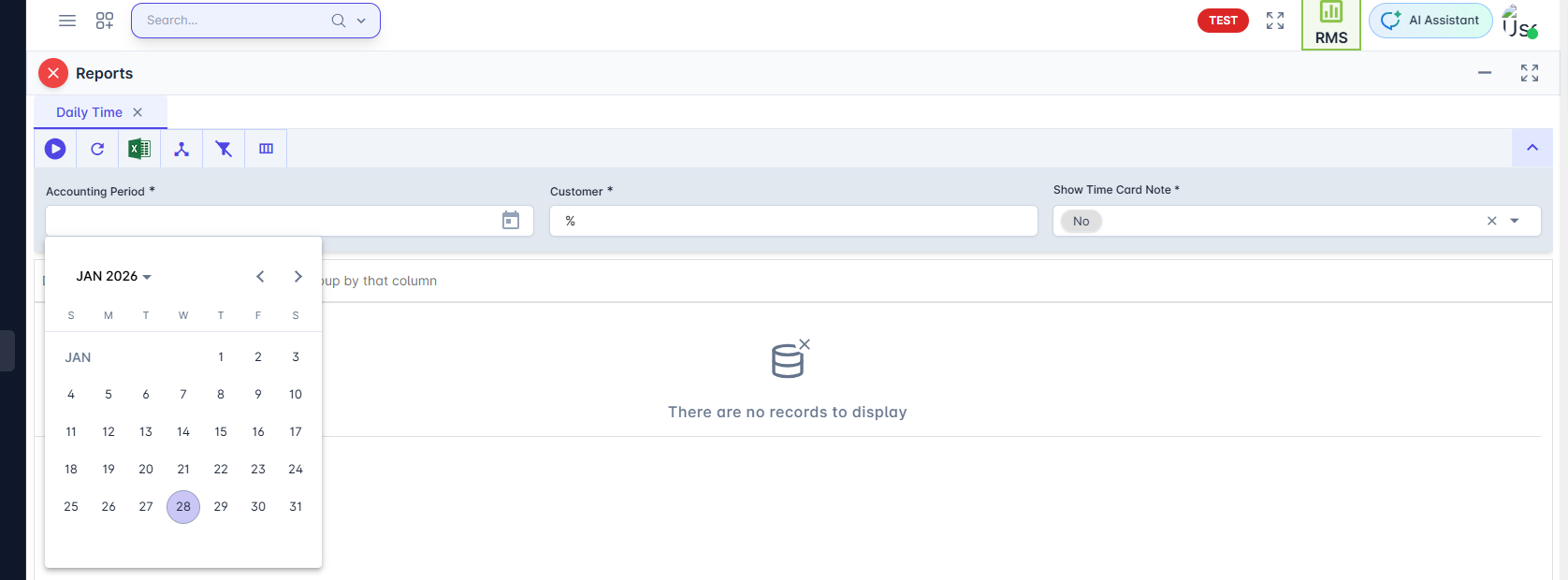
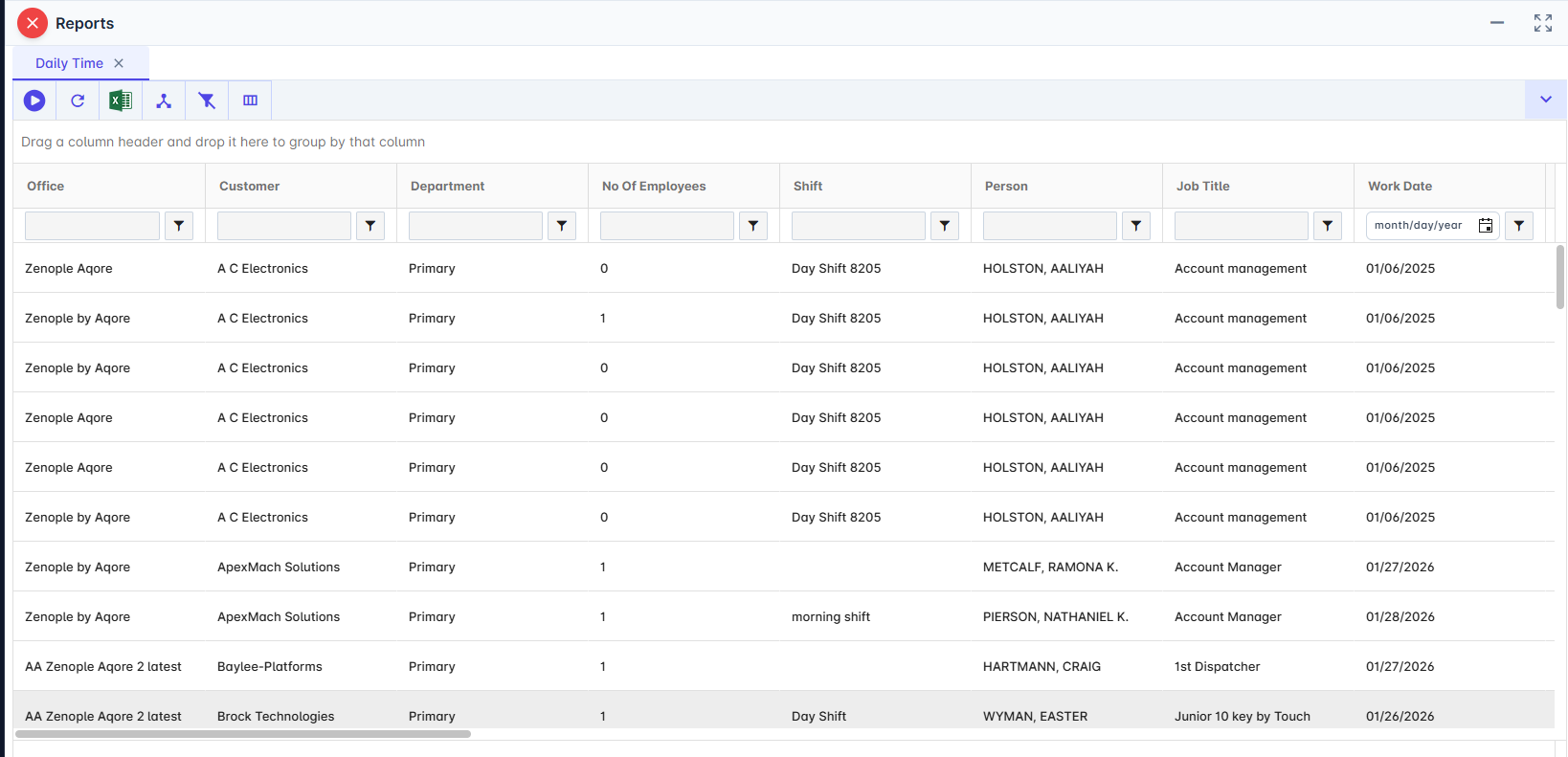
Report Details
Category | Value |
Parent Category | Back Office |
Category | Timesheet |
Report Type | Spreadsheet |
Report runs from Application | RMS |
Report Category | Shareable |
Report Level | Transaction-Level Detail |
Report Parameters
Report Parameter | Description | Parameter Options | Default | Required |
Accounting Period | Filters records for the accounting period selected | Specific date | Yes | |
Customer | Filters records by customer name | % (All), specific names | Yes | |
Show Time Card Note | If set to Yes, Displays TimeCard Note Column else not | Yes/No | Yes |
Report Grouping
Report Columns
Report Column | Description | Definition/Logic |
Office | Office Name | |
Customer | Customer Name associated with the entry | |
Department | Department Name | |
No Of Employees | No Of Employees | |
Shift | Shift Name | |
Person | Employee Name | |
Job Title | Job Title | |
Work Date | Worked Date | |
Transaction Code | Pay Code | |
Clock In | Clock In Time | |
Break Out | Break Out Time | |
Break In | Break In Time | |
Clock Out | Clock Out Time | |
Break | Total Break hours | |
Hours | Total Hours worked | |
Pay Rate | Pay Rate | |
Pay Unit | Pay Unit | |
Bill Unit | Bill Unit | |
Submit Date | Time Entry Submission Date | |
Approved By | Person Name who approved the entry | |
Person Id | Employee Id | |
Is Overnight | Indicates if the shift extended past midnight | |
Transaction Id | Transaction Id | |
Transaction Item Date Id | Transaction Item Date Id | |
Status | Current status of the time entry (e.g., Submitted) | |
Invoice Text | Invoice Text entered from TMS | |
TimeCard Note | This column is populated only when the Show Time Card Note parameter is set to Yes. It displays the most recent transaction comment, along with its insert date and time. |
Additional Notes:
Multiple entries with the same Transaction ID may represent different days or shift segments. |