Summary
The CA Pay Data Contractor Report helps staffing agencies operating in California meet their annual pay data reporting obligations under California Government Code §12999. Unlike the Employee Report — which covers the agency's own payroll employees — this report covers workers (both employees and contractors) placed at client companies, and it reports data from the perspective of each client company rather than the staffing agency's office.
The report brings together pay, demographic, and hours information for each client company and worker group, and produces a file in the exact format required by the California Civil Rights Department (CRD). It also captures the staffing agency's name, agency's tax ID (FEIN), and snapshot period dates — fields that are required only on the Contractor Report.
This report is essential for:
HR & Compliance Teams: generating the state-required file for the annual CRD submission (due by the second Wednesday in May each year).
Payroll Managers: confirming that pay, hours, and demographic information are accurate before filing.
Branch/Office Managers: reviewing their office's pay equity breakdown by demographic group.
Finance Teams: confirming that total annual earnings fall into the correct pay ranges before submission.
By using this report, staffing agencies avoid civil penalties for non-filing and gain a clear view of pay equity across every office they operate in California.
Report Overview
Attribute | Details |
Purpose | Produces the employee pay data file required for annual submission to the California Civil Rights Department (CRD) under CA Gov. Code 12999. |
Classification | Compliance Report |
Who Should Use This Report | HR & Compliance Teams, Payroll Managers, Branch Managers |
Business Problem Solved | Enables staffing agencies placing 100 or more workers at California client companies to file their annual Contractor Pay Data report and avoid civil penalties |
Run Frequency | Annually — run once per reporting year, typically before the May filing deadline |
Related Reports | CA Pay Data Employee Report |
Business Value
Category | Description |
Regulatory Compliance | Generates the Contractor Report in the exact CRD-required format, including the additional staffing agency name, tax ID, and snapshot period dates required only on contractor filings. |
Client Company Grouping | Groups data by the top-level client company, correctly reflecting the employer hierarchy the CRD expects on the contractor filing. |
Industry Code Integration | Pulls the industry (NAICS) code from the client company's profile in Zenople, so each row carries the correct industry classification without manual entry |
Pay Equity Visibility | Provides average and median hourly rates by race/ethnicity, sex, and job category at each client company, giving both the agency and the client a clear pay equity picture. |
Remote Worker Accuracy | Separately counts on-site, remote-in-CA, and remote-outside-CA workers per group at each client company, satisfying the remote-work reporting requirement. |
Known Issues or Limitations
Issues | Description |
NAICS Code may be blank | The industry code is pulled from the office/company profile in Zenople. If it has not been entered there, this field will be blank in the output and must be filled in manually before CRD submission. |
Agency tax ID (FEIN) must be entered in company settings | The staffing agency's FEIN is pulled from the agency's company settings in Zenople. If it has not been entered there, this field will be blank in the output. |
Demographic information defaults to "Other" | If a worker's race/ethnicity or gender has not been entered in their profile, the system defaults to "Other," which appears as the unknown code in the output. This can cause the report to overstate the "Unknown/Other" group. |
Only finalized payroll runs are included | Only payroll that has been fully processed and finalized in Zenople is included. Payroll that has been entered but not yet finalized will not appear in the report. |
Snapshot dates match the date range entered | The Snapshot Period Start and End dates in the output are taken directly from the Accounting Period from and to fields you enter when running the report. Make sure these are set to the correct snapshot pay period |
Headquarters field may be incorrect | If no job site address has been linked to a job order, the system cannot compare addresses to determine if the location is a headquarters, and this field may be wrong. |
Troubleshooting Guide
Issues | Problem Reason | Solution |
No data displayed | The Company or Office selected does not match any finalized payroll for the date range, or the State filter does not match the client company's address state. | Confirm the date range is correct. Check that at least one payroll run for the period has been finalized. Verify the State filter is set to CA or left blank. |
Industry (NAICS) Code column is blank | The NAICS Code has not been entered in the client company's profile in Zenople. | Enter the NAICS Code in the client company's profile and re-run the report. |
Agency tax ID (FEIN) is blank | The agency's FEIN has not been entered in the agency's company settings in Zenople. | Enter the FEIN in the agency's company settings in Zenople. |
Fewer workers than expected | Some payroll runs have not been finalized, or some workers are not classified as employees or contractors. | Confirm all payroll runs for the period are finalized. Check that the affected workers are classified as employees or contractors in their profiles. |
Race/Ethnicity/Sex shows the unknown code for many rows | The worker's race/ethnicity and/or gender has not been entered in their profile. | Enter race/ethnicity and gender for the affected workers in their profiles in Zenople before re-running the report. |
Hours worked appears incorrect | The Year entered does not match the calendar year of the date range. The annual hours calculation uses the Year to look up the full year's hours. | Make sure the Year field matches the calendar year of the date range (e.g., enter 2025 if the date range is in 2025). |
Employment Type column is blank | The worker's employment type (Full-Time, Part-Time, etc.) has not been set in their profile. | Enter the employment type on the worker's profile in Zenople. |
FAQ
Questions | Answers |
What is the difference between this report and the Employee Report? | The Employee Report covers the staffing agency's own payroll employees and groups data by office/branch location. The Contractor Report covers workers placed at client companies and groups data by the client company, adding the agency's name, tax ID, and snapshot period dates. |
Who files the Contractor Report? | Staffing agencies that place 100 or more workers at or to a California client company's location during the snapshot period must file. |
What is the Snapshot Period? | The snapshot period is a single pay period of the employer's choice in the last quarter of the reporting year (October–December). It captures a representative count of workers at that point in time. The Accounting Period from and to fields you enter when running the report become the snapshot start and end dates in the output. |
What does "Labor Contractor FEIN" represent? | The Federal Employer Identification Number of the staffing agency — the entity filing the report. This is pulled from the agency's company settings in Zenople. |
How is the Pay Band determined? | The Pay Band (1–12) is based on the worker's total annual earnings across all finalized payroll runs in the reporting year. The same 12-band scale used in the Employee Report applies. |
What does "Total Number of CA Payroll Contractors at Est" mean? | The Contractor Report covers all workers placed by the staffing agency at the client — regardless of whether they are classified as W-2 employees or contractors in the system |
Why are both employees and contractors included? | The Employee Report covers your agency's own W-2 employees and groups data by office/branch location. The Contractor Report covers workers placed at client sites (both employees and contractors) and groups data by the client company, adding the agency name, tax ID, and snapshot period dates. |
What does "Remote CA Employees Located Outside CA" mean? | Workers whose job is based in California but who live and work remotely from outside California. |
Reference Video/Screenshot
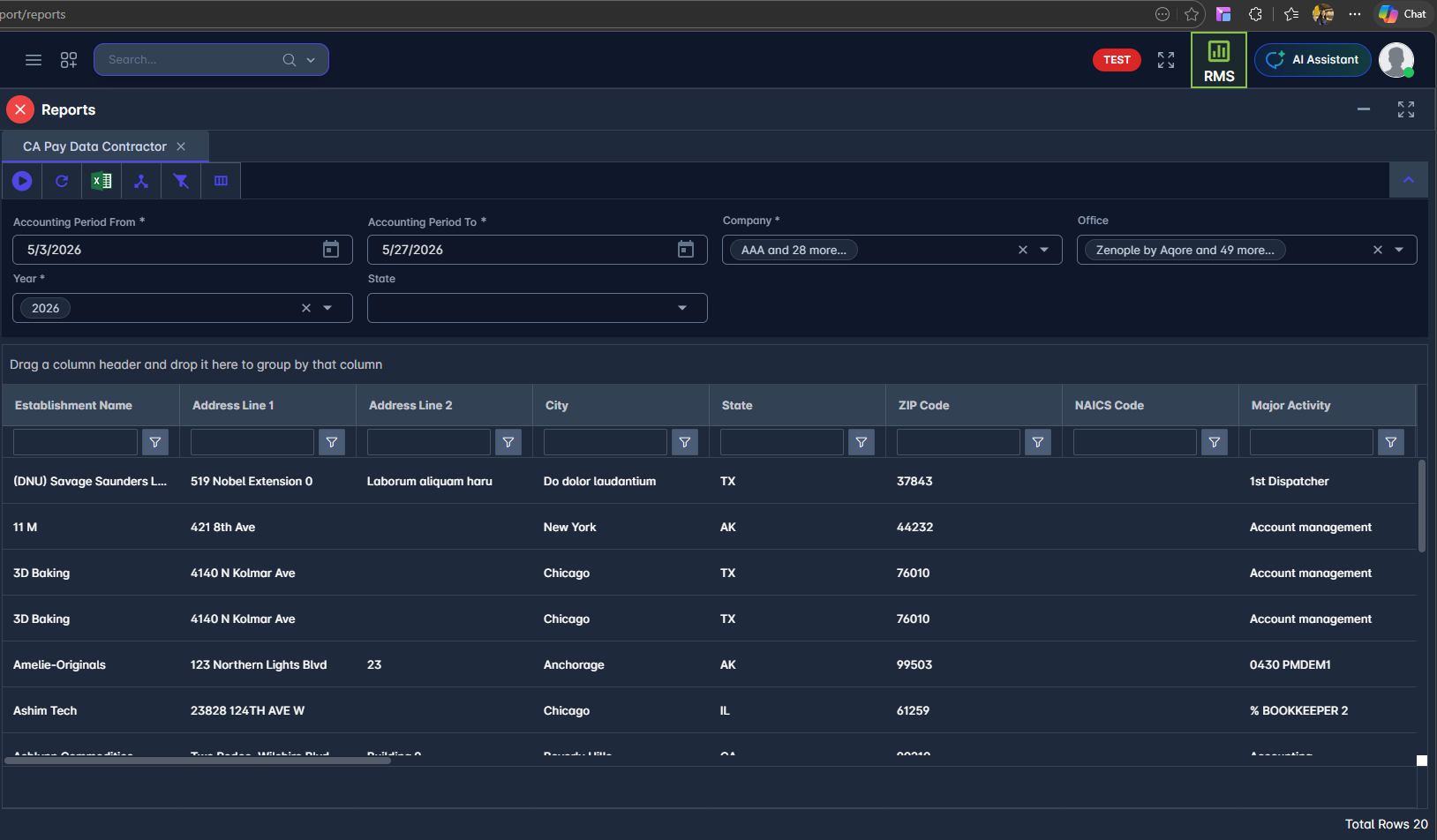
Report Details
Category | Value |
Parent Category | BackOffice |
Category | Compliance |
Report Type | Spreadsheet Report |
Report runs from Application | RMS |
Report Category | Shareable |
Report Level | Payment |
Report Parameters
Report Parameter | Description | Parameter Options | Default | Required |
Accounting Period From | The start date of the payroll period to include. Set this to the first day of the reporting year (e.g., 01/01/2025). | Accounting Period Date/ Pay Period End Date/ Check Date | Yes | |
Accounting Period To | The end date of the payroll period to include. Set this to the last day of the reporting year (e.g., 12/31/2025). | Yes | ||
Year | The reporting year. Used to calculate total annual hours and weeks worked for the full calendar year. Must match the year entered in the date range above. | Yes | ||
Company | Filters records by companies selected | List of companies that the users have access to | No | |
Office | Filters records by offices selected | List of offices for the company selected | No | |
State | Filters results to a specific state. Enter CA to show only California locations, or leave blank to include all states. | State abbreviation | Yes |
Report Grouping
The report produces one row per unique combination of:
Client Company (the top-level client organization)
Job Category (EEO-1 category 1–10)
Race/Ethnicity/Sex (3-character CRD code)
Pay Band (1–12, based on total annual earnings)
Exemption Status (Salaried / Hourly)
Each row represents a group of placed workers who share all five of those attributes at the same client company.
Report Columns
Report Column | Description | Definitions/Logic |
Establishment Name | The name of the client company where workers are placed. | The top-level client company's name as entered in Zenople. |
Address Line 1 | First line of the client company's address. | The address currently on file for the client company in Zenople. |
Address Line 2 | Second line of the office address (suite, floor, etc.). | The secondary address line on file for the client company. May be blank. |
City | City of the client company's address. | The city on file for the client company's address. |
State | Two-letter state abbreviation of the client company's location. | The state on file for the client company. Locations outside the US show as OT. |
Zip Code | ZIP code of the client company's address. | The ZIP code on file for the client company's address. |
NAICS Code | The industry classification code for the client company. | Pulled from the company's profile in Zenople. May be blank if not yet entered — must be verified before CRD submission. |
Major Activity | The primary type of work associated with this worker group | The job skill/category assigned to the workers in this group. |
Total Number of CA Payroll Contractors at Est | Total number of distinct workers placed at this client company across all groups. | Count of unique workers (employees and contractors) at this client company. |
Was Prior Year CA Report Filed? | Whether a Contractor Pay Data report was filed for this client company in the previous year. | Defaults to Yes. Should be reviewed and corrected for new office locations. |
Is this Est the Employer's Headquarters? | Whether this client company location is the employer's main headquarters. | Yes, if the client company's address matches the job site address; otherwise, No. |
Labor Contractor Name | The name of the staffing agency filing the report. | The agency's company name as entered in the agency's company settings in Zenople. |
Labor Contractor FEIN | The staffing agency's Federal Employer Identification Number. | The agency's FEIN as entered in the agency's company settings in Zenople. Must be set up in advance or this field will be blank. |
Snapshot Period Start Date | The start date of the snapshot period for this filing. | The Accounting Period From date entered when running the report. |
Snapshot Period End Date | The end date of the snapshot period for this filing. | The Accounting Period To date entered when running the report. |
Job Category | The EEO-1 job category number (1–10) for this group. | Based on the job role category assigned to the worker: 1 = Exec/Senior Management, 2 = Mid-Level Management, 3 = Professionals, 4 = Technicians, 5 = Sales Workers, 6 = Administrative Support, 7 = Craft Workers, 8 = Operatives, 9 = Laborers & Helpers, 10 = Service Workers. |
Race/Ethnicity/Sex | The 3-character CRD code identifying the demographic group. | Letter = Race/Ethnicity (A = Hispanic/Latino; B = Non-Hisp Male; C = Non-Hisp Female; D = Non-Hisp Non-Binary; U = Unknown). Number = Sex: 10 = Male, 20 = Female, 30 = non-Binary. UU = both unknown. |
Pay Band | The earnings band (1–12) this group falls into. | Based on each worker's total annual earnings. See Additional Notes for the full pay band scale. |
Exemption Status | Whether workers in this group are salaried (Exempt) or hourly (Non-Exempt). | Exempt = workers paid a weekly salary. Non-Exempt = workers paid an hourly rate. |
Employment Type | The employment classification of the workers in this group (e.g., Full-Time, Part-Time). | Based on the employment type recorded in each worker's profile. Seasonal workers are reported as Intermittent to match CRD-accepted values. |
Total CA Employees in This Employee Group | Total number of workers in this specific group. | Sum of on-site employees, remote employees in CA, and remote employees outside CA for this group. |
Total Annual Hours Worked | Total hours worked by all employees in this group across the full reporting year. | Sum of all recorded hours from finalized payroll runs for the reporting year, for employees only. |
Total Annual Weeks Worked | Total number of distinct pay periods worked by this group during the reporting year. | Count of unique pay periods with finalized payroll for this group during the reporting year. |
Mean Hourly Rate | The average hourly pay rate for workers in this group. | Total of all hourly rates divided by the number of workers. For salaried workers, the hourly equivalent is weekly salary ÷ 40 hours. |
Median Hourly Rate | The middle hourly pay rate when all workers in the group are ranked from lowest to highest rate. | The midpoint value of all hourly rates within this office location, race/ethnicity, and sex grouping. |
Number of CA Employees That Do Not Work Remotely | Count of employees in this group who work at a physical job site (not from home). | Workers whose work location is set to a physical job site, not their home address. |
Number of Remote CA Employees Located Within CA | Count of remote workers in this group who live in California. | Workers whose work location is their home address and who live in California. |
Number of Remote CA Employees Located Outside CA | Count of remote workers in this group whose job is based in CA but who live outside California. | Workers whose work location is their home address, where the job is based in CA but the worker's home is in another state. |
Row Level Clarifying Remarks | Optional notes for this row. | Always blank in the export. Can be filled in manually before CRD submission if clarification is needed. |
Additional Notes
The Accounting Period From/To dates serve two purposes: they filter which payroll runs are included AND they become the Snapshot Period Start and End dates in the output file. Set them to the correct Q4 snapshot pay period for the reporting year. |
The Year field controls the annual hours and weeks calculation separately. It must match the calendar year of the snapshot period (e.g., enter 2025 if the snapshot period is in Q4 2025). |
The NAICS Code and agency FEIN must be entered in Zenople before running the final report for submission. Both fields will be blank if not set up in advance |
Workers whose race/ethnicity or gender has not been recorded in their profile will appear in the unknown group (UU). Make sure all worker profiles have demographic information completed before running the final submission report. |