Summary
The Assignment List Report provides a comprehensive, assignment-level view of all workforce placements, giving staffing teams the ability to track employees, verify rates, and monitor assignment activity across offices and clients.
Its standout feature is the flexible Return Type filter, which allows the report to return Active Assignments (overlapping the date range), assignments by Start Date, assignments by End Date, or assignments by Insert Date — all in a single configurable run. This eliminates the need to run multiple reports for different workforce scenarios.
By combining detailed placement data with contact, rate, and status information, the report enables faster workforce reconciliation, clearer headcount visibility, and more confident staffing decisions — all in one place.
This report is essential for:
Recruiters: tracking active placements and monitoring how long employees have been on assignment.
Branch Managers: reviewing headcount, client assignments, and placement performance by office or customer.
Operations & Staffing Coordinators: verifying pay and bill rates, monitoring shift assignments, and identifying assignments nearing their end date.
HR Teams: reviewing E-Verify status, performance ratings, and end reasons for compliance and auditing purposes.
By using this report, staffing companies gain full transparency into their workforce placements, enabling smarter decisions about staffing levels, client relationships, and resource allocation.
Report Overview
Attribute | Details |
Purpose | Provides a comprehensive list of assignments with employee, job, customer, rate, and status details. Supports filtering by date range (Active, Start Date, End Date, or Insert Date), office, customer, employee, and end reason, giving staffing teams full visibility into workforce placements. |
Classification | Operational Report |
Who Should Use This Report | Recruiters, Branch Managers, Operations / Staffing Coordinators, HR Teams |
Business Problem Solved | Helps staffing teams track active and ended assignments, monitor placements, verify rate configurations, and reconcile workforce data across offices and customers. |
Run Frequency | Daily, weekly, or on-demand as needed for workforce tracking and audits |
Related Reports | Assignment Info |
Business Value
Category | Description |
Workforce Visibility | Provides a real-time snapshot of all active, starting, and ended assignments across offices and customers. |
Recruitment Tracking | Enables recruiters to see which candidates are placed, for how long, and with which clients. |
Rate & Billing Verification | Displays pay and bill rates (RT, OT, DT, Salary) to validate rate configurations before payroll and billing runs. |
Operational Control | Supports staffing decisions such as re-assignment, end-of-assignment follow-up, and headcount reporting. |
Audit Support | Provides detailed assignment records including entry date, end reason, performance, and E-Verify status for compliance and HR review. |
Known Issues or Limitations
Issues | Description |
Charge column may be empty | The Charge column is populated only when a charge is configured at the Job level. Assignments without a job-level charge will show no value. |
Total Pay/Bill Hours may be blank for new assignments | Total Pay Hours and Total Bill Hours are derived from processed transactions. Newly created assignments with no processed transaction batches will show no hours. |
Data Source column may be empty | Data Source is populated from Person Additional navigation. Employees with no data source configured will have a blank entry. |
Troubleshooting Guide
Issues | Problem Reason | Solution |
No data displayed | Date range or filter mismatch | Verify the Assignment Date From/To range and the Return Type filter. Ensure at least one Return Type (Active, Start, End, or Entry) is selected. |
Missing assignments for a specific customer | Customer filter or access restriction | Verify the Customer parameter is cleared or set correctly. Also confirm the logged-in user has data access to the relevant office. |
Rates showing zero | Assignment rates not configured | Check that RT, OT, and DT rates are set as Assignment Rate for that assignment. Salary rates are pulled separately from the Salary transaction code. |
Days On Assignment seems incorrect | Active assignment using today as end date | For active assignments with no end date, Days On Assignment is calculated using today's date. This is by design and reflects the current elapsed duration. |
FAQ
Questions | Answers |
Can I see both active and ended assignments in the same run? | Yes. Set the Return Type parameter to 'All' to include Active, Start Date, End Date, and Entry Date assignments in a single report run. |
Why does the report show an assignment under both Active and Start Assignment? | The report deduplicates by Return Type priority: Active is processed first, then Start, then End. An assignment already captured as Active will not appear again as Start. If duplicates appear, verify the date range configuration. |
Can I filter by employee name instead of ID? | Yes. The Employee parameter accepts both numeric IDs and partial text names. The report will match any employee whose name contains the entered text. |
What does Total Pay Hours and Total Bill Hours represent? | These represent the sum of all processed pay and bill hours across all transactions linked to the assignment. They reflect hours from closed transaction batches only. |
Reference Video/Screenshot
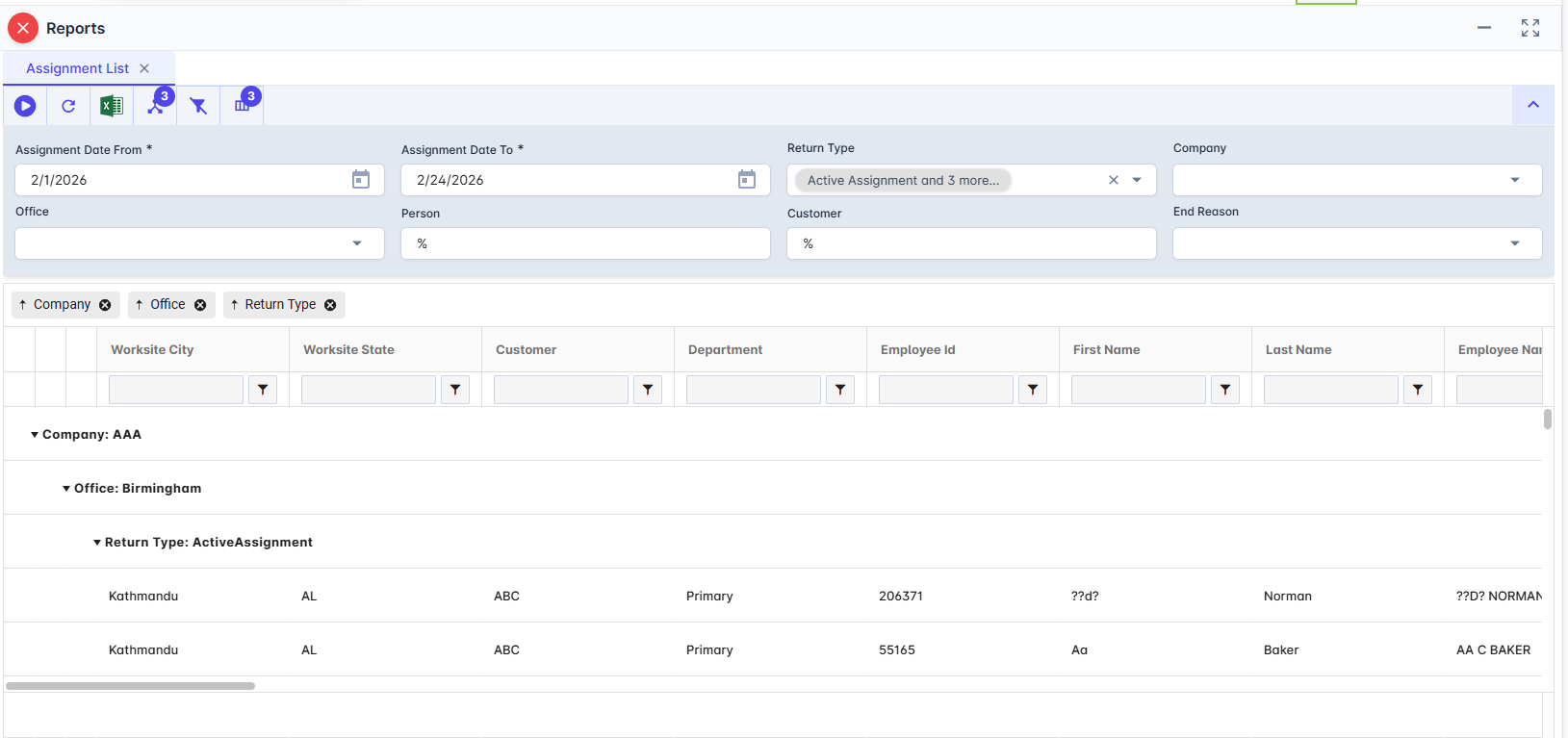
Report Details
Category | Value |
Parent Category | Front Office |
Category | Job & Assignment |
Report Type | Spreadsheet |
Report runs from Application | RMS |
Report Category: | Shareable |
Report Level | Assignment |
Report Parameters
Report Parameter | Description | Parameter Options | Default | Required |
Assignment Date From | Start of the date range filter. Behavior depends on the Return Type selected. | Yes | ||
Assignment Date To | End of the date range filter. Behavior depends on the Return Type selected. | Yes | ||
Return Type | Controls different assignment level data | Active Assignment, Start Assignment, Ended Assignment, Entered Date (multi-select) | No | |
Company | Filters results to selected company | List of companies present that a user has access | All | No |
Office | Filters the results based on the office of the company selected | List of office belonging to a company that a user has access | All | No |
Person | Filter Employee by its name | Free text | No | |
Customer | Filter Customer by its name | Free text | No | |
End Reason | Filter by one of more End reasons of the assignments | List of configured end reasons | No |
Report Grouping
Company
Office
Return Type
The report will group by company, office and return type as a hierarchy providing a logical, easy-to-navigate layout for branch managers and recruiters reviewing multiple clients or employees.
Report Columns
Report Column | Description | Definition/Logic |
Return Type | Active/Started/Ended/Entered Date depending on the date logic applied | Reflects the Return Type logic: Active Assignment, Start Assignment, Ended Assignment, or Entered Date. |
Company | Company Alias | Displays Alias related to Tenant Organization linked to the assignment. |
Office | Office name of the assignment | Displays Office linked to the assignment. |
Worksite City | City pulled from job worksite address | Displays the city for that worksite location |
Worksite State | State code pulled from job worksite address | Displays the state for that worksite location |
Customer | Customer/ Organization name | Name of customer / client which is related to the job of that assignment. |
Department | Customer Department | Name of department which is related to the job of that assignment. |
Employee Id | Person Id placed on respective assignment | Unique identifier for an employee record present in the system |
First Name | Person First Name placed on respective assignment | Limited to First Name of Employee |
Last Name | Person Last Name placed on respective assignment | Limited to Last Name of Employee |
Employee Name | Full display name. | Displays the full legal name of that employee |
Employee email address. | Active email information of that employee linked to assignment | |
Phone Number | Formatted as (XXX) XXX-XXXX from current phone. | Active Phone information of that employee linked to assignment |
Data Source | Person Additional Data Source. | The source configuration made in Person Additional navigation of an employee |
Recruiter | Name of recruiter of that particular assignment | User type related to the assignment that handles recruiting process. |
Entered By | Staff member that created the assignment | User type related to the assignment that entered the assignment in the system. |
Placed By | The staff member responsible for placing the employee. | User type related to the assignment that is responsible for employee’s placement |
Assignment Status | Reflects the current status of that assignment | Displays the list of possible assignment status |
Assignment Reference 1 | Reference field 1 from Assignment. | Field used in case of reference to certain assignment |
Assignment Reference 2 | Reference field 2 from Assignment. | Field used in case of reference to certain assignment |
Job Title | Title of the job for related to assignment. | Reflects the corresponding job title interlinked to the assignment. |
PO Number | Purchase order number associated with the job. | Configured in Service profile, which is copied across different le |
Shift | The shift assigned to this assignment. | Displays the shift related to assignment. If the shift is not present in assignment the relevant data is displayed from Job level. |
End Reason | Reflects the reason for which the assignment was ended | Remains blank if the assignment is still active or if no end reason was set. |
Performance | Reflects the performance review for that assignment. | Performance rating recorded at the end of the assignment. |
Assignment Type | Classify the type of assignment | List of assignment type recorded in the system. |
Extra1..Extra4 | Four configurable custom fields at the Job level. | Field used in case of reference to certain job |
WC Code | Workers’ compensation code from temp job. | The WC Code recorded at temp job level is displayed |
Total Pay Hours | Total hours paid across all processed transactions for this assignment. | Sum of Total Pay Hours of respective assignment |
Total Bill Hours | Total hours billed across all processed transactions for this assignment. | Sum of Total Bill Hours of respective assignment |
Salary Pay Rate | The employee's salary pay rate, if applicable. | Related to Assignment Pay Rate configured for that assignment where Transaction Code = Salary. |
Salary Bill Rate | The salary bill rate charged to the customer, if applicable. | Related to Assignment Bill Rate configured for that assignment where Transaction Code = Salary. |
RT Pay Rate | Regular time pay rate for the employee. | Related to Assignment Pay Rate configured for that assignment for regular time earnings where Transaction Code = RT. |
RT Bill Rate | Regular time bill rate charged to the customer. | Related to Assignment Bill Rate configured for that assignment for regular time earnings where Transaction Code = RT. |
OT Pay Rate | Overtime pay rate for the employee. | Related to Assignment Pay Rate configured for that assignment for over time earnings where Transaction Code = OT. |
OT Bill Rate | Overtime bill rate charged to the customer. | Related to Assignment Bill Rate configured for that assignment for over time earnings where Transaction Code = OT. |
DT Pay Rate | Double time pay rate for the employee. | Related to Assignment Pay Rate configured for that assignment for double time earnings where Transaction Code = DT. |
DT Bill Rate | Double time bill rate charged to the customer. | Related to Assignment Bill Rate configured for that assignment for double time earnings where Transaction Code = DT. |
Charge | Charge configuration applied to this assignment, if any. | Displayed depending on whether the charge is amount-based or percentage-based. |
Input Date | The date the assignment record was entered into the system. | Assignment insert date (MM/DD/YYYY). |
Start Date | The start date of the assignment. | Assignment start date (MM/DD/YYYY). |
End Date | The end date of the assignment. | Assignment end date (MM/DD/YYYY). |
Days On Assignment | The total number of calendar days on the assignment. | Count the number of days from the start date up to the end date. |
Last Paid Date | The most recent check date for a payment made to the employee. | Latest Check Date across all the payments linked to the employee |
Assignment Id | Unique identifier of Assignment. | System identifier for the assignment. |
Job Id | Unique identifier of Job | System identifier for the job. |
GP Percent | Estimated gross profit percentage configured at the assignment level. | Associated with each assignment |
Additional Notes
Salary rates: Assignment Rate where Transaction Code='Salary' |
RT/OT/DT rates: Transaction Code (RT, OT, DT) from Assignment Rate |
Last Paid Date: Latest Check Date per Person |