Summary
The Comment Report provides a centralized view of all comments entered in Zenople against various entity types- including Persons (Applicants, Employees, New Hires), Organizations (Customers, Leads), Jobs, Assignments, Invoices, Payments, Job Candidates, Work Injuries, Unemployment records, Contacts, and Bills. It enables recruiters, managers, and back-office staff to audit comment activity, review task details linked to comments, and track communication history across entities — all within a single configurable report.
The report is dynamic: the columns displayed, the entity being searched, and the level of detail shown all change based on the Relates To parameter selected at runtime. It supports two viewing modes — Detail View (Show Detail = Yes), which returns one row per comment with full comment text, task information, and related entity context, and Summary View (Show Detail = No), which returns an aggregated comment count per person or organization.
This report is essential for:
Recruiters & Staffing Coordinators: Review communication logs and comment history for applicants, employees, and job candidates within a date range.
Branch Managers & Supervisors: Audit comments entered by specific staff members across their accessible offices.
Back-Office & Finance Teams: Review comments attached to invoices, payments, and bills for billing dispute resolution.
Compliance & HR Teams: Track comments on work injuries, unemployment records, and assignment end reasons.
Operations Teams: Monitor task activity linked to comments, including task status, due dates, and assignees.
By consolidating comment data from all entity types into one report, the Comment Report reduces the need to navigate individual entity profiles to find communication history, supporting faster audits and more effective team accountability.
Report Overview
Attribute | Details |
Purpose | Provides a unified, filterable view of all comment activity in Zenople across entities and offices. Supports communication audits, comment quality reviews, and task tracking linked to comments. |
Classification | Operational Report |
Who Should Use This Report | Recruiters, Staffing Coordinators, Branch Managers, Back Office Staff, HR/Compliance Teams |
Business Problem Solved | Eliminates the need to visit each individual entity profile to review comment history. Allows date-range filtering, entity-type scoping, and staff-specific filtering in one unified view. |
Run Frequency | As needed, typically run daily or weekly for activity audits, or on demand when investigating specific comment activity. |
Related Reports | Comment Report (Spread Sheet and Paginated) |
Business Value
Category | Description |
Operational Efficiency | Allows staff to view communication history across Applicants, Employees, and Clients in one screen instead of opening dozens of individual profiles. |
Data Integrity | The Edited By and Edited Date fields ensure that staff cannot "scrub" or change history without a record, maintaining a high standard of documentation and professional ethics. |
Sales Oversight | By selecting Relates To: Organization (Leads), sales managers can audit how often sales reps are touching prospects, ensuring no high-value leads are falling through the cracks. |
Strategic Planning | Agencies can analyze Comment Types over a date range to identify recurring issues, such as common reasons for Assignment Ends or frequent billing errors. |
Known Issues or Limitations
Issues | Description |
Comment Relates To may show extra separators | When a comment is linked to multiple related entities and the root entity itself appears in the Comment Relates To list, the system removes it and cleans up trailing/leading commas. In rare cases, extra commas or whitespace may appear in the Comment Relates To column output. |
Contact entity includes additional columns | When Relates To = Contact is selected, the report adds Email, Phone Number, Customer, and Department columns that are not present for other entity types. |
Summary View does not show comment text or task data | When Show Detail = No, the report collapses to Alias, Office, Name, and Comment Count only. All comment text, task fields, and related-entity details are hidden in this mode. |
Troubleshooting Guide
Issues | Problem Reason | Solution |
No data returned for the selected date range | No comments were inserted within the selected Insert Date From / Insert Date To range for the selected entity and office | Verify the date range spans the period when comments were created. Note the filter applies to the comment's Insert Date (the date the comment was first created), not any edit date. |
Task columns are all blank | The comment is not associated with any Task in the system | Task columns (Task Name, Task Assigned To, Task Status, etc.) are only populated when a record exists that links the comment to a Task. Plain comments without task linkage will show blank task columns. |
Edited By shows a name but comment text looks unchanged | A staff member opened and re-saved the comment without making visible text changes | Any save action on an existing comment update the Edited Date and Edited By fields, even if no text was changed. |
FAQ
Questions | Answers |
What does 'Relates To' control in this report? | The Relates To parameter determines which entity type the report searches for comments. Each entity type (Person, Organization, Assignment, Job, Invoice, Payment, Bill, Contact, Job Candidate, Work Injury, Unemployment) pulls from a different comment table and shows a different set of columns. It must be selected before running the report. |
Why does selecting 'Person' exclude office staff and contacts? | When Relates To = Person is selected, the report automatically excludes records whose entity stage is OfficeStaff or Contact to avoid showing internal staff profiles. Use Relates To = Contact or Relates To = Organization to see those record types instead. |
What is the difference between Show Detail = Yes and Show Detail = No? | Show Detail = Yes (default) returns one row per comment with full details including comment text, type, subject, task data, and related entities. Show Detail = No collapses the results to a summary showing only Alias, Office, Name, and a total Comment Count — useful for quickly seeing how many comments exist per person. |
Reference Video/Screenshot
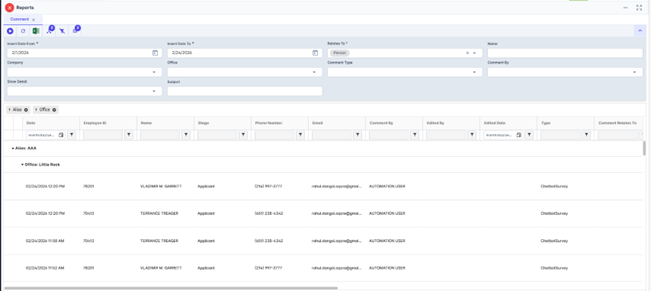
Report Details
Category | Value |
Parent Category | Other |
Category | Common |
Report Type | Spreadsheet |
Report runs from Application | RMS |
Report Category: | Shareable |
Report Level | All |
Report Parameters
Report Parameter | Description | Parameter Options | Default | Required |
Insert Date From | Filters comments by their insert (creation) date — start of range | Any valid date | Yes | |
Insert Date To | Filters comments by their insert (creation) date — end of range | Any valid date | Yes | |
Relates To | Selects the entity type whose comments are retrieved. | Person, Organization, Contact, Assignment, Job, Job Candidate, Invoice, Payment, Bill, Work Injury, Unemployment | Yes | |
Name | Filters results by the entity's name or ID. | Free text or numeric ID | All | No |
Company | Filters results to selected company | List of companies present that a user has access | All | No |
Office | Filters the results based on the office of the company selected | List of office belonging to a company that a user has access | All | No |
Comment Type | Filters by the type of comment | List of all active comment types. | All | No |
Comment By | Filters comments to those created by a specific staff member. The dropdown lists all office staff accessible to the logged-in user | List of office staff persons | All | No |
Show Detail | Controls the level of output. Yes returns one row per comment with full details. No returns an aggregated summary with comment count per entity. | Yes / No | No | |
Subject | Filters comments whose Subject field contains the entered text. | Free text | No |
Report Grouping
Company
Office
Results are grouped hierarchically by Company and then by Office. Within each office, comment rows are ordered by Date descending (most recent first). In Summary View (Show Detail = No), results are grouped by Alias, Office, and Name with a Comment Count aggregate.
Report Columns
Report Column | Description | Definition/Logic |
Date | Date and time the comment was created | Displayed with full timestamp of when the comment was inserted. |
Employee ID | Unique system ID of the person | Unique Person Id linked with each employee |
Contact ID | Unique system ID of the contact | Unique Person Id linked to contact of related Customer. |
Customer ID | Unique system ID of the organization | Unique Organization Id linked to the client / customer present in the system. |
ID | Entity identifier for non-person entity types | The primary key of the entity: Assignment Id, Payment Id, Invoice Id, Bill Id, Work Injury Id, or Unemployment Id depending on option selected at Relates To parameter. |
Name | Name or identifier of the entity record | For Person/Contact/JobCandidate: Person's Full Name. For Organization: Customers Name. For Job: Job Title. For Assignment: Person's name linked to the assignment. For Payment: Check Number. For Invoice: Invoice Number For Bill: Bill Number. For Work Injury/Unemployment: Person's name. |
Stage | Current entity stage or classification | Shows the status of the record. Person records: Applicant, Employee, New Hire Job records: Filled, In Progress, Open Work Injury records: FROI Submitted, Initiated, In Progress, Closed Unemployment records: Initiated, In Progress, Determinations Received, Closed Assignment records: Calculated as Future, Current, Ended, or Invalid |
Status | Current status of the entity record | Shows the current Status for each record type, including: Person: Employee, Applicant, Contact, New Hire, and Office Staff Organization: Lead, Target, New Customer, Customer, and Agency Bills Job Candidates |
Phone Number | Primary phone number of the person | Displays the current active phone number. Formatted as (XXX) XXX-XXXX. |
Primary email address of the person | Displays the current active email address of related entity | |
Customer | Client/Employer the person entity is associated with | Name of Customer recorded in the system |
Department | Department within the Customer | Name of department associated with customer. |
Comment By | Name of the staff member who created the comment | The name of the user who wrote and saved the comment. When the Comment By parameter is used to filter the report, only comments created by the selected staff member are included in the results |
Edited By | Name of the staff member who last edited the comment | The name of the user who last edited the comment. This field is only populated if the comment has been modified after it was originally created. |
Edited Date | Date and time the comment was last edited | The date and time the comment was last edited. This field is blank for comments that have never been modified after they were originally created. |
Type | The comment type | The category of the comment. |
Comment Relates To | Other entities this comment is cross-linked to beyond the primary entity | This gathers comments connected to the record (such as people, organizations, jobs, assignments, unemployment, or work injury records) and shows them together in a simple, comma-separated format. |
Subject | Subject line of the comment | If no subject was entered when the comment was created, this field will appear blank. |
Comment | Full text body of the comment | This is the actual content of the comment, whether it was written by a staff member or created automatically by the system. |
Task Name | Name/title of the task linked to this comment | If the comment is linked to a task, the task name appears here. If there’s no linked task, this field will be blank. |
Task Assigned To | Name of the person the task is assigned to | If a task has someone assigned, their name appears here. |
Task Created By | Name of the person who created the task | If available, this displays who originally added the task. |
Task Relates To | The entity types the task is related to | This indicates what the task is connected to, such as a Person, Organization, Job, Assignment, Job Candidate, Work Injury, or Unemployment record. |
Task Status | Status of the linked task | Status of the task. |
Task Start Date | Start date of the linked task | Start date of the task formatted in MM/dd/YYYY format |
Task Due Date | Due date of the linked task | End date of the task formatted in MM/dd/YYYY format |
Comment Count | Total number of comments for the entity (Summary View only) | The count is grouped by alias, office, and name, and it only appears when show detail = false |
Additional Notes
Discarded comments excluded: Only active (non-discarded) comments are returned. |
When Relates To = Person is selected, OfficeStaff and Contact Entity stages are automatically excluded from results. When Relates To = Organization is selected, Agency and Tenant Organization stages are excluded. |