Summary
The Turnover Report provides a clear, assignment-level view of employee movement, helping users quickly understand workforce retention and attrition patterns across customers and departments.
Its standout feature is the flexible filtering capability; users can slice data by Customer, Department, Job Title, Shift, and configurable End Reasons, making it easy to identify where and why employees are leaving without running multiple reports.
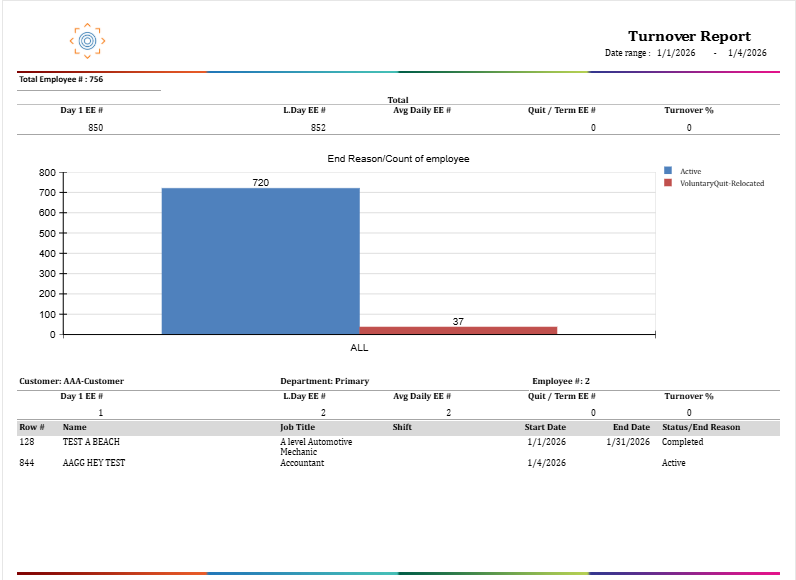
By combining detailed assignment data with calculated turnover metrics and a visual chart of end reasons, the report enables faster workforce analysis, clearer retention visibility, and more confident staffing decisions, all in one place.
This report is essential for:
Operations & Branch Managers: monitor employee retention across client sites and flag high-attrition accounts.
HR & Workforce Planning Teams: analyze end reasons to distinguish voluntary departures from terminations and track trends over time.
Account Managers: understand client-level turnover to guide conversations around fill rates, conversion, and staffing strategy.
By using this report, staffing companies gain transparency into employee movement, enabling smarter decisions about workforce planning, client relationships, and retention initiatives.
Report Overview
Attribute | Details |
Purpose | Tracks employee turnover by measuring the proportion of employees who left during a selected period. Presents both summary turnover metrics and assignment-level detail, organized by Customer and Department. |
Classification | Business-Critical Report |
Who Should Use This Report | Operations Managers, Branch Managers, HR & Workforce Planning Teams, Account Managers |
Business Problem Solved | Helps identify where and why employees are leaving by quantifying turnover against total headcount and categorizing departures by end reason, enabling targeted retention and staffing strategies. |
Run Frequency | Weekly, Monthly, or as needed for workforce reviews and client reporting |
Related Reports | Headcount Report, Assignment Info, Assignment List |
Business Value
Category | Description |
Retention Analysis | Quantifies turnover rate per customer and overall to identify high-attrition accounts. |
Attrition Insights | Breaks down departures by end reason (Voluntary Quit, Terminated, Hired Full Time, etc.) to guide corrective action. |
Workforce Planning | Supports fill forecasting and capacity planning by surfacing headcount trends at period start and end. |
Client & Operational Control | Enables account managers to proactively address clients with chronic high turnover before it affects service levels. |
Known Issues or Limitations
Issues | Description |
Turnover % shows 0 when no end reason is selected | If no Turnover End Reason is selected, Quit/Term EE# defaults to 0, resulting in a Turnover % of 0. This is by design — a Turnover End Reason must be selected to count departures. |
Excluded End Reason can silently reduce counts | Employees with the excluded end reason are removed from both the list and the count, which may not be immediately obvious to users unfamiliar with this filter. |
Turnover calculation based on total unique employees | Turnover % is calculated as (Quit/Term EE ÷ Total Unique Employees) × 100 rather than using Average Daily EE. |
Troubleshooting Guide
Issues | Problem Reason | Solution |
Turnover % is 0 | No Turnover End Reason selected | Select at least one Turnover End Reason to count departures. |
No data displayed | Date range or filters too restrictive | Widen the date range and confirm customer/department access. |
Employee missing from list | Employee's assignment end reason matches the Excluded End Reason | Review and adjust the Excluded End Reason parameter. |
Employee count lower than expected | Shift filter is applied and excludes unassigned shifts | Clear the Shift filter or verify shift assignments for affected employees. |
Data differs from prior period run | Assignment dates or end reasons were edited retroactively | Re-run with the same parameters and confirm no backdated changes were made. |
FAQ
Questions | Answers |
How is Turnover % calculated? | Turnover % = (Quit/Term EE ÷ Total Unique Employees) × 100. Total Unique Employees is the distinct count of all employees in the selected period. |
What is the difference between Day 1 EE# and L. Day EE# (Last Day Employee Count)? | Day 1 EE# counts employees actively assigned at the start of the period. L. Day EE# counts employees actively assigned at the end of the period. |
Why does Avg Daily EE# not match my manual average? | The system uses a ceiling function on the average of Day 1 EE# and L. Day EE #, rounding up to the nearest whole number. |
Can I see turnover for a specific customer only? | Yes. Use the Filter By and Filter By Value parameters to search by Customer name or Customer Id. |
How is Turnover % calculated? | Turnover % = (Quit/Term EE ÷ Total Unique Employees) × 100. Total Unique Employees is the distinct count of all employees in the selected period. |
What does the bar chart show? | The bar chart displays End Reason Count of Employees, broken down into Active and Voluntary/Quit/Retrenched categories for a visual summary of workforce status. |
What happens if I select an Excluded End Reason? | Employees whose assignment end reason matches the excluded selection are removed from both the report list and all headcount calculations. |
Reference Video/Screenshot
Report Details
Category | Value |
Parent Category | Front Office |
Category | Job & Assignment |
Report Type | Paginated Report |
Report runs from Application | RMS |
Report Category: | Shareable |
Report Level | Assignment |
Report Parameters
Report Parameter | Description | Parameter Options | Default | Required |
Start Date | Filters assignments by the start of the reporting period | Any date | — | Yes |
End Date | Filters assignments by the end of the reporting period | Any date | — | Yes |
Company | Filters records by the selected company | List of companies the user has access to | All | No |
Office | Filters records by the selected office(s) | List of offices for the selected company | All | No |
Filter By | Determines the type of customer filter to apply | Customer / Customer Id | Customer | No |
Filter By Value | The search value used with the Filter By selection | Customer name or numeric Customer Id | % | No |
Department | Filters records by customer department name or Id | Department name or numeric Id | % | No |
Shift | Filters assignments by shift | List of configured shifts | % (All) | No |
Job Title | Filters assignments by job title | Free-text partial match | % (All) | No |
Turnover End Reason | Defines which end reasons are counted as Quit/Term EE# for turnover calculation | Multi-select list of end reasons; defaults to All (count = 0) | All | No |
Excluded End Reason | Excludes employees with the selected end reason from both the list and all counts | Multi-select list of end reasons (e.g., Hired Full Time) | None | No |
Report Grouping
Within each Customer–Department group, the report displays the turnover summary header (Day 1 EE#, L. Day EE# (Last Day EE #), Average Daily EE#, Quit/Term EE#, Turnover %) followed by the individual assignment detail rows.
Report Columns
Report Column | Description | Definition/Logic |
Row # | Sequential row number within the report | A simple running number used to list each employee in order. |
Name | Employee full name | The employee’s full name shown in “Last Name, First Name” format. |
Job Title | Job title of the assignment | The job title the employee was placed into. |
Shift | Shift assigned to the employee | The employee’s assigned shift. Left blank if no shift is associated. |
Start Date | Assignment start date | The first day the employee began working in the assignment. |
End Date | Assignment end date | The last day the employee worked in the assignment. Blank if the employee is still active. |
Status / End Reason | Current assignment status or reason for departure | Shows Active when the assignment has no end date. If the assignment has ended, shows the specific reason (e.g., Voluntary Quit, Terminated, Hired Full Time). |
Total Employee # | Total distinct employees in the report period | The number of unique employees included in the report based on the selected filters. |
Day 1 EE# | Employees active at the start of the period | How many employees were actively assigned on the first day of the selected date range. |
L.Day EE# | Employees active at the end of the period | How many employees were actively assigned on the last day of the selected date range. |
Avg Daily EE# | Average headcount across the period | The average of the headcount at the start and end of the selected period, rounded up. |
Quit / Term EE# | Employees who left for a selected Turnover End Reason | The number of employees who ended their assignment within the selected date range for the selected end‑reason category. Shows zero if “All” reasons are selected. |
Turnover % | Employee turnover rate for the period | The percentage of employees who left during the period, calculated as: |
Additional Notes
The Excluded End Reason parameter is particularly useful for Temp-to-Hire scenarios where employees converted to full-time should not inflate the turnover count. |
If both Turnover End Reason and Excluded End Reason are configured, Excluded End Reason takes precedence — matching employees are removed before the Turnover End Reason count is applied. |