Summary
The AR Aging Report gives a clear, real-time picture of how much money customers owe the staffing agency and how long those amounts have been outstanding. It breaks down open invoice balances into aging buckets — Current, 1–30 days, 31–60 days, 61–90 days, and Over 90 days — so the collections and finance teams can immediately see which invoices are overdue and by how long.
The report also shows any unspent customer payments (Credits) sitting in the system, giving a true net payable view. A dedicated Customer Payment section lists all unapplied payments for easy reconciliation.
This report is essential for:
Finance & Accounting: monitoring outstanding receivables and ensuring cash flow health.
Collections Teams: prioritizing follow-ups based on how long invoices have been overdue.
Branch Managers: spotting clients with consistently late payments or high outstanding balances.
Billing Teams: reconciling invoices issued vs. payments received.
By using this report, staffing agencies gain full visibility into what is owed, by whom, and for how long — enabling smarter credit decisions, faster collections, and accurate financial close.
Report Overview
Attribute | Details |
Purpose | Shows all outstanding (unpaid) invoice balances grouped by aging buckets to help track how long receivables have been outstanding. Also displays unapplied customer payment credits. |
Classification | Business-Critical Report |
Who Should Use This Report | Finance and Accounting, Collections Team, Branch Managers, Billing Teams |
Business Problem Solved | Helps the agency identify which customers owe money and for how long, enabling timely collections and reducing bad debt risk. |
Run Frequency | Daily, Weekly, or as needed for collections follow-up and financial close |
Related Reports | AR Aging (Spreadsheet and Paginated), AR Deposit, Customer AR Payment |
Business Value
Category | Description |
Collections Prioritization | Instantly identifies which invoices are overdue by 30, 60, or 90+ days so collections teams can focus their efforts effectively. |
Cash Flow Monitoring | Provides a snapshot of total receivables outstanding at any point in time, helping finance track expected cash inflows. |
Credit Risk Management | Shows customer credit limits alongside outstanding balances, flagging customers who may be over their credit limit. |
Reconciliation Support | Displays unapplied payments (Credits) alongside balances so billing teams can quickly reconcile what is still owed. |
Known Issues or Limitations
Issues | Description |
Credits reflect customer-level payments only | The Credits column shows unapplied payment balances at the customer level. Invoice-level credits or adjustments are not included in this figure. |
Balance reflects invoiced amount minus payments posted | Only posted (closed) AR batches are counted. Payments entered but not yet posted will not reduce the balance shown. |
Age calculation depends on Date Type selected | If Date Type is set to Due Date, aging is calculated from the invoice due date. If set to Invoice Date, aging starts from the invoice date. Changing this parameter changes all aging bucket values. |
Troubleshooting Guide
Issues | Problem Reason | Solution |
No data displayed | Filters for Company or Office do not match any invoices, or no invoices have a non-zero balance. | Verify the Company and Office selections. Ensure the As of Date is not set earlier than all invoice dates. |
Balance appears higher than expected | Payments have been entered but the AR Batch has not been posted/closed. | Confirm that all relevant AR batches have been fully posted in the system. |
Invoice not appearing in the report | The Invoice Batch has not been posted, or the invoice date is after the As Of Date. | Check that the Invoice Batch is posted and that the As of Date covers the invoice date. |
Credits column shows zero | No unapplied customer payments exist for the customer as of the selected date. | Verify that customer payments have been entered and posted. |
Aging buckets seem incorrect | Wrong Date Type selected (Due Date vs. Invoice Date). | Switch the Date Type parameter and re-run to see how aging buckets shift. |
FAQ
Questions | Answers |
What does the 'Current' bucket mean? | Current means the invoice due date (or invoice date, depending on the Date Type setting) is on or before the As Of Date ; in other words, the invoice is not yet overdue. |
What is the difference between Balance and Credits? | Balance is the unpaid portion of an invoice (Invoice Amount - Total payments applied). Credits are unapplied customer payments sitting in the system that have not yet been matched to an invoice. |
What does 'DO' mean in the report? | DO stands for Days Outstanding — the number of days the invoice has been past its due date (or past its invoice date) as of the As Of Date. A value of 0 means it is current. |
How is the Last Payment Date determined? | The system looks at the most recent payment applied to any invoice for that customer, or the most recent organization payment recorded — whichever is later. |
Reference Video/Screenshot
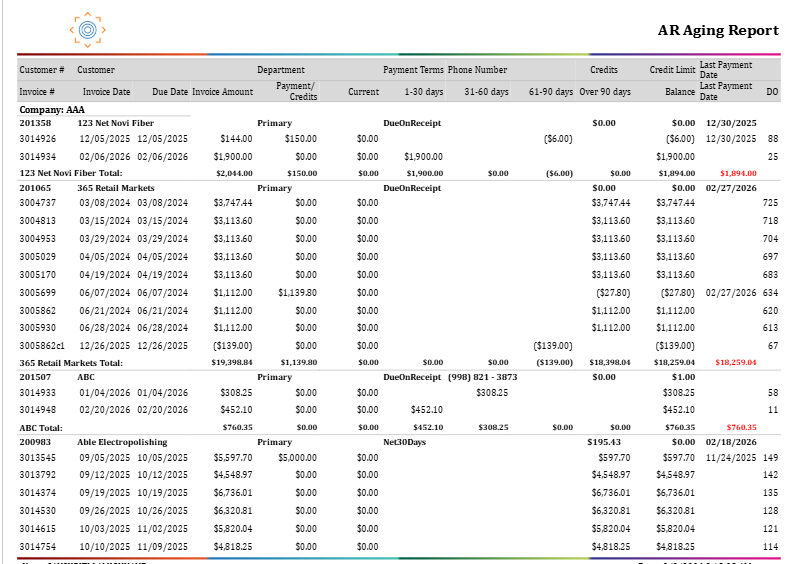
Report Details
Category | Value |
Parent Category | Back Office |
Category | Accounts Receivable |
Report Type | Paginated Report |
Report runs from Application | RMS |
Report Category: | Shareable |
Report Level | Invoice |
Report Parameters
Report Parameter | Description | Parameter Options | Default | Required |
Date Type | Determines how aging is calculated — either from the due date or from the invoice date. | Due Date / Invoice Date | Due Date | Yes |
As Of Date | The report looks at all invoices and payments up to and including this date. | Today's Date | Yes | |
Company | Filters results to selected company | List of companies present that a user has access | All | Yes |
Office | Filters the results based on the office of the company selected | List of offices belonging to a company that a user has access | All | No |
Group By | Controls how invoice rows are grouped in the report layout. | None / Office | None | Yes |
Customer | Filters records by customer name or customer id. | Free text to enter customer name or customer Id | % | No |
Show Summary | When set to True, shows only customer-level totals without individual invoice rows. | True / False | False | Yes |
Roll Up to Parent Customer | When set to Yes, all department-level invoices for a customer are merged and shown under the root (parent) customer. | Yes / No | No | Yes |
Report Grouping
Company
Office
The report will be grouped based on the value selected in the Group By parameter. If “Office” is selected, the report will be grouped by office. If no value is selected, the report will default to being grouped by company only.
Report Columns
Report Column | Description | Definition/Logic |
Customer # | The unique ID number assigned to the customer in the system. | The unique number used to identify the customer. |
Customer | The name of the customer (company) that owes the invoice amount. | The customer’s organization name. If the customer is part of a parent company and roll‑up is enabled, the parent company’s name is shown. |
Department | The specific department within the customer's organization that the invoice belongs to. | The department associated with the customer on the invoice. This will be blank if the customer doesn’t use departmental structures. |
Invoice # | The unique number identifying the individual invoice. | The invoice number assigned when the invoice batch was posted. |
Invoice Date | The date the invoice was created/issued. | The date recorded on the Invoice Batch when it was posted to the system. |
Due Date | The date by which the customer is expected to pay the invoice. | The date by which payment is expected, based on the customer’s payment terms (e.g., Net 30). If no terms are set, it defaults to payment due immediately. |
Invoice Amount | The total amount billed on the invoice. | The full invoice amount as posted. |
Payment / Credits | The total payments that have been received and applied against this customer's invoices, plus any unapplied credit balances. | Total Payments = sum of all posted payments applied to invoices for this customer as of the As of Date. Credits = unapplied payment amounts sitting in the system for this customer. |
Current | The portion of the invoice balance that is not yet overdue. | If the number of days since the due date (or invoice date) is 0 or less as of the As Of Date, the full remaining balance appears here. |
1–30 days | The portion of the invoice balance that is 1 to 30 days overdue. | If the invoice is between 1 and 30 days past its due date (or invoice date) as of the As Of Date, the remaining balance appears here. |
31–60 days | The portion of the invoice balance that is 31 to 60 days overdue. | If the invoice is between 31 and 60 days past its due date (or invoice date) as of the As of Date, the remaining balance appears here. |
61–90 days | The portion of the invoice balance that is 61 to 90 days overdue. | If the invoice is between 61 and 90 days past its due date (or invoice date) as of the As of Date, the remaining balance appears here. |
Over 90 days | The portion of the invoice balance that is more than 90 days overdue. | If the invoice is more than 90 days past its due date (or invoice date) as of the As of Date, the remaining balance appears here. |
Credits | Unapplied payment amounts for this customer that have not yet been matched to an invoice. | Sum of all posted organization payment balances (payments received but not yet applied to an invoice) for the customer as of the As of Date. |
Credit Limit | The maximum credit amount the agency has approved for this customer. | Pulled from the customer's service profile. Allows the user to compare outstanding balance against the approved credit limit. |
Balance | The total unpaid amount remaining on this invoice. | Balance = Invoice Amount minus all payments that have been posted and applied to this invoice as of the As of Date. |
Last Payment Date | The most recent date on which a payment was received from this customer. | The system checks three layers in order: (1) the most recent invoice payment insert date, (2) the most recent organization payment date if it is later, (3) the most recent payment under the root parent customer if no other payment date is found. |
DO (Days Outstanding) | The number of days this invoice has been past its due date (or invoice date). | Days Outstanding = As of Date minus Due Date (or Invoice Date if Date Type = Invoice Date). A value of 0 or less means the invoice is current and appears in the Current bucket. |
Payment Terms | The agreed payment terms for this customer, indicating when payment is expected. | Pulled from the customer's service profile (e.g., Net 30, Due on Receipt). Defaults to Due on Receipt if no terms are configured. |
Phone Number | The primary phone number on file for the customer. | Pulled from the customer's contact information record. Formatted as (XXX) XXX-XXXX. |
Payment Amount | The total amount received in this payment. | The full amount of the payment received by a customer. |
Applied Amount | The portion of the payment that has already been matched to invoices. | Applied Amount = Payment Amount -Remaining Balance. |
Remaining Balance | The portion of the payment not yet matched to any invoice. | The unapplied balance remaining on the organization payment record. |
Reference | Any reference number or note entered when the payment was recorded. | Free-text reference field from the payment entry. |
Grand Total Payment Amount | The total of all listed payments across all customers. | Sum of all payment amounts |
Grand Total Applied Amount | The total amount applied to invoices across all listed payments. | Sum of all applied amounts for a particular customer |
Grand Total Remaining Balance | The total unapplied balance across all listed payments. | Sum of all remaining balances for a particular customer |
Additional Notes
The aging bucket where an invoice appears depends entirely on the Date Type selected. Due Date aging and Invoice Date aging will produce different bucket distributions for the same invoice. |
Only invoices with a non-zero balance (i.e., something still owed) appear in the report. Fully paid invoices are excluded. |