Summary
The Accrued Hours Report gives staffing agencies an easy, employee‑level view of all hours worked both within a selected pay period and across an employee’s entire time on assignment. Instead of pulling data from multiple systems, users can quickly see totals for regular, overtime, double‑time, holiday, vacation, and other hour types in one place.
This report is especially useful for:
HR & Payroll: Checking hours before payroll and spotting employees nearing overtime or benefit milestones.
Finance & Accounting: Matching paid hours to client invoices and validating labor costs.
Branch Managers: Monitoring active employees, balancing workloads, and identifying underutilized or overtime‑risk workers.
Compliance & Benefits Teams: Tracking cumulative hours to determine when employees qualify for required benefits or leave programs.
By combining pay‑period hours and lifetime totals in one view, the report removes the need to cross‑reference multiple sources, giving teams a complete picture of employee hour history in a single place.
Report Overview
Attribute | Details |
Purpose | Shows each employee’s paid hours by type for a selected date range, plus a cumulative total from their first assignment. Helps verify billing, check benefit eligibility, and monitor workforce activity. |
Classification | Operational-Tracking Report |
Who Should Use This Report | HR & Payroll, Finance & Accounting, Branch Managers, Compliance & Benefits |
Business Problem Solved | Help staffing teams track hours worked in the current period and over an employee’s entire tenure so they can ensure accurate billing, determine benefit qualification, and understand workforce utilization across clients and offices. |
Run Frequency | Weekly, biweekly, monthly, or on demand for invoice prep, compliance checks, and benefit eligibility reviews. |
Related Reports | Payment Accrual, Person Accrual, Payroll Register |
Business Value
Category | Description |
Benefits Eligibility | Benefit programs often activate when employees reach certain cumulative hours. The Total Since First Assignment column shows these hours so HR can quickly identify eligibility. |
Workforce Status Monitoring | The Currently Assigned indicator shows if an employee is actively placed with a client, helping managers distinguish active vs. inactive workers. |
Client Billing Verification | Filtering by customer lets finance teams review all hours worked for that client by employee and hour type to confirm that invoiced amounts match recorded hours. |
Targeted Workforce Analysis | The Total Hours ≥ filter shows only employees who meet a minimum hour threshold, helping managers identify high‑hour workers, overtime risks, or employees eligible for tenure‑based programs. |
Known Issues or Limitations
Issues | Description |
Currently Assigned reflects customer-level status | When a customer filter is applied, the Currently Assigned column reflects assignment status only for that customer. An employee may show ‘N’ for the selected customer even if they are actively assigned elsewhere. |
Date Type affects hour totals | Accounting Period Date groups hours by the financial period they were posted to, while Check Date groups them by the paycheck issue date. Totals may differ, but both views are accurate. |
Troubleshooting Guide
Issues | Problem Reason | Solution |
No data returned | No employees match the selected filters, or you may not have access to the selected office or company | No employees match the selected filters, or you may not have access to the selected office or company |
Total Hours >= filter is not returning expected results | The filter applies to Total for Date Range (hours in the selected period), not Total Since First Assignment (lifetime hours) | Adjust the filter to match hours within the chosen period. |
Hours appear in the wrong period | The Date Type is set to Accounting Period Date but the user expected Check Date results, or vice versa | Switch the Date Type parameter to match how you want hours categorized — Check Date for when paychecks were issued, Accounting Period Date for when hours were posted linked to transactions made. |
FAQ
Questions | Answers |
Why do some employees show 0 hours for the date range but still have a Total Since First Assignment? | These employees didn’t work during the selected date range but still show cumulative hours from prior periods. To hide employees with zero hours in the current period, set the Total Hours ≥ filter to 1 or higher. |
What is the difference between Total for Date Range and Total Since First Assignment? | Total for Date Range shows hours worked only within the selected dates. Total Since First Assignment shows all hours worked since the employee’s first assignment, regardless of filters. |
Does the report include hours from employees who have been terminated? | Yes. If a terminated employee has payroll records in the selected date range, their hours will appear. The Currently Assigned column will show ‘N’ to indicate they’re no longer active. |
What does the Hol (Holiday) column represent? | Holiday hours represent paid time granted for approved company or client holidays. These hours are paid but not worked and are tracked separately from regular and vacation hours for billing and compliance. |
Can report be filtered by particular Employee id and Customer id? | Yes, the report can be filtered by entering the Employee Id in Employee Name parameter as it filters both Id and Name for an employee and likewise same for customer in Customer Parameter. |
Reference Video/Screenshot
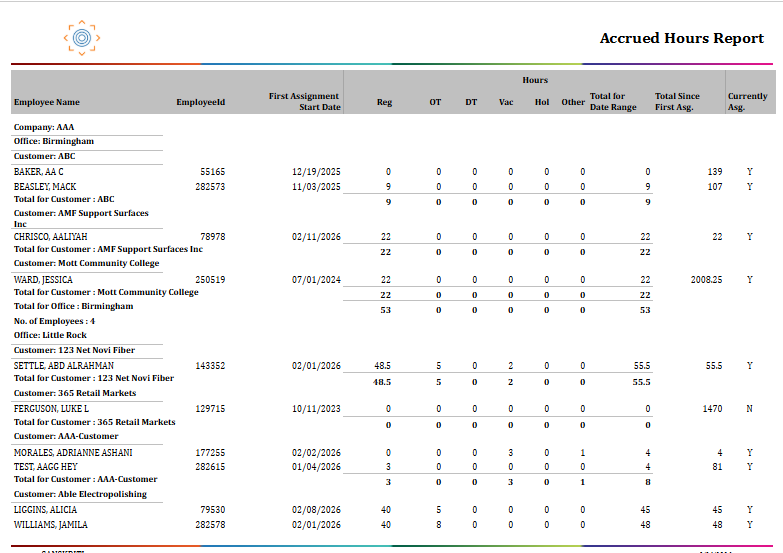
Report Details
Category | Value |
Parent Category | Back Office |
Category | Payroll |
Report Type | Paginated |
Report runs from Application | RMS |
Report Category | Shareable |
Report Level | Employee |
Report Parameters
Report Parameter | Description | Parameter Options | Default | Required |
Date Type | Drop down to choose whether hours are filtered by Accounting Period Date or Check Date. | Accounting Period Date / Check Date | Accounting Period Date | Yes |
Start Date | The start of the date range for which hours will be included in the report | Yes | ||
End Date | The end of the date range for which hours will be included in the report | Yes | ||
Company | Filters results to selected company | List of companies present that a user has access | All | No |
Office | Filters the results based on the office of the company selected | List of office belonging to a company that a user has access | All | No |
Group By | Determines how employee rows are organized. Grouping by Office or Customer creates separate rows per group; None gives one row per employee with a true lifetime total. | Company / Office / Customer | No | |
On Assignment | Filters results to show only currently active employees (Yes), only inactive/unassigned employees (No) | Yes / No | No | |
Employee Name | Filters the record by a specific Employee name or Employee ID. | Free text for Employee Name or Employee Id | % | Yes |
Customer / Customer Id | Filters the record by a specific Customer name or Customer ID. | Free text for Customer name or Customer Id | % | Yes |
Report Grouping
Company
Office
Customer
The report will be grouped as per the Group by parameter value selected. Depending on the value selected in the group order, it will be defined. In case of no grouping selected, the data is displayed at Employee level without groupings.
Report Column
Report Column | Description | Definition/Logic |
Company | The legal entity (staffing company) that the employee's assignment office belongs to | Identifies the back‑office company the hours belong to, ensuring costs and billing are assigned to the correct legal entity for billing and payroll. |
Office | The branch office or location that manages the employee's assignment | Shows the back‑office office responsible for payroll. When Group By = Office, hours are grouped by each office. |
Customer | The client company to which the employee is currently or was previously assigned | Indicates the client where the hours were worked. When a customer filter is applied, only hours for that client appear. |
Employee Name | The full name of the placed worker | Shown as Last Name, First Name. May appear on multiple rows when grouped by Office or Customer. |
Employee ID | The unique system identifier assigned to the employee | System‑generated unique ID used to identify employees and for Employee Name searches. |
First Assignment Start Date | The date the employee began their very first assignment — either with the filtered customer or across all customers, depending on the Group By setting | Anchor date for cumulative hours. With Customer filter: first assignment for that client. Group By = None: earliest assignment in the system. |
Reg | Total regular-time hours worked by the employee during the selected date range | Regular hours are standard hours worked within the employee's normal scheduled shift, typically up to 40 hours per week . |
OT | Total overtime hours worked by the employee during the selected date range | Overtime hours are those worked beyond the regular-time threshold defined by the pay code configuration or client contract (commonly hours above 40 per week, or over 8 per day in certain states). |
DT | Total double-time hours worked by the employee during the selected date range | Double-time hours apply when an employee works beyond overtime thresholds. |
Hol | Total holiday hours paid to the employee during the selected date range | Holiday hours represent paid time given to employees for recognized company or client holidays. These hours are paid but not necessarily worked on-site. |
Vac. | Total paid time off (PTO or vacation) hours paid to the employee during the selected date range | Vacation hours reflect time when the employee was paid through the payroll system for approved paid time off — such as vacation days, personal days, or PTO drawdowns. |
Other | Total hours from any other pay code types not captured in the Regular, Overtime, Double Time, Holiday, or Vacation categories | This catch-all column captures hours from specialty pay codes such as any custom pay categories configured for specific clients. |
Total for Date Range | The sum of all paid hour types (Reg + OT + DT + Hol + Vac + Other) for the employee within the selected date range | All paid hours within the selected Start–End Date window. Used for billing and payroll checks; drives the Total Hours ≥ filter. |
Total Since First Asg. | The cumulative sum of all paid hours from the employee's first assignment date up to the current date — regardless of the date range filter | Cumulative lifetime hours used for benefit eligibility. Scoped to the active Group By selection. This total is scoped to the active Group By selection. If grouped by Customer, it reflects lifetime hours with that customer only not the employee's total across all clients. Set Group By to None to see the true lifetime total across all assignments. |
Currently Asg. | Indicates whether the employee is currently active on an assignment — either overall or with the filtered customer | Indicates whether the employee has an active assignment. Y = active assignment N = inactive, between assignments, or terminated With Customer filter: shows assignment status for that customer only. |