Summary
The Gross Profit by Customer Report shows revenue, payroll-related cost, and profit results by customer for a selected date range. It helps staffing teams understand margin performance at a more detailed customer level so they can make pricing, service, and cost-control decisions.
The report lets users choose how dates are interpreted, filter by company and office, and optionally roll customer activity up to a parent customer. It returns only finalized activity so financial review is based on completed records.
This report is essential for:
Finance teams: review profitability by customer and identify margin trends.
Payroll managers: compare billed value against payroll cost by customer.
Operations leaders: monitor customer-level performance and prioritize action.
Branch managers: spot low-margin customer relationships in their office scope.
The key business outcome is clearer customer-level profitability visibility for faster, more accurate business decisions.
Report Overview
Attribute | Details |
Purpose | Provides customer-level gross profit detail and totals for a selected period. |
Classification | Financial Report |
Who Should Use This Report | Finance teams, Payroll managers, Operations leaders, Branch managers |
Business Problem Solved | Shows where profit is gained or lost by customer so teams can improve pricing and cost control. |
Run Frequency | Weekly, monthly, and on-demand |
Related Reports | Gross Profit, Gross Profit Detail, Gross Profit Summary |
Business Value
Category | Description | |
Customer Margin Visibility | Shows profit performance by customer instead of only high-level totals. | |
Better Pricing Decisions | Helps teams identify customers with low or declining margins. | |
Cost Driver Clarity | Breaks out major revenue and payroll-related cost components for easier analysis. | |
Flexible Date Analysis | Supports multiple date perspectives so users can align reporting with business review needs. | |
Access-Controlled Reporting | Limits visible data to the user's approved company and office scope. | |
Historical Analysis | Includes archived finalized payroll activity for longer-period trend review. |
Known Issues or Limitations
Issues | Description |
Finalized activity only | Only completed payroll/billing activity is included; in-progress records are excluded. |
Zero-activity exclusion | Records with no billed amount and no pay amount are not shown. |
Customer search behavior | Customer filtering works as a contains-style search, so broad text may return many matches. |
Date type dependency | Results depend on the selected date type (accounting period, check date, or pay period end date). |
Hierarchy sensitivity | Parent-customer roll-up changes how customer rows are grouped and labeled. |
Troubleshooting Guide
Issues | Problem Reason | Solution |
No data returned | Date range, company, office, or customer filter does not match finalized records. | Expand the date range, use broader filters, and confirm finalized activity exists. |
Expected customer missing | The customer has no qualifying activity, is outside access scope, or the filter text is too narrow. | Remove or broaden customer text and verify user access to the related company and office. |
Results differ from another report | The other report may use a different date interpretation or aggregation level. | Match date type and filters across both reports before comparing totals. |
Profit percentage looks high or low | Very small billed totals can cause large percentage swings. | Review billed totals and gross profit values together before drawing conclusions. |
FAQ
Questions | Answers |
What does this report measure? | It measures billed value, payroll-related costs, and gross profit by customer. |
Can I filter by company and office? | Yes. You can run it for all or selected companies and offices within your access scope. |
What does "roll up to parent customer" do? | It combines child customer activity under the parent customer for grouped reporting. |
Which date should I choose? | Use the date type that matches your review process: accounting period, check date, or pay period end date. |
Why are some rows not shown? | Rows with no billed amount and no pay amount are excluded from this report. |
Reference Video/Screenshot
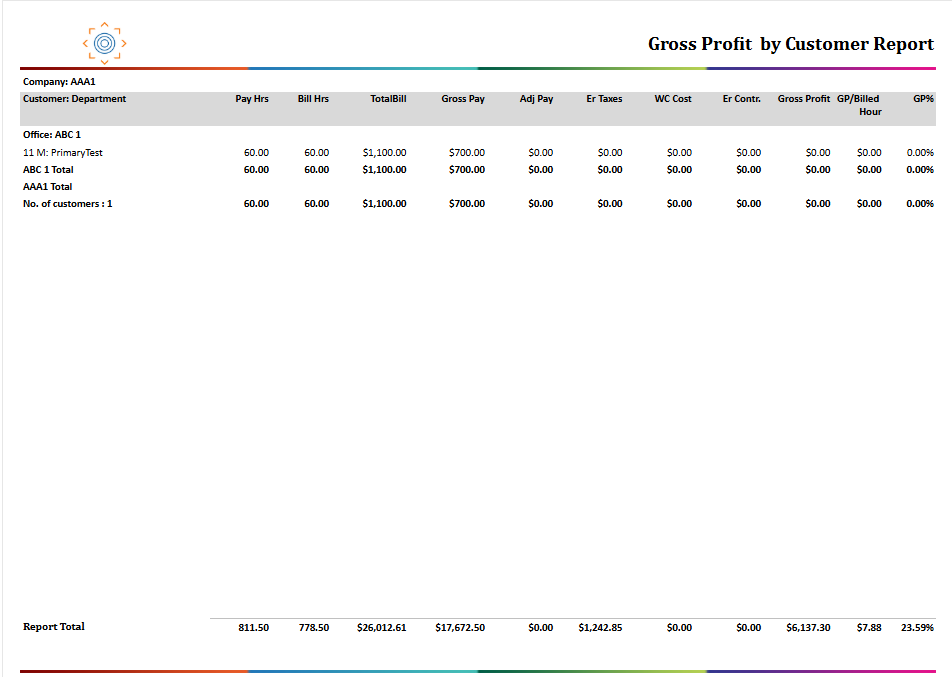
Report Details
Category | Value |
Parent Category | Back Office |
Category | Gross Profit/Transaction |
Report Type | Paginated Report |
Report runs from Application | RMS |
Report Category | Shareable |
Report Level | Transaction |
Report Parameters
Report Parameter | Description | Parameter Options | Default | Required |
Date Type | Controls which business date is used to include records (example: Accounting Period Date). | Select list: Accounting Period Date, Check Date, Pay Period End Date | Accounting Period Date | Yes |
Start Date | Beginning date for report data | Yes | ||
End Date | Ending date for report data | Yes | ||
Company | Filter records by companies selected | List of companies that the users have access to | No | |
Office | Filters records by offices selected | List of offices for the company selected | No | |
Roll Up to Parent Customer | Determines whether customer rows stay separate or are grouped under their parent customer. | Yes/No | No | No |
Customer | Filters results by customer name text. | Free Text | % | No |
Report Grouping
. Company
Office
The report will be grouped by the Company by default.
Report Columns
Report Column | Description | Definitions/Logic |
Company | The company the activity belongs to. | Taken from the selected company context linked to each activity record. |
Alias | Short company identifier shown in report output. | Pulled from company reporting setup. |
Customer | Customer name used for reporting. | Uses either direct customer mapping or parent-customer mapping, based on the roll-up setting. |
Department | Customer department value associated with the activity. | Pulled from the customer relationship data tied to the record. |
Office | Office or branch where the activity is recorded. | Taken from the office linked to the transaction activity. |
Pay Hours | Total payroll hours for the record. | Sums payroll hours captured for qualifying activity. |
Bill Hours | Total billable hours for the record. | Sums billable hours captured for qualifying activity. |
Sales | Base billed revenue amount. | Adds standard billed revenue values. |
Charge | Additional billed charges. | Adds charge values applied to the activity. |
Discount | Revenue reductions. | Adds discount values that reduce billed totals. |
GP Adjustment Bill | Billing-side gross profit adjustments. | Adds billing adjustments that affect gross-profit billing totals. |
GP Bill | Gross-profit billing base amount. | Calculated as sales plus charges, minus discounts, plus billing adjustments. |
Gross Wages | Wage-related amount used in profit evaluation. | Combines payroll gross and agency-related cost components used by the report. |
Gross Only | Employee wage-only amount. | Includes wage values for employee-classified records and excludes contractor-only wage treatment. |
GP Adjustment Pay | Pay-side gross profit adjustments. | Adds pay adjustments that affect profit. |
Agency Cost | Agency-related labor cost component. | Included when the worker classification is contractor. |
Employer Taxes | Employer-paid tax amount. | Adds employer tax expenses for qualifying activity. |
WC Cost | Workers' compensation cost. | Adds workers' compensation expense values. |
ER Contribution | Employer-paid benefit contribution. | Adds employer contribution amounts included in payroll-related cost. |
Payroll Cost | Total payroll-related cost amount. | Uses the report's payroll-cost value for each qualifying record. |
Gross Profit | Net profit amount. | Uses the report's computed profit value after revenue and payroll-related cost components are applied. |
GP/Billed Hour | Profit earned per billed hour. | Calculated as gross profit divided by billed hours; shown as 0 when billed hours are zero. |
GP % | Gross profit percentage. | Calculated as gross profit divided by GP Bill; shown as 0 when GP Bill is zero. |
Additional Notes
User access controls determine which companies and offices are visible in this report. |
The report can return different totals for the same date range if a different date type is selected. |
Parent-customer roll-up changes grouping and can reduce the number of distinct customer rows. |
Rows with both billed amount and pay amount equal to zero are excluded. |
Totals section includes overall sums and customer counts for the selected dataset. |