Summary
The Employee Summary Report provides a complete, single-view snapshot of an individual employee's profile, bringing together personal details, assignment history, education, compliance tasks, interview responses, payment information, and communication records in one consolidated report.
Its standout feature is the breadth of employee data it surfaces in a single run. Instead of navigating across multiple modules in Zenople, staffing coordinators and back-office teams can pull every key data point about an employee — from their active assignments and pay rate down to their I-9 validation status and most recent paycheck — all at once.
By consolidating dispersed employee data into one structured output, the report enables faster onboarding reviews, compliance audits, and payroll verification — all in one place.
This report is essential for:
Branch Coordinators & Recruiters: reviewing complete employee profiles before placement or redeployment.
Compliance & HR Teams: verifying I-9 documentation, task expiration dates, and interview consent records.
Payroll & Back-Office Teams: cross-checking pay rates, assignment dates, and recent payment history.
Operations & Management: conducting employee audits or responding to client inquiries about placed workers.
By using this report, staffing companies gain a 360-degree view of each employee, enabling faster decisions, reduced compliance risk, and improved placement accuracy.
Report Overview
Attribute | Details |
Purpose | Provides a full employee profile including personal information, assignment history, education, compliance tasks (I-9 etc.), interview answers, contact details, payment history, and any comments logged against the employee record. |
Classification | Operational Report |
Who Should Use This Report | Branch Coordinators, Recruiters, HR & Compliance Teams, Payroll & Back-Office Teams, Branch Managers |
Business Problem Solved | Eliminates the need to navigate multiple screens in Zenople to piece together an employee's full picture. Delivers all critical employee data in a single, printable report. |
Run Frequency | On-demand — typically run before placement decisions, compliance audits, pay discrepancy investigations, or employee terminations. |
Related Reports | Employee List Report |
Business Value
Category | Description |
360° Employee View | Aggregates personal info, assignments, education, compliance, payments, and communication history in a single report output. |
Compliance Assurance | Surfaces I-9 issue dates, expiration dates, and validation dates alongside interview consent records, reducing compliance risk. |
Placement Readiness | Provides recruiters with assignment history, pay rates, skills, and active/inactive status to make informed redeployment decisions. |
Payroll Verification | Displays the most recent regular payments including gross, tax, deductions, and net pay for quick cross-referencing against payroll records. |
Audit Support | Provides a printable, timestamped employee record with comments, user attribution, and full history for HR or client audits. |
Known Issues or Limitations
Issues | Description |
Inactive employees may show no recent assignments | If an employee has been inactive for an extended period, the assignment section may appear empty even if historical assignments exist outside the report window. |
SSN is masked by default | The SSN field displays only the last four digits (XXX-XX-XXXX). Full SSN cannot be retrieved through this report for security compliance. |
Regular Payments section shows last two payments only | The stored procedure pulls only the most recent regular payments (LastTwoRegularPayment). Historical payroll detail requires the Payroll Detail or Check History report. |
Skills section may be empty for legacy employees | Employees entered prior to the skills module being configured may show an empty Skills section even if skills were informally noted in comments. |
Troubleshooting Guide
Issues | Problem Reason | Solution |
No data displayed for the employee | Person Id passed to the report is incorrect or the user does not have access to the employee's office. | Verify the Person Id and confirm the running user has access to the employee's assigned office in Zenople. |
Assignment section is blank | Employee has no assignment records linked in the system, or all assignments are outside the visible scope. | Check the employee's assignment history directly in the People module to confirm assignments exist. |
Tasks / I-9 section is missing | No task forms have been completed or submitted for the employee. | Ensure the I-9 or applicable task form has been entered and saved against the employee record. |
Regular Payments shows no data | Employee has not received any regular payroll payments yet. | Confirm that at least one payroll batch has been processed and closed for this employee. |
Interview section shows incomplete answers | Not all interview questions were answered during the onboarding interview. | Review and complete the interview section in the employee's profile within Zenople. |
Contact Information is empty | No contact records (email, phone) have been entered for the employee. | Add contact details in the employee's Contact Information section within the People module. |
FAQ
Questions | Answers |
Can I run this report for multiple employees at once? | Yes. The report accepts a comma-separated list of Person Ids, allowing the report to be generated for multiple employees in a single run. |
Why is the SSN showing as XXX-XX-XXXX? | SSN is encrypted and masked by default for security compliance. Only the last four digits are displayed in this report. |
Where can I see full payroll history for an employee? | The Employee Summary Report shows only the most recent regular payments. For full payroll history, use the Check History or Payroll Detail report in RMS. |
How do I know if an employee's I-9 is still valid? | Check the Tasks section of the report. It displays the Issue Date, Expiration Date, and Validation Date for the I-9 task form. |
Why does the Comments section show comments I did not enter? | Comments can be entered by any user with access to the employee record. All comments are attributed with the entering user and timestamp. |
Reference Video/Screenshot
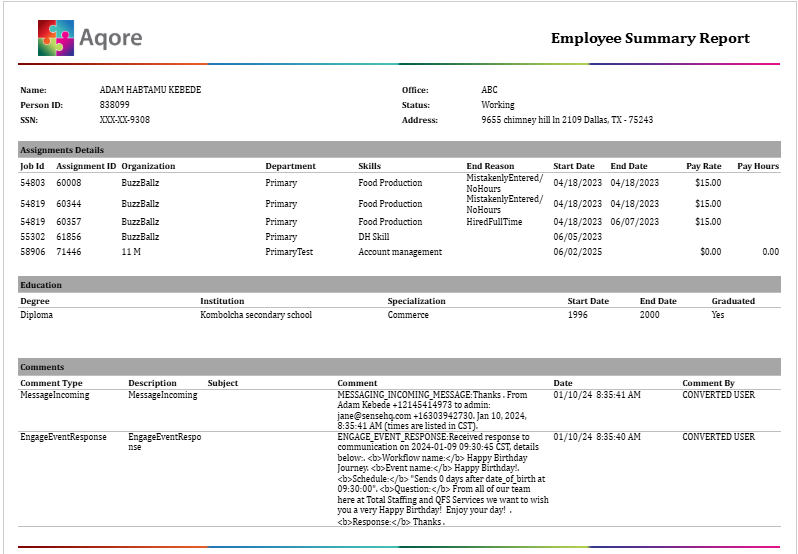
Report Details
Category | Value |
Parent Category | Front Office |
Category | Employee |
Report Type | Paginated Report |
Report runs from Application | RMS |
Report Category: | Shareable |
Report Level | Employee |
Report Parameters
Report Parameter | Description | Parameter Options | Default | Required |
Person ID | Identifies the employee(s) whose summary is generated. Accepts a single Person Id or a comma-separated list for batch generation. | Any valid Person Id (s) | 0 | Yes |
Report Grouping
Within each employee, data is grouped into the following sections in order:
Personal Information (Name, SSN, Office, Status, Address, Dates, Users)
Assignment Details
Education
Tasks (Compliance Forms, e.g., I-9)
Comments
Interview Responses
Skills
Contact Information
Address
Bank Account
Benefits & Deductions
Accruals
Regular Payments (Last Two)
Additional Information (Rate Type, Shift, Professional Summary, etc.)
Extra (MVP Status)
Report Columns
Report Column | Description | Definition/Logic |
Person ID | Unique internal identifier for the employee. | The unique identifier assigned to the individual in the system. |
SSN | Employee Social Security Number — masked for security. | Displayed as XXX-XX-XXXX; last 4 digits only. |
Office | The branch office to which the employee is currently assigned. | The office location currently associated with the person. |
Status | Current employment status of the employee (e.g., Active, Inactive). | The person’s employment status (e.g., Active, Terminated, Inactive), based on the configured status list. |
Address | Current resident address of the employee. | Full address of an employee |
Date Entered | The date the employee record was first created in Zenople. | Sourced from Date Type > Hiring Info from Employee Profile in EIS |
Hire Date | The official hire date of the employee. | Sourced from Date Type – Hired Date > Hiring Info from Employee Profile in EIS |
Entered By | The user who created the employee record. | The User Type associated to the employee record responsible entered in the system. |
Job Id | Internal identifier for the job order linked to the assignment. | The identifier for the job linked to the assignment. |
Assignment ID | Unique identifier for the specific assignment. | The identifier for the employee’s assignment. |
Organization | The client organization for the assignment. | The customer associated with the job or assignment. |
Department | The department within the client organization. | The department tied to the assignment, when applicable. |
Skills | Skill set required or assigned for the job. | The skills or qualifications associated with the assignment. |
End Reason | The reason the assignment ended (e.g., Completed, Terminated). | The reason the assignment ended (e.g., Voluntary Quit, Terminated, Assignment Completed). |
Start Date | The date the assignment began. | The date the employee began working on the assignment. |
End Date | The date the assignment ended. | The date the assignment ended, if applicable. |
Pay Rate | The hourly pay rate for the assignment. | The hourly or salary amount paid for the assignment. |
Pay Hours | Total pay hours logged for the assignment. | The total hours paid for the assignment. |
Degree | Highest or relevant degree obtained by the employee. | The degree earned (e.g., Bachelor’s, Associate’s). |
Institution | Name of the educational institution attended. | The school or educational institution attended. |
Specialization | Field of study or specialization. | The person’s major or specialization. |
Graduated | Year or date of graduation. | The year the person completed the degree. |
Task | Name of the compliance task or form (e.g., I-9). | The form or document associated with the task or requirement. |
Issuing Authority | Authority that issued the task document. | Stored in the task form record. |
Issue Date | The date the task document was issued. | The date the task form or credential was issued. |
Expiration Date | The date the task document expires. | The date the task form or credential expires; used for compliance monitoring. |
Validation Date | The date the document was verified/validated by the branch. | The date the task form or credential was reviewed and validated. |
Comment Type | Category of the comment (e.g., Terminated, General Comment). | The category of the comment (e.g., General, Warning, Note). |
Description | Short description label for the comment. | The subject or header of the comment. |
Comment | Full text of the comment logged against the employee. | The detailed comment text. |
Date (Comment) | Timestamp when the comment was entered. | The date and time the comment was created. |
Comment By | User or office that entered the comment. | The staff member who wrote the comment. |
Interview Question | The onboarding or compliance interview question posed to the employee. | A question asked during an interview. |
Answer | The employee's answer to the interview question. | The response given by the candidate. |
Note | Any additional note attached to the interview answer (e.g., email address for W2 consent). | Additional notes recorded during the interview. |
Contact Info Type | Type of contact record (e.g., Email, Mobile, Emergency Phone). | The type of contact detail (e.g., Phone, Email). |
Value (Contact) | The actual contact value (email address, phone number). | The actual contact information. |
Status (Contact) | Whether the contact record is Active or Inactive. | Indicates whether the contact information is active, inactive, or primary. |
Check Number | The check number issued for the payroll payment. | The check or payment reference number. |
Check Date | The date the paycheck was issued. | The date the payment was issued. |
Gross | The gross pay amount before taxes and deductions. | The total amount paid before deductions. |
Tax | Total taxes withheld from the payment. | Total taxes deducted. |
Deduction | Total deductions applied (e.g., benefits, garnishments). | Other deductions taken from the payment. |
Net | The net (take-home) pay after taxes and deductions. | The final amount paid after all deductions (Gross − Taxes − Deductions). |
Benefit | Employer benefit contributions recorded on the paycheck. | Any benefit-related amounts associated with the payment. |
MVP | Indicates whether the employee has been designated as an MVP. | A special value used for MVP‑related tracking. Defaults to Declined unless a value is chosen. |