Summary
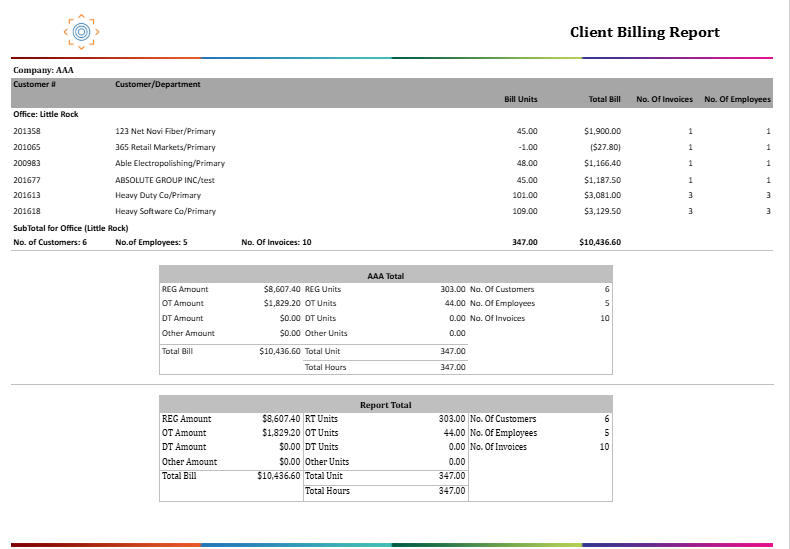
The Client Billing Report offers a clear customer-level view of billed hours and invoice amounts for a selected period, helping billing and finance teams reconcile invoices, validate totals, and understand revenue trends.
A key strength of the report is its flexible Date Type filter, which lets users choose between Accounting Period or Invoice Date, aligning results with either internal financial cycles or actual invoice activity. Additional options like Group By Office and Roll Up To Root Customer allow both detailed and consolidated views without running multiple reports.
Billing data is broken out by Regular Time (RT), Overtime (OT), Double Time (DT), and Other, making it easy to identify overtime‑heavy clients or unusual billing patterns.
This report is especially useful for:
Finance & Accounting: reconciling invoices before period close
Billing Teams: confirming invoice batches and customer totals
Branch Managers: monitoring client billing volume and overtime trends
Operations Managers: reviewing billed headcount and invoice counts by office
Overall, it provides staffing companies with a unified view of client billing activity, enabling faster reconciliation, accurate revenue tracking, and more informed client discussions.
Report Overview
Attribute | Details |
Purpose | Provides a customer-level summary (and optional detail) of all billed hours and invoice amounts for a selected date range, broken down by RT, OT, DT, and Other transaction codes. |
Classification | Financial / Billing Report |
Who Should Use This Report | Finance & Accounting, Billing Teams, Branch Managers, Operations Managers |
Business Problem Solved | Helps billing and finance teams validate invoiced amounts, verify hours billed per client, and reconcile billing totals against payroll and accounting records. |
Run Frequency | Weekly, bi-weekly, or monthly — aligned with invoice batch cycles or financial close periods |
Related Reports | A/R Aging, Invoice Register, Gross Profit Detail |
Business Value
Category | Description |
Billing Reconciliation | Validates total billed hours and amounts per customer against posted invoice batches. |
Client Visibility | Shows bill units and total bill for every active customer within the date range, grouped by office. |
Revenue Breakdown | Separates billing into RT, OT, DT, and Other categories to surface overtime costs and non-standard charges. |
Invoice Audit | Tracks No. of Invoices and No. of Employees per customer to support invoice-level auditing. |
Company-Level Totals | Aggregates all billing data at the company level with separate RT, OT, DT, and Other subtotals for executive reporting. |
Known Issues or Limitations
Issues | Description |
Other Hours always zero in summary totals | Hours for non-RT/OT/DT transaction codes are explicitly set to zero after data insertion. Only the dollar amount (Other Amount) is retained for non-standard pay codes. |
Supervisor column may be blank | Supervisor is displayed from the Person Role set at Job Level. If no Supervisor role has been configured for the job, the field will be empty. |
Data reflects posted invoices only | The report filters on invoice batch having valid postdate. Unposted or pending invoice batches are excluded from results. |
Roll Up To Root Customer changes department display | When Roll Up To Root Customer is set to Yes, all child department records are merged under the root customer. |
Troubleshooting Guide
Issues | Problem Reason | Solution |
No data displayed | Date range does not match any posted invoice batches | Verify the Start Date and End Date and ensure at least one Invoice Batch has been posted within the selected range. Check the Date Type parameter (Accounting Period vs. Invoice Date). |
Customer amounts seem too high | Roll Up To Root Customer is set to Yes | Set Roll Up To Root Customer to No to view billing per department/sub-customer. The Yes setting merges all child departments into the root customer. |
OT or DT amounts not visible | No OT or DT transaction items exist for the period | Verify that OT or DT transaction codes were used in timecard entry for the selected date range. If no overtime was worked, those columns will show zero. |
FAQ
Questions | Answers |
What determines whether totals appear by parent customer? | The Roll Up To Parent Customer parameter. When Yes, customer Id/customer/department are replaced by the root organization. |
Why does Total Bill not match the sum of RT, OT, DT, and Other Amount? | Total Bill is derived from Item bill at transaction level for all transaction codes. RT, OT, DT, and Other Amounts are broken out by code type. If any non-standard codes exist (e.g., adjustments), their amounts appear in Other Amount and are included in Total Bill. |
Why are some customers showing negative bill amounts? | Negative amounts indicate credit or reversal transactions. These occur when invoice corrections or voided transactions are posted within the selected date range. |
What does No. Of Employees count? | No. Of Employees is a distinct employee count across all transaction items for a given customer within the date range. It reflects the number of unique workers billed, not the number of active assignments. |
Reference Video/Screenshot
Report Details
Category | Value |
Parent Category | Back Office |
Category | Gross Profit/Transaction |
Report Type | Paginated Report |
Report runs from Application | RMS |
Report Category: | Shareable |
Report Level | Transaction |
Report Parameters
Report Parameter | Description | Parameter Options | Default | Required |
Date Type | Filters record by the type selected | Accounting Period Date/ Invoice Date | Accounting Period Date | Yes |
Start Date | Filters records by the Date Type parameter | Yes | ||
End Date | Filters records by the Date Type parameter | Yes | ||
Company | Filters records by companies selected | List of companies that the users have access to | No | |
Office | Filters records by offices selected | List of offices for the company selected | No | |
Job Position | Contains match on job position | Free Text | % | No |
Customer | Contains match on customer name (organization). | Free Text | % | No |
Roll up to Parent Customer | Filters recorded by customer department or rolled into root customer | Yes/No | No | No |
Show Summary | Show summary of the report or detailed information | True/False | True | No |
Group By | Groups records by the Office | Yes/No | Yes | No |
Report Grouping
Company
Office
The report will group as per the Group by parameter value selected. Depending on the value selected the group order will be defined.
Report Columns
Report Column | Description | Definition/Logic |
Customer # | Unique identifier of the customer/client organization. | The Id linked to the customer for which the transaction is made. |
Customer / Department | Name and department of the customer for the billing. | Show the customer and department. If ‘Roll Up To Root Customer’ is set to Yes, then display the name of the root organization instead. |
Bill Units | Total billed units (hours) for this customer. | Add up all the billing units from the customer’s transactions that happened during the selected date range |
Total Bill | Total billed amount for this customer. | Add up all the item bill amounts from the customer’s transaction codes. |
No. Of Invoices | Count of distinct invoices issued to this customer in the period. | Count the number of unique invoice numbers for the customer within the selected date range. |
No. Of Employees | Count of distinct employees billed to this customer in the period. | Count the number of unique employees associated with the customer within the selected date range |
Office | The staffing office associated with the billing transactions. | Display the office name linked to the transaction. When ‘Group By Office’ is set to Yes, this office name appears as a grouping header. |
Invoice Number | The invoice number associated with the transaction. | Show the invoice number from the related Invoice record. |
Invoice Date | The date the invoice batch was posted. | Display the invoice date from the Invoice Batch, formatted as MM/DD/YYYY. |
Transaction Code | The pay code type for this transaction item (RT, OT, DT, or other). | Show the transaction code, which is used to group amounts into RT, OT, DT, and Other categories. |
Pay Rate | The employee pay rate for this transaction item. | Show the pay rate from the transaction item record. |
Bill Rate | The bill rate charged to the customer for this transaction item. | Show the bill rate from the transaction item record. |
Pay Hours | Hours recorded on the pay side for this transaction item. | Show the pay hours linked to the transaction item. |
Bill Hours | Hours recorded on the bill side for this transaction item. | Show the bill hours linked to the transaction item. |
Markup | The markup code applied to this assignment. | Show the markup value from the assignment’s linked markup record. This will be blank for bill‑only transactions that don’t have an assignment |
Start Date | Derived start of the pay period for this transaction. | This value is calculated by taking the pay period end date from the Transaction Snapshot and subtracting six days Start Date = Pay Period End Date – 6 days |
End Date | Pay period end date for this transaction. | This is the end date of the pay period for that transaction. |
Job Position | The job position title recorded at the time of the transaction. | Show the job position from the transaction. This value is also used for the Job Position filter. |
Employee Name | Full name of the employee for this transaction. | Show the employee’s name from the linked transaction. |
Supervisor | The supervisor assigned to the job for this transaction. | Show the supervisor’s name from Job Person Role. This will be blank if a supervisor is not set up |
RT Amount | Amount billed for Regular Time transaction items. | Add up the Item Bill amounts for RT transactions. This will be zero for anything that isn’t RT. |
RT Hours | Hours billed for Regular Time transaction items. | Add up the bill units for RT transactions. This will be zero for non‑RT items. |
OT Amount | Amount billed for Overtime transaction items. | Add up the Item Bill amounts for OT transactions. This will be zero for anything that isn’t OT. |
OT Hours | Hours billed for Overtime transaction items. | Add up the bill units for OT transactions. This will be zero for non‑OT items. |
DT Amount | Amount billed for Double Time transaction items. | Add up the Item Bill amounts for DT transactions. This will be zero for anything that isn’t DT. |
DT Hours | Hours billed for Double Time transaction items. | Add up the bill units for DT transactions. This will be zero for non‑DT items. |
Other Amount | Dollar amount billed for all non-RT/OT/DT transaction codes. | Add up the Item Bill amounts for all transaction codes except RT, OT, and DT. |
Other Hours | Hours for non-RT/OT/DT codes (set to zero in summary output). | Calculated from Bill Unit for non-RT/OT/DT codes, but explicitly zeroed out after data load. Only Other Amount is retained. |
Assignment Length (Asq Length) | Calendar days from assignment start to end date. | Count the number of days between the assignment’s start date and its end date. If the end date is missing, use today’s date. This will be blank for bill‑only transactions that don’t have an assignment. |